Q: What do the different camera icon colors mean?
Within WingtraPilot you will see a camera icon on the top right corner. Non-readiness of the camera, ongoing processes, or anything else abnormal will be indicated with one of the following color codings:
- Grey: No camera was detected by WingtraPilot (WingtraOne doesn’t send heartbeat or camera identification). In this situation, the camera check in the safety checklist is disabled. Please wait for 1-2 minutes and re-power if the icon stays grey. Check the cable between the WingtraOne and camera. If the icon is still grey, submit a support request
- Yellow: Camera setup is in progress, all settings and focus are being set. In this situation, the camera check in the safety checklist is disabled. Please wait for 1-2 minutes and re-power if the icon stays yellow. If it remains yellow after this, submit a support request
- Red: Mismatch between camera on WingtraOne and camera of flight plan. In this situation, the camera check in the safety checklist is disabled. Please check if you have created or opened a flight plan that matches your payload. Double check if you have inserted the right payload into WingtraOne and if the universal payload connector (USB-C) is in place. Repower WingtraOne. Create a new flight plan with the right camera. If the icon stays red, submit a support request
- Black: All good, camera is correctly connected. In this situation the camera check in the safety checklist is enabled
Q: Camera: Why doesn't my camera connect to WingtraPilot
- Make sure that your WingtraOne is powered on
- Check that WingtraOne is connected to WingtraPilot
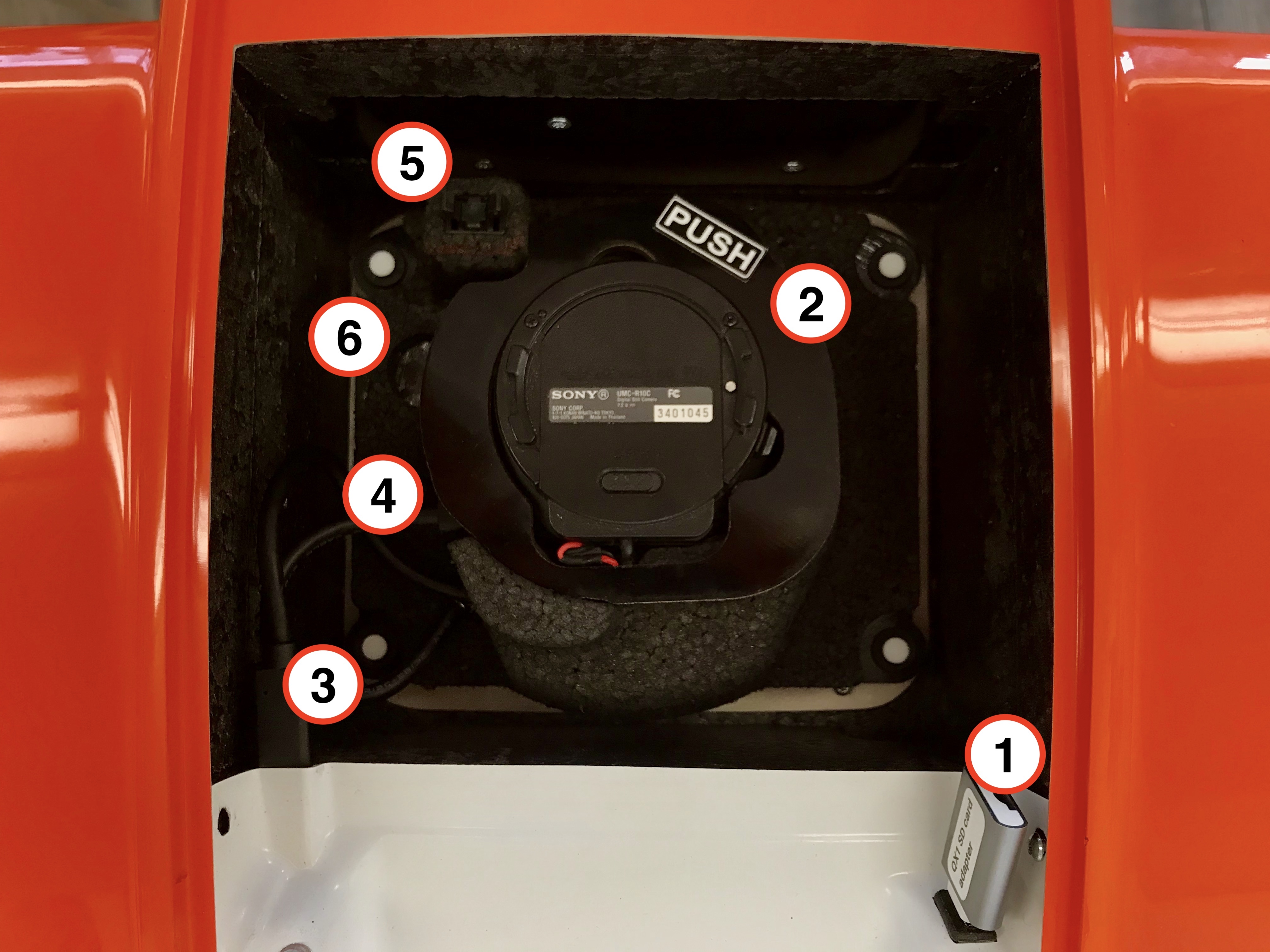
- Make sure that all the camera cables are correctly connected (see picture below)
- Make sure that the camera is powered on (green LED on the camera housing). If WingtraOne is powered but the camera is not, double check the cables before submitting a support request
Q: Camera: Why are my images too dark?
- Increase shutter time. See also the QX1 chapter
Q: Camera: Why are my images too bright?
- Decrease shutter time. See also the QX1 chapter
Q: Camera: The icon of the camera is grey and I cannot see the parameters, what do I do?
- First check that your WingtraOne is connected to WingtraPilot
- Then try to open a new flight plan with the QX1 camera and the corresponding lens selected
- Try to press the camera icon. If the icon is still grey, check the wiring as shown in the image above. Re-power WingtraOne and check again before submitting a support request
Q: Camera: Some of the parameters are red, what do I do?
- The red color on a parameter means that either WingtraPilot could not retrieve this parameter when it is connected to the camera, or that the parameter that we wanted to change did not change.
- Press the refresh button. In this way you will query the parameters on the camera, and you can be sure that every parameter that becomes white represents the actual value on the camera. Now try again to change the parameter (if you want to change)
Q: Camera: I get the message "Param set "XX" timeout (no answer)," what does this mean and what should I do?
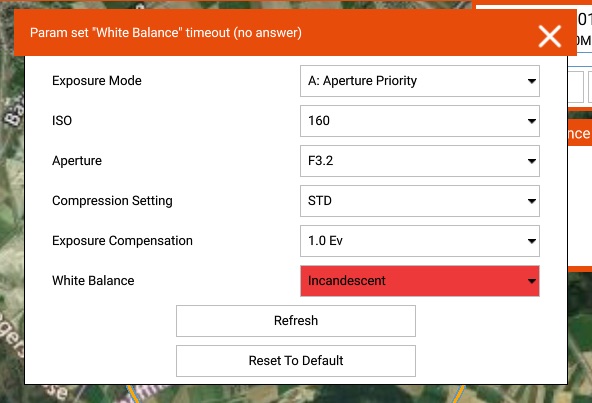
- This warning comes when you are trying to set a parameter on the camera, and for some communication problems WingtraPilot is not aware of whether this parameter was set correctly or not
- First press the refresh button in order to see the actual value on the camera
- Try to set this parameter again