This article explains the focus calibration for the QX1 camera if the images are blurry
When there are blurry images after a flight, check first whether there is dust/water on the lens. If this is not the problem, it is likely that the focus needs to be adjusted.
- The QX1 + 15mm lens has a calibrated mechanical focus. To check if it set to infinity, take the camera out of the mount and check if the focus ring is turned to the infinity sign.
- The QX1 + 20mm lens has calibrated focus settings. If you have had a flight with blurry images, and there is no dust or water on the lens, perform a focus calibration as described below:
- Go to an open space outdoors. Make sure to bring the tablet, telemetry, WingtraOne, middle stand, installed QX1 with 20mm lens, and the QX1 SD card (which is plugged into WingtraOne directly).
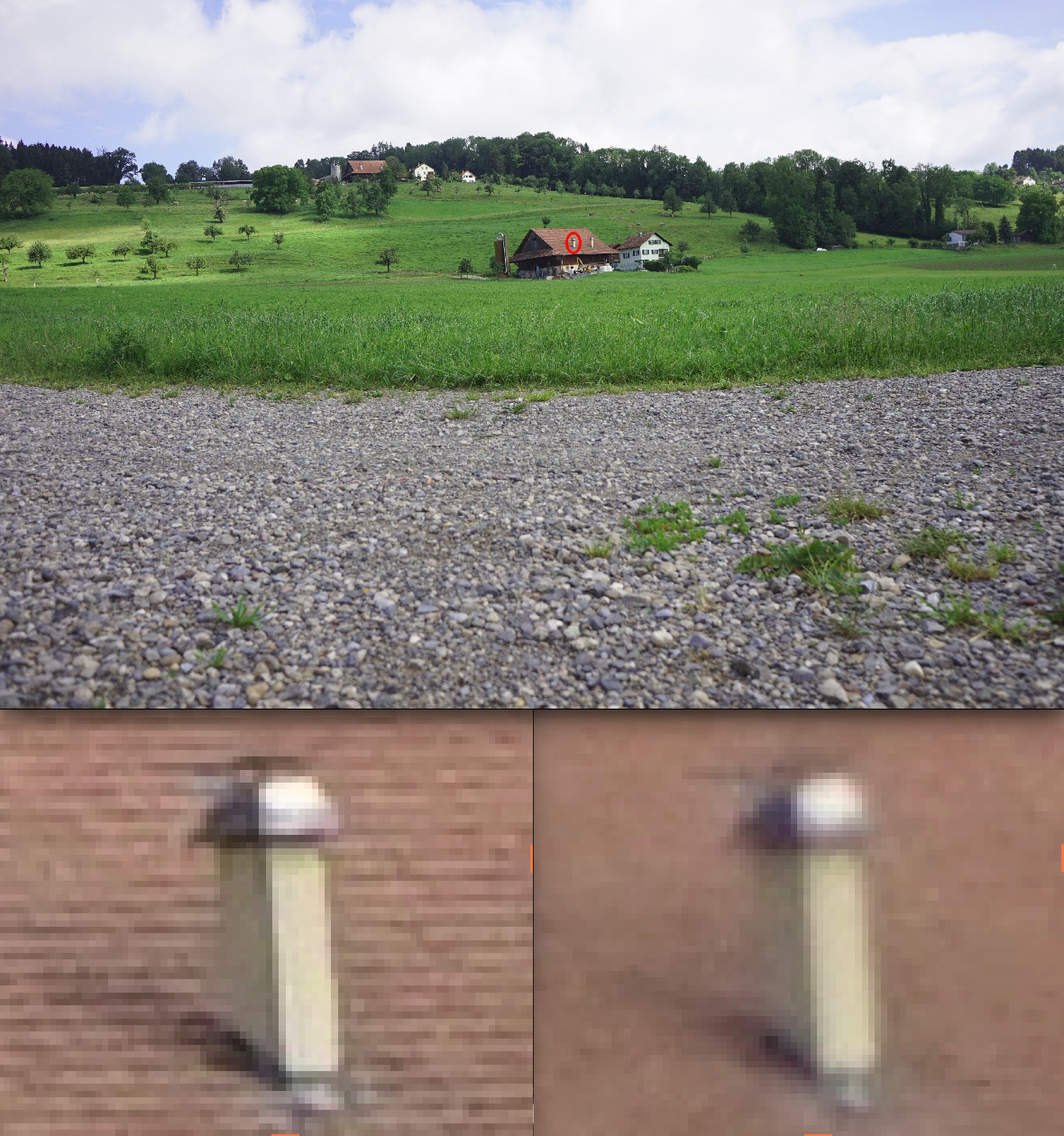
- Insert middle stand, place WingtraOne on the ground and point the camera to objects with good contours that lie at least 70m away (the building in the sample image below is in fact ~200m away).
- Power WingtraOne, connect telemetry to tablet, start WingtraPilot and open settings --> camera focus. If you do not see the menu, check that you connected a QX1 20mm payload to your WingtraOne.
- Read the instructions and start the calibration. Wait for three minutes until the seven calibration pictures are taken.
- Once the calibration is finished, unpower WingtraOne, get the QX1 SD card from the adapter that is plugged into WingtraOne and insert it into a computer (you can go back to the office for the following steps). You will find a .tar file containing the images (use, for example, 7-Zip, WinZip, WinRar to unzip). Open the first image, zoom into an object that is >70m away and go through the seven images (see sample image below).
- Identify the sharpest image. Note the focus value of this image (you will find it in the image name).
- Delete the .tar from the SD card, insert it back into WingtraOne and power the drone. Connect again with WingtraPilot, navigate to settings --> camera focus, and add the focus value manually.
- Verification (optional): point the camera again to objects >70m away, power WingtraOne and manually trigger some pictures (see picture on top for the manual trigger button location). Unpower WingtraOne, get the SD card and check the images (you will find them in the DCIM folder).