This article explains how a shipment is set up.
Overview
This article aims to cover the needs of sales, support and internal drone orders. For all these different groups of users there is a similar workflow. You will have to create a deal on HubSpot.
1. Creating a deal
When creating the deal you are asked to fill required fields. In the end, make sure to associate a deal with a company and the correct contact from that company.
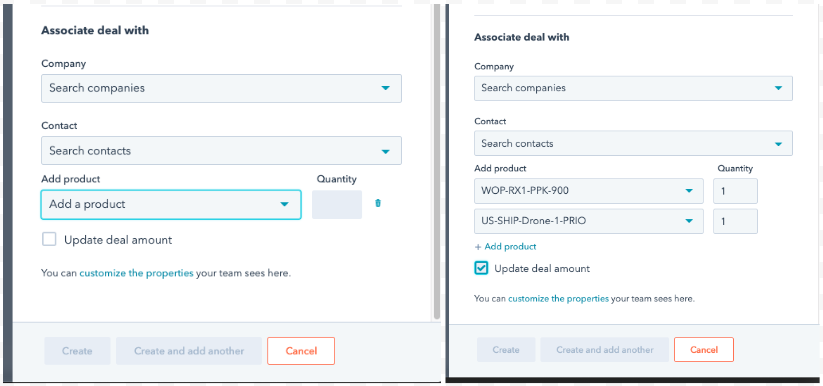
Select products also known as line items:
Scroll all the way down in the sidebar when creating a new deal and select the desired products from the dropdown. You can change these later.
Or add them in the deal after you created the deal.
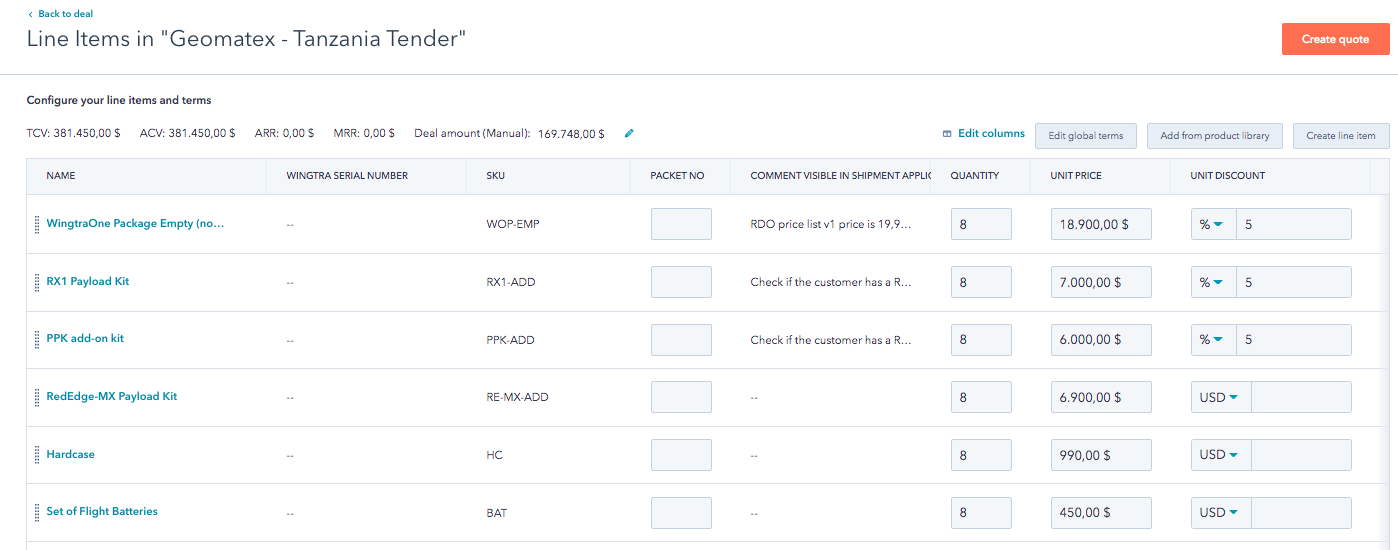
Once the deal is set up and you have to send offers to a potential customer you will have to create a quote to send to the customer. Once the customer is ready to purchase, you'll also have to create an invoice.
2. Creating a shipment
Before you create a shipment make sure:
- You selected the right products
- You have checked the product types. Read this article that explains how to do that.
- The customer filled the import questionnaire
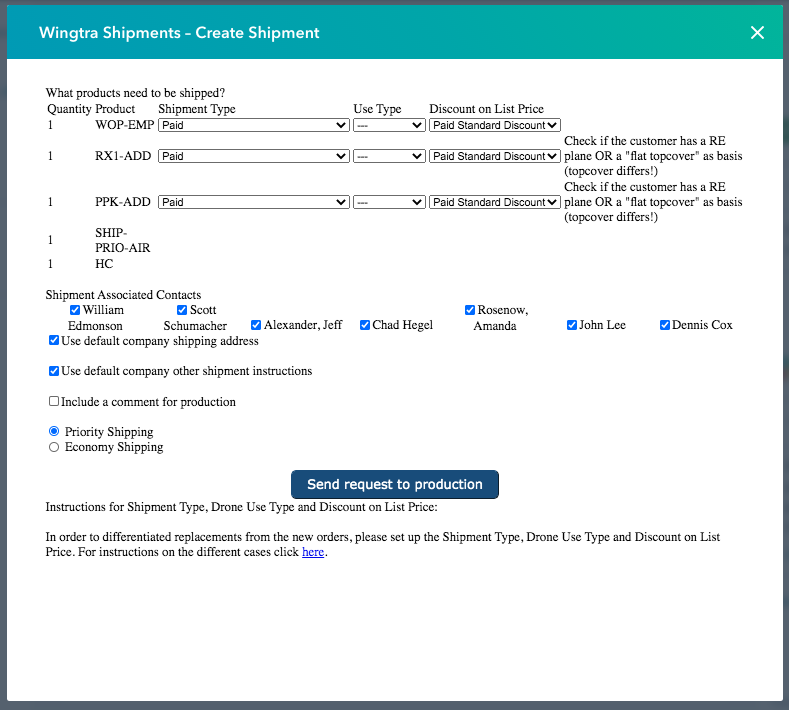
Once all is ready to create the shipment follow these steps:
- Navigate to the shipment interface.
- Double check all the information
- Comment from sales manager
- Confirm Associated contacts/company
- Double check shipping address
- Double check shipment instructions
- Add a comment if needed
- Send request to production
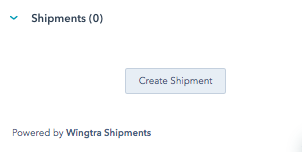
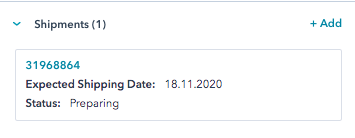
Once you submitted the shipment you can track the fulfillment status and the expected shipping date. The shipment is associated with the deal.
3. Clearing a shipment
Jasna & Stephanie regularly check all shipments to schedule and clear them. Generally, Jasna is responsible for shipments put in by the wizards, and Stephanie for sales shipments.
Clearing:
-
- Check shipment properties (address, line items etc.)
- Check if line items match "product list"
- Check shipping address
- Check comments from sales manager
- Set fulfillment status to "cleared"
- Once cleared = ready to be processed
- Jasna/Stephie: Assign expected shipping date
- Check capacity here
- Add date according to capacity
- 14 per week
- Check shipment properties (address, line items etc.)
Shipment cycles: Wednesday and Friday are fulfillment deadlines. In corner cases it can be that the shipment is picked up on Thursdays or Mondays. The expected shipping dates are set to Wednesday (max 7 units) or Friday (max 7 units). In case capacity changes, Michi informs Jasna/Stephie.
Edit shipments
As long as the status is not cleared you may change your shipment in HS.- Adding or removing products in the deal
- Everything else, such as changing address etc. in the shipment directly
Product changes must be done in the deal!
Viewing shipments
All orders are can be viewed either in the deal (internal) or on the distributor dashboard of the respective reseller.
If a reseller requests the passcode, you can locate it in the company information. Go to the company page, select view all properties and you will find the passcode in the Wingtra fulfillment section under Passcode to Display Shipments in Distributor Portal.
Special orders (mainly for Wizards and reporting)

See here for more details on price of a wing or replacement wing.
Further notes on how to setup shipments from a support perspective can be found in this google doc here (notes from session in Zurich).