Most commonly used properties to filter contacts, drones, companies.
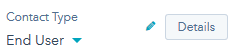
How to see a property description:
- In the left sidebar of contact go to the property and click on the Details.
Key properties used to filter contacts, drones, companies.
Contact properties:
- Contact Type
- End User
- Reseller
- Drone
- Include person in
- Support Coordinator
- Assigned reseller
- C.S.S. Precise Systems (Israel)
- Geosistemas SRL (Argentina)
- ...
- Onboarding checklist
- Visited KB
- Logged in to distributor.wingtra.com
- Reported a sale (distributor dashboard)
- Customer Success Manager
- Contact Owner
Company Properties:
- Type
- Customer Success Manager
- Company Owner
Drones properties:
- Owned by
- Drone use type
- Is sold or owned by end user
- Drone Status
- Email from drone registration
- First name / last name from drone registration
- Drone registration date
- Warranty start date
Ticket properties:
- Ticket Owner
- Ticket Status
- WingtraOne ID
- Ticket Owner Engineering
- Product Issue Criticality
- Damaged / Malfunctioning Parts
- Ticket Main Category
- Addressability
- Number times contacted
- Time to first reply
- Time to close
Using a condition in a filter:
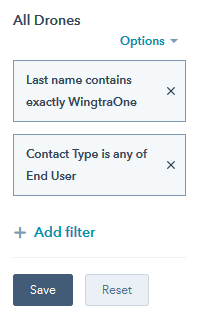
Any property you choose, you can define how to filter the data by using the conditions:
- is any of
- is none of
- is known
- is unknown
How to save your filter:
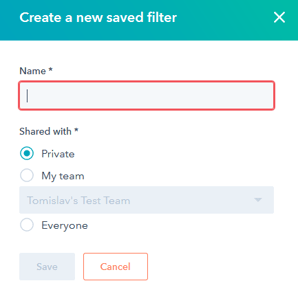
- To save a filter, click on Save, define a name and sharing details.
Saved filters from others:
- To see all available filters (that are shared with others) click on All saved filters:
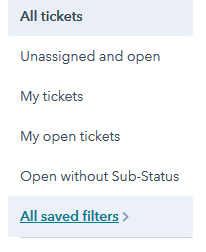
- Select the filter you want to see
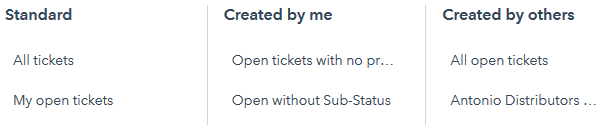
- Example All drones filter
- Last flight
- Software version
- ...
Counting of objects in a filter:
- Check the count of objects you filtered by checking the number in the filter conditions area:
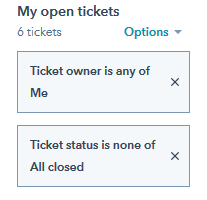
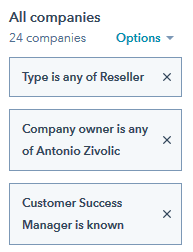
Adding your filters to favorites:
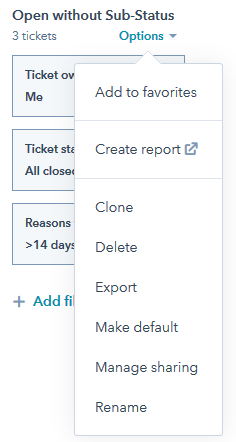
- To add a filter to my favorites, click on the options and Add to favorites: