- Help Center
- Wingtra Internal
- Known issues
Debugging guidelines - PPK issues-outdated
Check out the flow chart guide to get help in debugging PPK issues:
WingtraPilot PPK warningWingtraHub processing fails:
- Get the DATA folder from the customer and put it onto a computer with the SBF Analyzer tool installed.
- Check if all three files are available:
- WingtraOne.sbf
- WingtraOne ForwardProcessed.sbf
- Base.sbf
- Right click on the SBF file and select "Analyze SBF file."
- A new SBF Analyzer window will pop up. Select only the following plots to be shown: carrier to noise, number of satellites, planimetric plot and general information. Click onto carrier to noise, then plot options and select L1 or L2 for GPS and GLONASS.
- Click "Analyze" to start the analysis.
General parameters to check
- In the number of satellites window, check if the average number of satellites is sufficient. In normal cases, there should be at least 20 satellites in total.
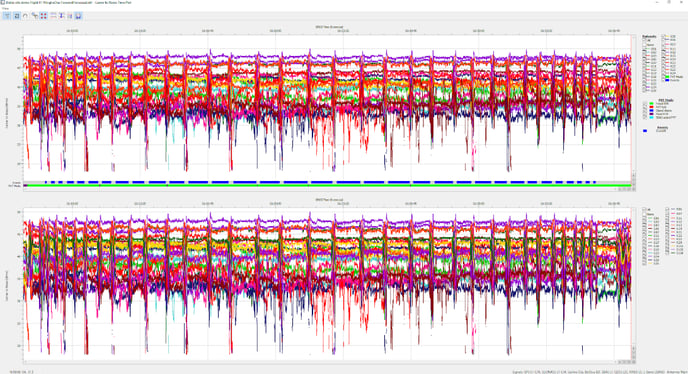
- In the carrier to noise window, check if the carrier to noise fulfills our requirements:
- L1-C/A, L1-C/A: best satellite over 45 dB, 7 satellites over 40 dB
- L2C, L2-C/A: best Satellite over 36 dB, 7 Satellites over 30 dB
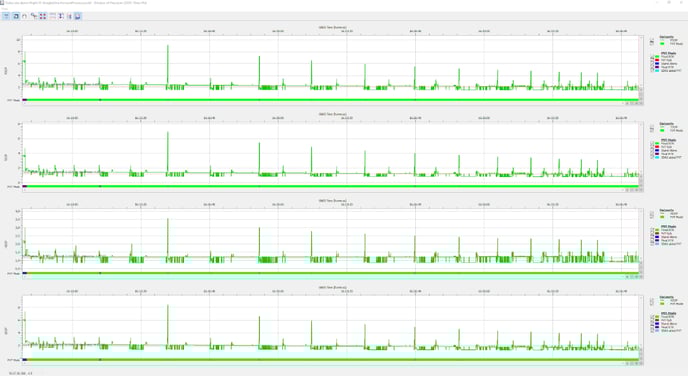
- Dilution of Precision < 5: good satellite geometry
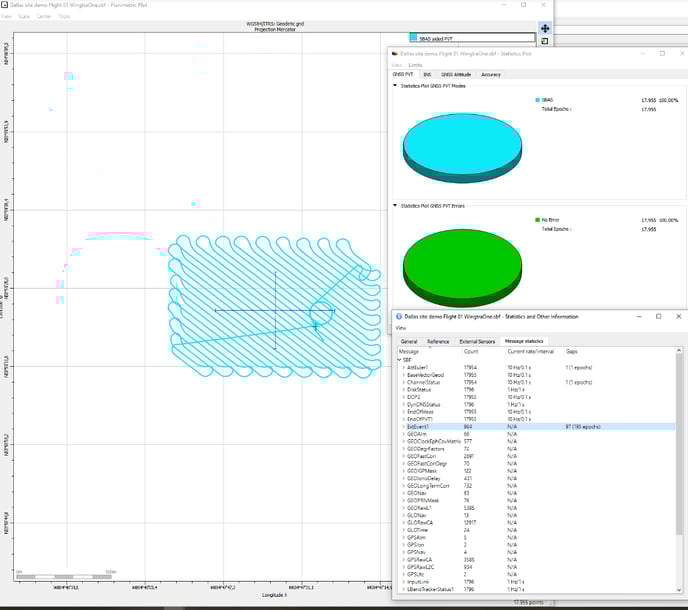
WingtraOne.sbf
- SBAS aided PVT
- General information -> Message Statistics -> ExtEvent1 = # Images
WingtraOne ForwardProcessed.sbf
- Fixed RTK
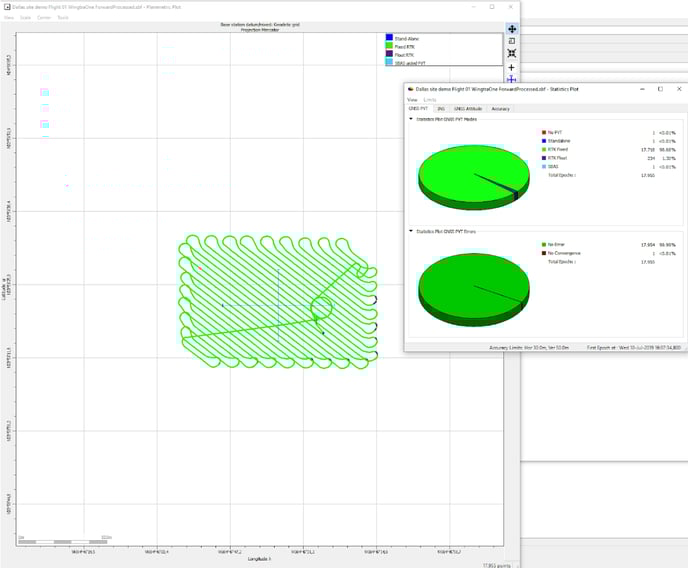
- Blue vertical lines below graph indicate triggers: Check regular spacing