Re-flashing the telemetry can help if the user experiences telemetry issues.
Start with the telemetry unplugged. Start with the ground-station first.
- In Wingtrapilot open Settings -> General
- Change the user mode to "Wingtra"
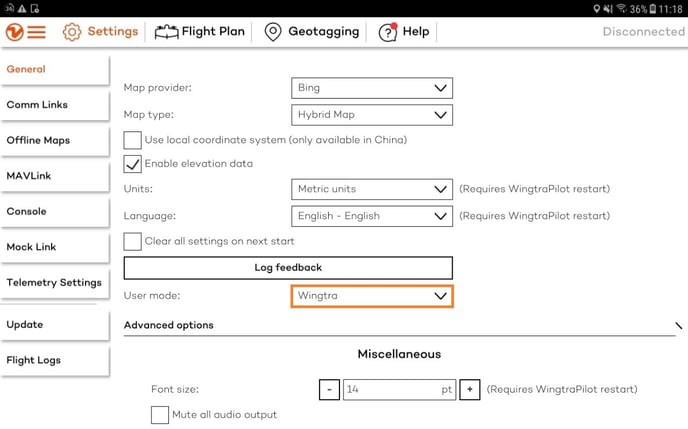
- The password to be entered is: Wingtra.1
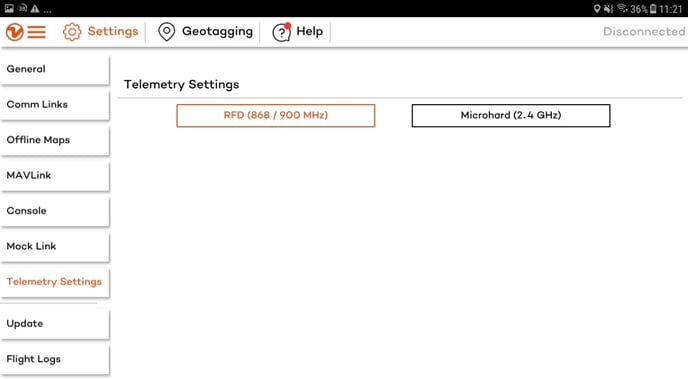
- Click on the tab "Telemetry settings”

- Select “RFD ( 868 / 900 MHz )”
- Connect the telemetry to the tablet by plugging in the cable.
- Two windows should pop up:
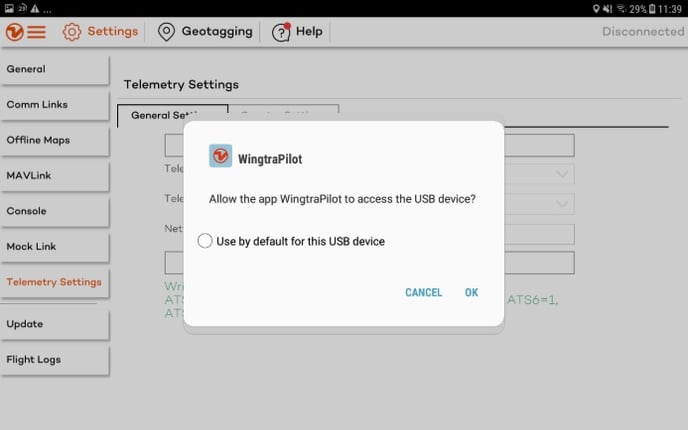
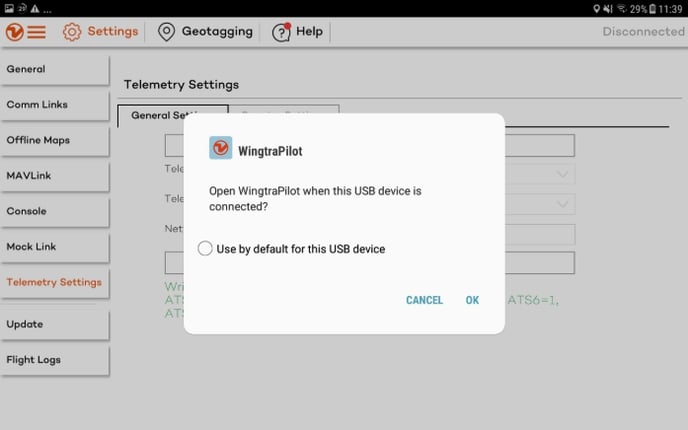
- Click “OK” for both of them
- Two windows should pop up:
- Click “Connect to Telemetry”
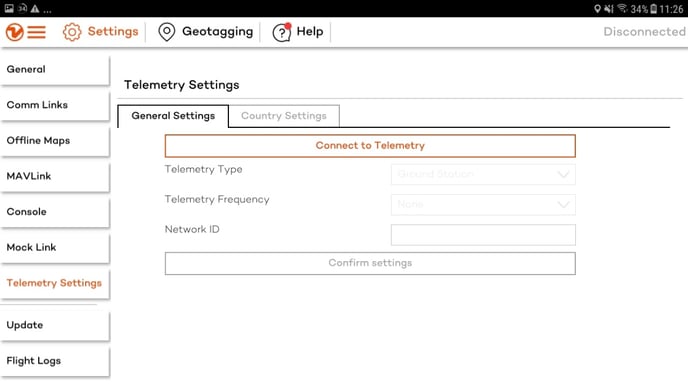
- Set "Telemetry Type" (Ground Station/Air Module). Start with Ground Station.
- Set "Telemetry Frequency" (900 MHz for US / 868 MHz for Europe)
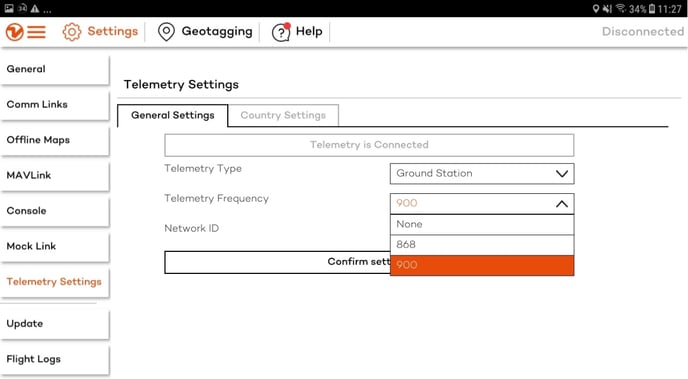
- Set "Network ID" to 123
- Click on "Confirm settings"
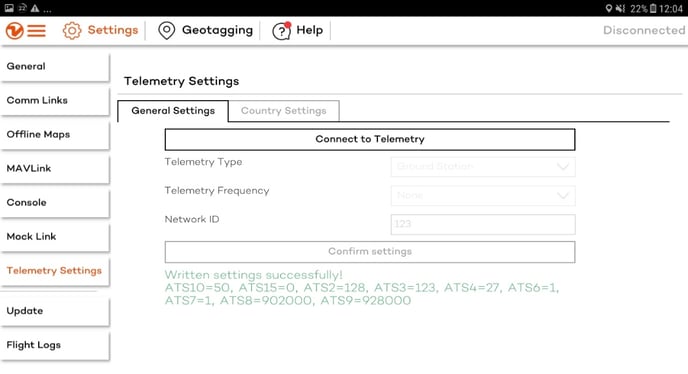
- Check if the message says "Written settings successfully !”
- If an Error message pops up - please report to support !
- Now repeat the same scheme, just with the module inside your Wingtra one. For this please follow the video instructions here. The video shows how to connect the tablet to the module inside the drone and how to reach the default state afterwards again.
While you go through the steps with the module inside the drone, make sure to select “Air module” on step 8 when you are flashing the module inside your Wingtra Drone. - If you were able to set up both telemetries successfully and everything is set back to its default state as shown in the video, test the telemetry connection by connecting the ground station with the tablet and then powering up the drone. If all is good, WingtraPilot should connect to WingtraOne.