This article is here to help you to initiate a shipment. Shipments that are handled by the support team are often replacement wings or parts, but can also include orders of new items (e.g. additional payloads or new drones).
For every shipment we create a deal in Hubspot.
Create a deal:
- Start creating a deal:
- If you create the deal in the ticket view (right sidebar), the deal is automatically assigned to the ticket
- Or directly in Sales -> “Create deal”, you can also assign it to a ticket when it already has been created.
- Deal name: Item plus the name of the company ( if replacement: put WingtraOne ID and replacement "name of the company")
- Deal pipelines: select “Support - Direct” or “Support - Reseller”
- More information to all pipelines used by Support
-
- Support - Direct
- Shipments of new items (paid or warranty replacements) to direct sales customers.
- Support - Reseller
- Shipments of new items (paid or warranty replacements) to resellers. Items for end customers of resellers are also shipped to the reseller and are part of this pipeline.
- Support - Returns and Repairs
- Items that are returned from a reseller or direct customer to Wingtra
- Support - Direct
-
-
- Detailed documentation can be found here: Return Shipments and Repair Process
-
- Deal stage:
- contract discussion - not clear if the customer wants the item
- payment pending - they haven’t paid yet
- closed won - If it is a warranty and the customer agrees to replace it. Or the customer has already paid for the item.
- Amount: Price (can be updated later, will be displayed in deal name, if warranty = 0)
- Close date: Date when deal should be paid. In warranty case it can be today.
- Deal owner: the deal creator
- Is initial order: is it the first shipment to this customer? (if yes, they will receive a welcome mail from support)
- Type of order:
- paid - if not warranty or order of something new
- Free under warranty - if warranty (e.g. technical failure, Wingtra goodwill)
- Wingtra inventory at distributor - our drones at distributors place (Warranty express units).
- Country: Where customer/reseller is from
- No. of drones: if the shipment includes a drone 1, if not 0, wing is counted as drone
- Customer reference: not relevant for support
- Signing date: Date when they agree to buy the item. If warranty, you can put today's date.
- Is temporary export?: If the new drone will replace a drone that has been temporarily exported.
Use the following snippet to clarify with the customer:
- If plane needs to be returned for investigation or repair:
- If only replacement drone is sent
Associate deal with:
- Company
- Contact
- Add a product
- check in shipments v2 - product catalog (if you can't select the product, select it afterward)
- If the product is not available in the product catalog click on "Add Product" and give it a name (do not specify SKU and price).
- Standard Examples:
- WOP: WingtraOne package (wing + pilot box)
- Win: wing only (no pilot box)
- Discount: applied to the distributors
Create an invoice (only for non-warranty cases)
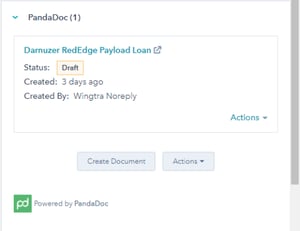
- Click on “Create Document” under the PandaDoc section in the deal on the right.
- Sign in to panda doc
- The password is in wingtrabook
- Create an invoice using the following templates
- Invoice (Distributor)
- Invoice (Direct Sales)
- Wing Replacement Invoice (Distributor)
- Assign people to roles
- Customer: name of customer
- Wingtra Rep: the person who creates the invoice
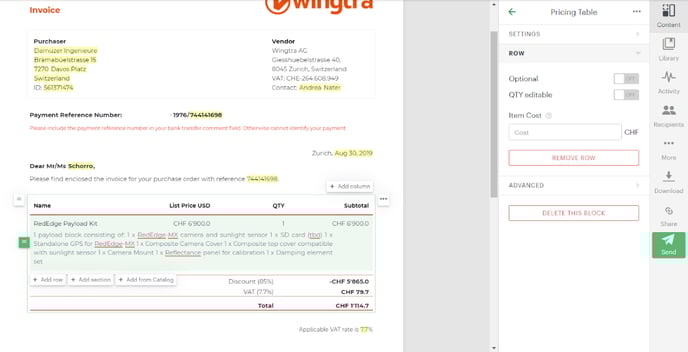
- Remove not needed items from the invoice
- Check all tokens (yellow highlighted text)
- Click into the row and click on remove row on the right
- Select the required items by clicking on “+Add from Catalog”
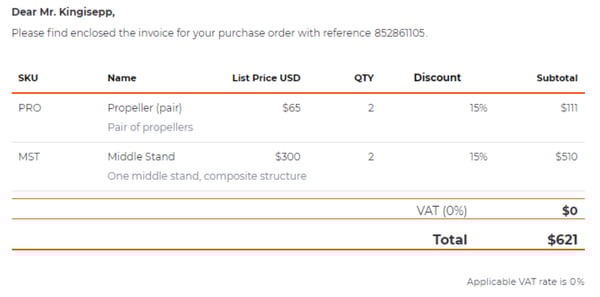
- More information about the items, prices, reseller discounts can be found in the product catalog tab.
- Direct customers pay the list price
- Distributors get the discount according to the product catalog (discounts are different for different items)
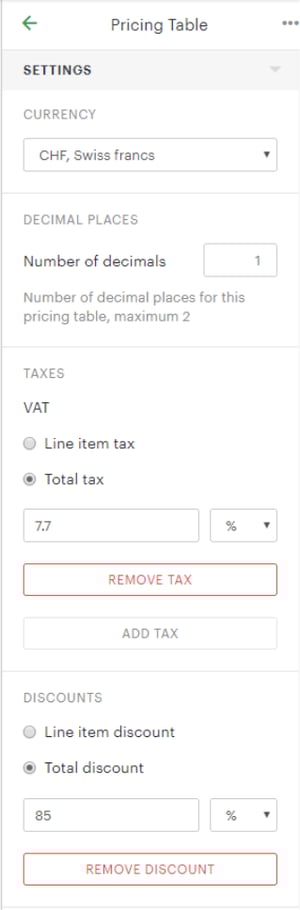
- Change Pricing Settings by opening up the Settings tab in the Pricing Table column on the right.
-
- VAT
-
-
-
- Switzerland: 7.7%
-
-
- Otherwise: 0%
-
- Currency
- Switzerland: CHF
- Otherwise: USD
- Add shipment costs
- If the shipment costs are unknown, inform the customer that they will be charged after the shipment is done.
- Inform Larissa that the shipment costs will be paid by the customer/reseller
- VAT
- Give a descriptive title to the document and send it together with a short email to the recipient.
Create shipment
- Generally, shipments are only created once the invoice is paid. In Support we often do exceptions, if the customer already ordered items before and paid his previous invoices or if it is under warranty (no payment required).
- In case warranty assessment has not been finished but a fast replacement is requested, clarify with the customer if he would pay expenses in case it is not a warranty case. If he agrees, we can already ship the replacement parts.
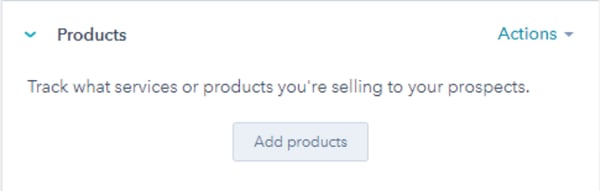
- Add Products - in the right sidebar in the deal view
- If you have not already when opening the deal, add the products that need to be shipped
- Create shipment - in the right sidebar in the deal view
- Only create the shipment if everything is clear

-
- Product and Quantity should be displayed automatically
- Change the added products if it is not correct
- Product and Quantity should be displayed automatically
-
- Add Shipment Type (for more details click here)
- Paid
- Replacement (under warranty)
- Replacement (paid)
- Internal use Wingtra
- New/ additional WID
- Add Drone Use Type (for drones only) (for more details click here)
- Retail unit - if the drone can be sold or is sent to end customer or direct sales customer
- Demo unit- if reseller uses the drone for demonstrations (e.g. replacement of demo unit)
- Rental unit
- WID unit - Warranty Inventory at Distributor: Drone belongs to Wingtra but is located at the resellers location. Can only be used if we instruct them to use it in case of a warranty. Select this option if shipment will replace e.g. wing of existing WID.
- Add Discount on List Price (for more details click here)
- Paid Standard Discount
- Paid Demo Discount
- Paid Edu Discount
- Paid Other Discount
- Internal use Wingtra
- WID not paid
- Free under warranty
- Add Shipment Type (for more details click here)
-
- Shipping address
- Clarify the shipping address (#shipping address)
- Default shipping address is provided in a HubSpot property of the company
- Shipment instructions - leave default company instructions as a default
- Comment for production:
- only include if it is necessary (e.g. ship asap or add a product which is not available in product catalogue)
- If you are doing an upgrade to GEN II, make sure you open a return deal as well as add the following comment: 'Please include folded card box for the return of the PPK module '. Also, make sure to inform the customer what is needed to return the PPK module back to production.
- As default select priority shipping
- Shipping address
- Check the Hubspot shipment tab:
- Search for the Object ID of the shipment
- You can also search for the 'Legacy Wingtra Shipment ID' using a filtered view
- Click on 'Review' and set the status of the shipment to 'Cleared' if everything is fine/clear and ready to be shipped
-
- Set to “Missing information” or “Blocked” if not everything is clear
- If it is empty make sure you have inserted a comment in the field 'Comment by Sales manager' which will be reviewed by Jasna while clearing the shipments
- More info on how to find and clear shipments:
- Jasna assigns an expected shipment date 2 times a week
- Shipments that are created until Tuesday afternoon will be fulfilled until Friday the same week
- Shipments that are created until Friday afternoon will be fulfilled until next Wednesday
- Available capacity for a specific cycle can be found here
- Cycles can be monitored in a graph view
- Go to the desired cycle date, hover over the column and check value under Totals. If <7 then we still have available capacity for the specific cycle. If there is no value then we have maximum capacity available for the specific cycle.

- Tracking the shipment - Fedex tracking number is provided in the shipment sheet
- you can just copy and paste it in google to track the parcel
- You can also find the shipment using filtered view in the Shipment tab and searching for the property Tracking Number.
- In case a v3 wing replaces a v2 unit, use the following snippet to instruct the customer on the changes. #replacementV3