- Help Center
- 2. Flying and Data Acquisition
- Payloads and Their Settings
Set your RX1 camera to mass storage mode
Follow these instructions to set your camera in mass storage mode when the USB connection is set to Auto.
1. Make sure the WingtraOne is not powered
2. Disconnect the micro-USB cable from the RX1 camera
3. Power on the WingtraOne using the flight batteries
4. Verify that the camera is powered on
5. On the camera press "Menu“
6. Go to the trunk tab page 3, using the wheel button left/right
7. Select "USB Connection“ by pressing the wheel button up/down and press the center button of the wheel
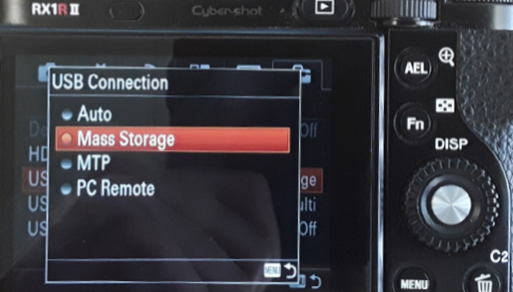
8. In the submenu select "Mass Storage“ and press the center button again
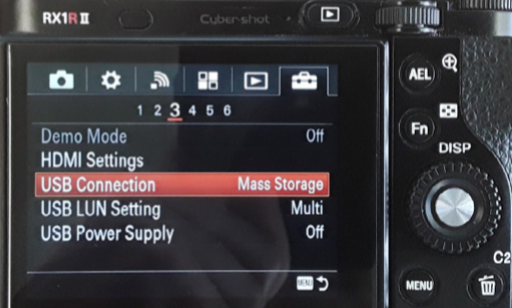
9. Press the menu button to go back to the original screen
10. Save the setting permanently with the following steps:
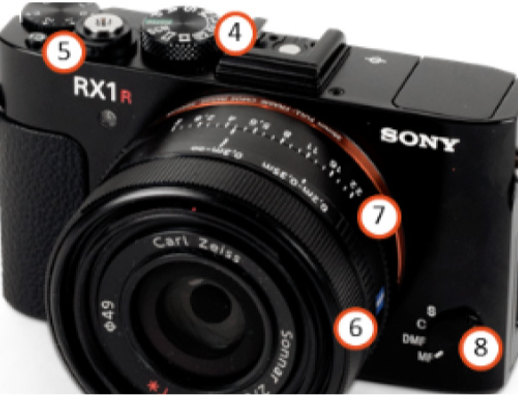
a) Turn the camera off using the on/off switch (5) on top of the camera
b) Wait 2 minutes
c) Turn the camera on again using the on/off switch (5) on top of the camera
11. Power off WingtraOne
12. Reconnect the micro-USB cable to the RX1 camera
13. Power on WingtraOne
14. Open the WingtraPilot app and connect the telemetry module
15. Check whether the camera icon turns black after approximately 1 minute