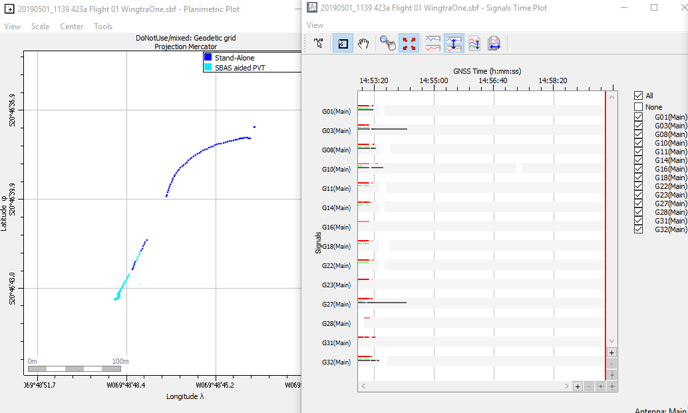
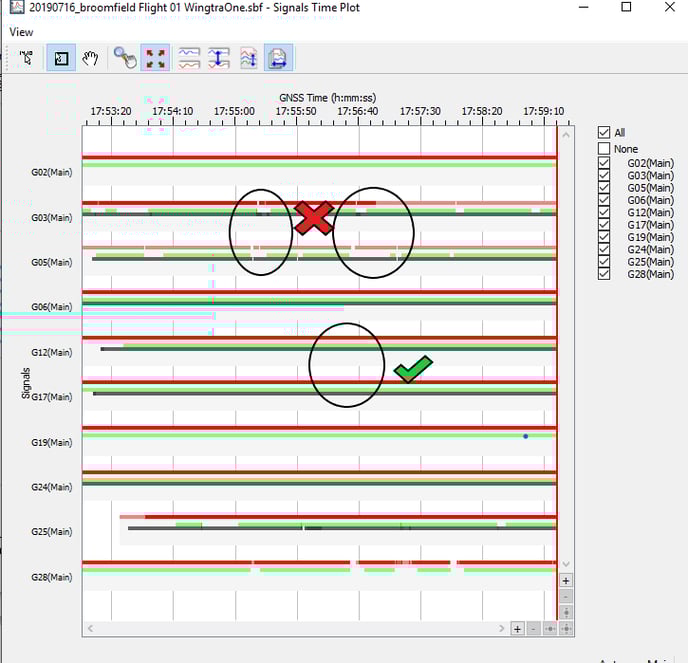
After a WingtraOne PPK flight mission, you will find an SBF file in the DATA folder that contains our GNSS data for PPK Geotagging. It is important that this data is error-free, because once you leave the field you will likely not be able to fix it. The following steps will guide you through installation and using the quality control software, SBF Analyzer.
Download RxTools
Septentrio is the manufacturer of the PPK receiver we use on WingtraOne, so in order to analyze the files, you'll need to download their program called RxTools via one of the following methods:
- Download the program online from Septentrio support (note: you may need to provide an email address)https://www.septentrio.com/en/support/software/rxtools
- Open the orange USB provided with the WingtraOne, navigate to the RxTools folder, and use the installer file to install
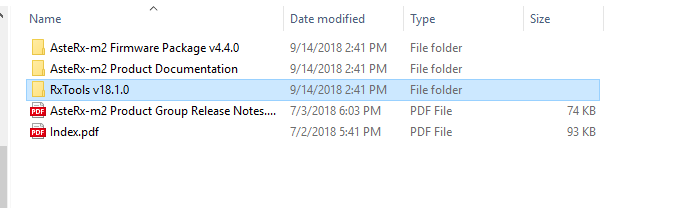
RxTools contains a series of software applications that enable the use of data from Septentrio’s products. The only application we need for SBF file quality control purposes is the SBF Analyzer.
SBF files
After every flight, there will be one SBF file in the WingtraPilotProjects DATA folder. After you process in WingtraHub you will notice there are three SBF files in the DATA folder that are automatically loaded.
Check this file while you are still in the field, before going to WingtraHub:

After WingtraHub: If there is a processing issue, analyze or send the folder to support with a screenshot of the error message in WingtraHub.
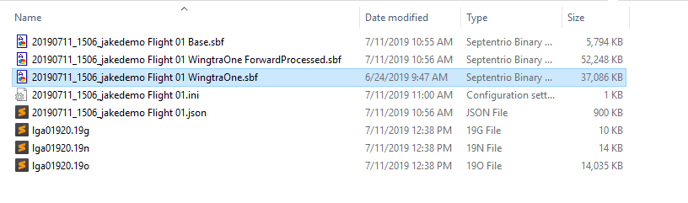
Do not modify the naming convention or delete files as it could cause issues.
Open up SBF Analyzer:
There are a couple of ways to run a file through SBF analyzer. Once the program is launched, a new pop-up will display.

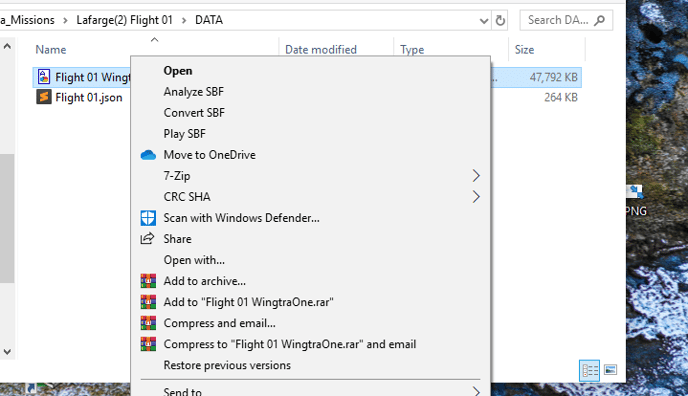
- Right-click on the file, and click Analyze SBF as is visible in the screenshot below.
2. Set default program to SBF Analyzer so that when you click the file it opens automatically
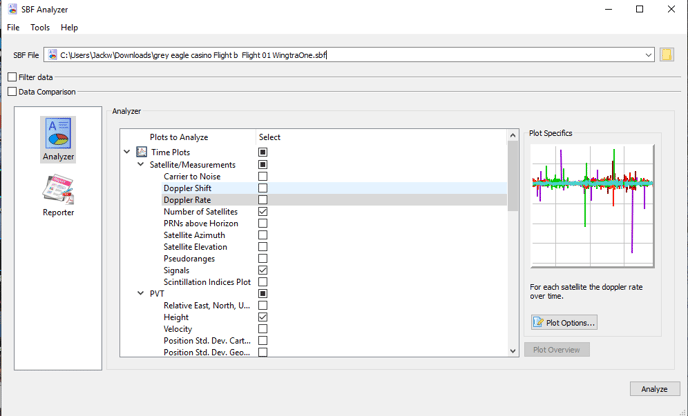
3. Open SBF Analyzer, and specify the file location as demonstrated in the screenshot below:
Navigating through SBF Analyzer
Once the location of the file is specified, we need to select which plots, graphs, and information to analyze. If you want details regarding each selection, click on the help tab and open up the manual to use as a guide.
- For simplicity, select only the following plots to be shown: carrier to noise, number of satellites, planimetric plot, height, signals, and general information
- Click analyze on the bottom right to begin the process
Analyzing the plots
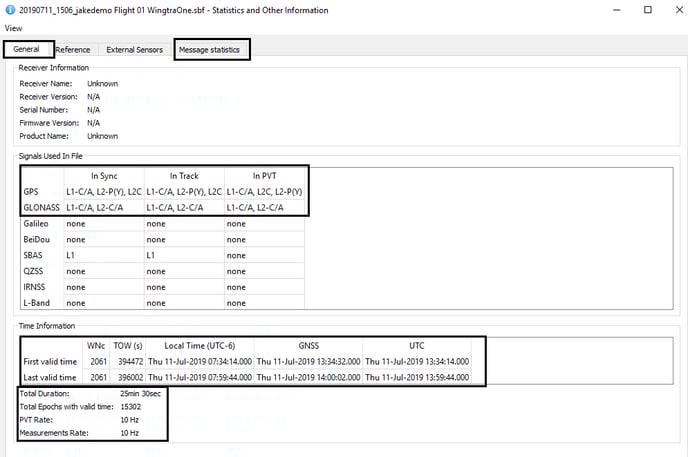
Start with the "General" tab visible in the screenshot below
- Check the time and date of the flight to see if it makes sense with the base station
- If the duration is under 10 minutes, this might indicate less accurate results or failed processing
- Check that there isn’t missing valid time
- Check that the signals are using GPS and GLONASS L1 and L2

Number of satellites:
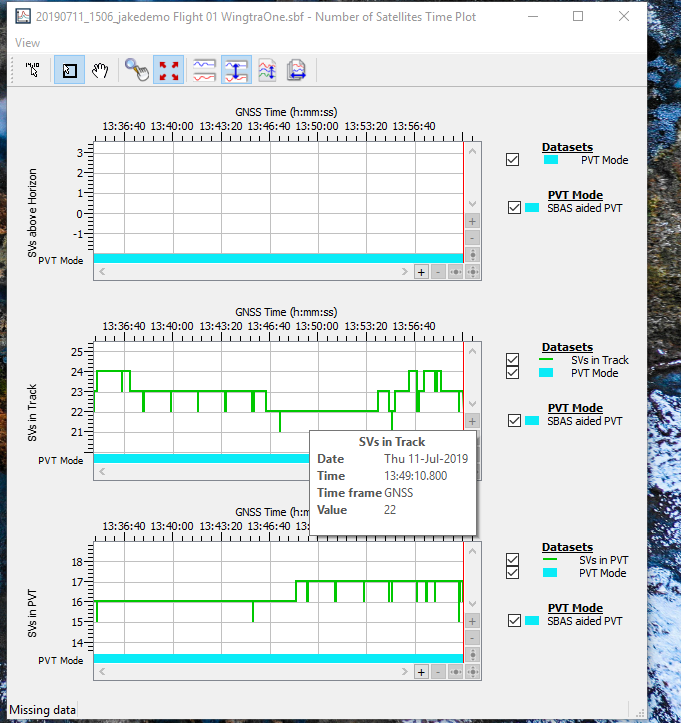
- Hover over the SVs in track and SVs in PVT. There should normally be around 20 satellites tracked
Carrier to noise window:
Check if the carrier to noise fulfills our quality control requirements.
- L1-C/A: Best Satellite over 45 dB, at least 7 Satellites over 40 dB
- L2C, L2-C/A: Best Satellite over 36 dB, at least 7 Satellites over 30 dB

Planimetric and height plot:
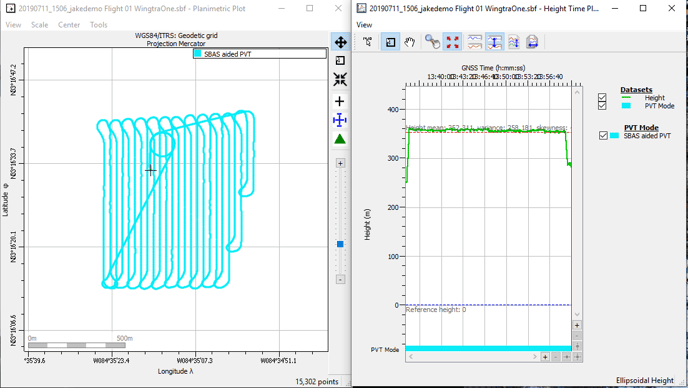
- Review the plot to see if it makes sense with the flight plan and that there are no gaps in the data. The planimetric shows the horizontal position of the flight plan every 10hz, and the height shows the drones vertical value.
Signals plot:
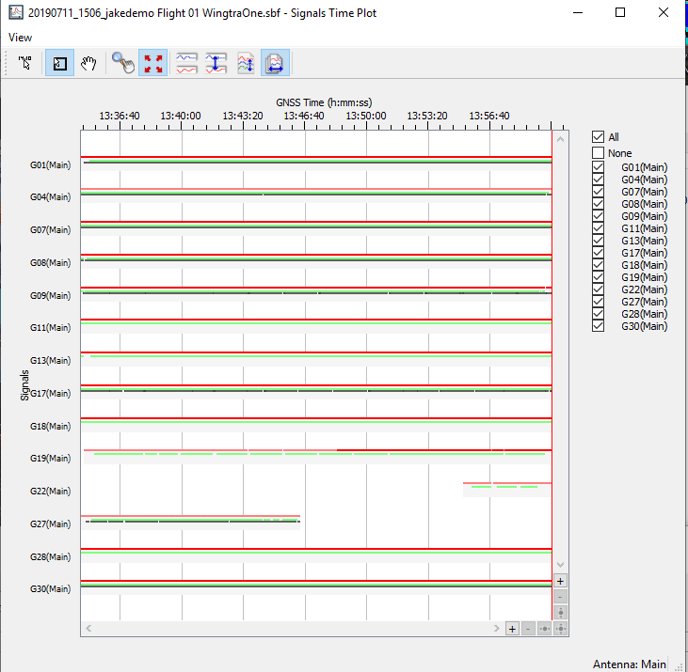
- Review the signals plot to check for the quality of lock. Look for cycle slips. If there are large gaps, the flight may be too short or the quality of tracking was not good.
Summary:
Here are the main things to check:
- That the SBF file is present in the data folder and that it contains data

- There is no missing data or gaps: check general info, planimetric, and height
- Photo triggers match images: check message under general info and image folder
- Time matches base file: check general information and RINEX
- Signal quality is good: check carrier and signals
Example of bad data: