- Help Center
- Customer Portal
- Access Logs
Resize images for faster transfer
If you need to send the IMAGES folder to Wingtra Support (e.g. geotagging issue), often the images can be reduced for faster upload.
The following process is only recommended in order to share images with Wingtra Support to analyze geotagging issues. For image processing full resolution is required.
- Download the image viewing software IrfanView under https://www.irfanview.com/ (if you do not have it already)
- Open IrfanView
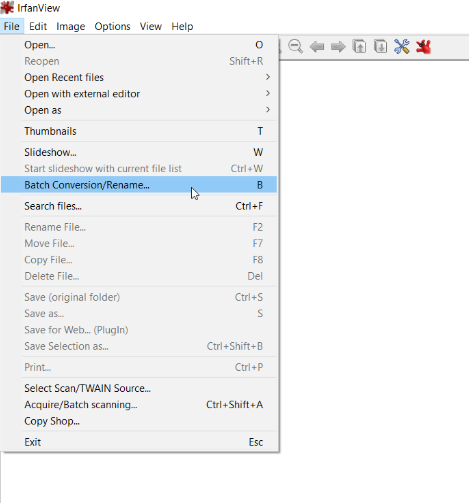
- Go to File > Batch Conversion/Rename…
- Select Batch conversion
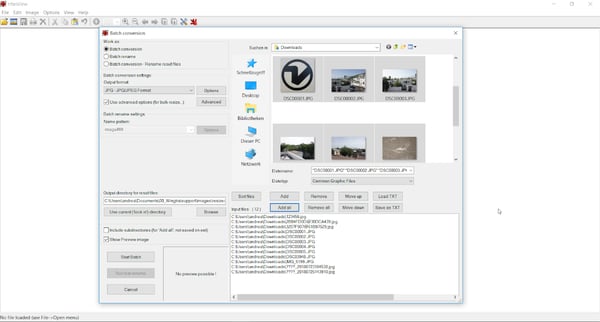
- Check “Use advanced options (for bulk resize...)”
- Click on Advanced
- In the new window: check “RESIZE” and “Set new size as percentage of original”
- Enter Width: 1%, Height: 1%
- Press OK
- Press on Browse under “Output directory for result files” and select a folder where you want to store the resized images.
- On the right side, choose the image directory, select all images and press “Add”
- On the bottom left click “Start Batch”