Guidelines on how to create a new repair or replacement article
Category
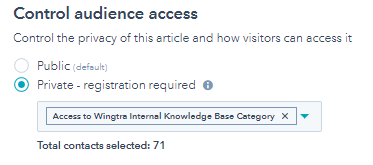
Place all the new articles under Wingtra Internal -> Repair/Replacement Internal and make them accessible only to Wingtranauts.
Top table
Create a table with 3 rows and 2 columns and edit the style:
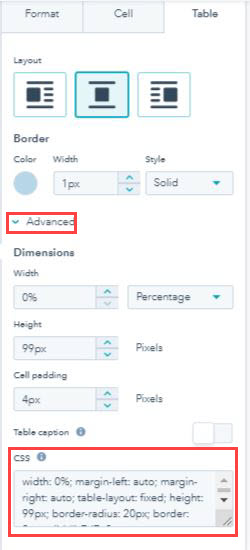
- In the Table tab, under Advanced copy the following CSS:
width: 100%; margin-left: auto; margin-right: auto; table-layout: fixed; height: 99px; border-radius: 20px; border: 2px solid #b7d7e8;
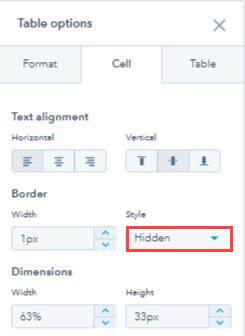
- Go to all the cells and make the border hidden
Box (optional)
Use a Tip box to recommend the customer that they should do the process themselves.
For a standard process that all customers should be able to perform, e.g. repair the side stands, use the following text:
This replacement is recommended to be carried out by all customers themselves. Wingtra's warranty is not affected by this replacement.
For more advanced processes that some customers might face issues to perform, e.g. rebind the RC or replacing drivetrains, use the following text:
Wingtra recommends customers to perform replacements themselves in order to minimise downtime. Wingtra's warranty is not affected by performing the below steps carefully.
Contact your local distributor if you prefer the replacement to be done as a paid service on your behalf.
Step by step instructions
- Group several steps into a broader title, e.g. Open the e-cover to reach the electronics compartment. Use Heading 4 for the title of each one of the steps.
- Create tables with 2 columns and as many rows as you need to provide the instructions of a step. In the first cell of a row, you place the image and in the second the text in bullet points, as you can see in the picture below. Make the borders of all the cells Hidden.
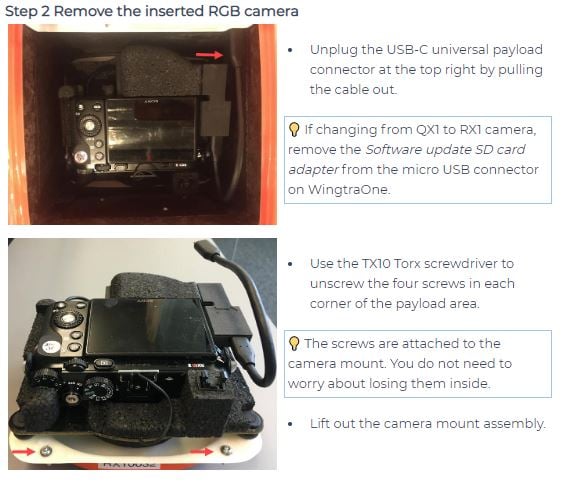
- For warnings you can use the ⚠️ and for notes the 💡. Create a table with one cell and place inside the warning or note message.