Step by step instructions on how to bind your drone with a new remote control (RC)
Wingtra recommends customers to perform replacements themselves in order to minimise downtime. Wingtra's warranty is not affected by performing the below steps carefully.
Contact your local distributor if you prefer the replacement to be done as a paid service on your behalf.
Select your drone type
a. WingtraOne GEN II drone
Step 1 - Open the top cover
Step 2 - Set the RC in Bind mode
Step 3 - Locate and press the RC receiver button (choose the design of your PPK cover)
Step 4 - Check the RC connection
To check whether the process is done successfully, please do the following:
- Power on WingtraOne
- Plug the telemetry cable into the tablet
- Power on the tablet, and the WingtraPilot app In the General tab press on the Advanced menu and press on the empty check box to enable RC. Once enabled you should hear audio confirmation that the RC connection is regained.
-
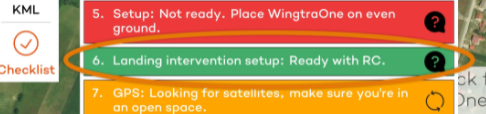
Make sure the telemetry connection is established and open the Checklist. Step 6. Landing intervention setup: Ready with RC should be in green as shown below:
b. WingtraOne GEN I drone
Step 1 - Open the top cover
In case the MicaSense RedEdge or Altum camera is inserted in the WingtraOne, you should remove the camera before moving on to the next step. See the instructions on the article Changing from RedEdge to RGB camera.
Step 2 - Open the e-cover to reach the electronics
Step 3 - Set the RC in Bind mode
- Insert the flight batteries and connect one battery to WingtraOne
- Power up the new RC
Step 4 - Locate and press the RC receiver button
Select your drone version
a. Press the RC receiver button on 2.4 GHz telemetry drones
The 2.4 GHz drones have 2 battery data cables connectors on the drone.
b. Press the RC receiver button on 868/900 MHz telemetry drones
The 868/900 MHz drones have only one data cable connector on the drone.
a. Press the RC receiver button on 2.4 GHz telemetry drones
b. Press the RC receiver button on 868/900 GHz telemetry drones
Step 5 - Check that the new RC is bound to the WingtraOne
Select your drone version
a. Check that the RC communicates with the WingtraOne 2.4 GHz telemetry
The 2.4 GHz drones have 2 battery data cables connectors on the drone.
b. Check that the RC communicates with the WingtraOne 868/900 MHz telemetry
The 868/900 MHz drones have only one data cable connector on the drone.
a. Check that the RC communicates with the WingtraOne 2.4 GHz telemetry
b. Check that the RC communicates with the WingtraOne 868/900 MHz telemetry
Step 6 - Close the electronics compartment
- Unpower the WingtraOne
Step 7 - Close the top cover
- Close the PPK lid by using the push button
- Close the top cover