For quoting and sending PO's to our customers and partners we can use Hubspot Quotes. This article explains the different settings that have to be considered when doing so. Note: invoices are still sent from Pandadoc!
- Create or go into the deal. Quotes/products can only be created in a deal.
- Select the products form the library.
- The products are shown with the default reseller discount. When clicking on the small pen you can modify the discount and price.
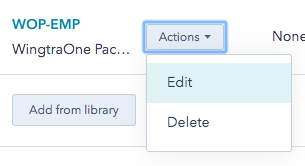
- When clicking on "Action" you can modify the product description or delete the product from your selection.
- Once the products are selected you can create a quote by clicking on the respective button.
- Quote details
- Quote template: we recommend to use "Template 3 - Modern"
- Quote name: double check that there's a nice and adequate quote name (it copies the deal name automatically)
- Expiration date: this refers to the validity of the quote and is not to be confused with the payment conditions. You can set 30 days or any other suitable date here.
- Comments to buyer: if you want to can add a comment that is displayed on the top of the quote.

- Purchase terms: Required for Direct Sales, optional for reseller
- Enter " #payment " and select the popup field
- Enter " #delivery " and select the popup field
- Reseller can add these fields as well, however, their terms are already defined in the reseller agreement.
- Additionally you can type whatever other terms you want to agree on.
For Direct Sales the purchase and delivery terms have to be in every quote! This is the only contractual agreement we have with the customer.
- Buyer information: Tick/untick the buyer
- Your information: no action required
- Review products: Review the products you want shown in your quote.
- Add remove products or change prices/discounts, quantities
- Attention: Add VAT of 7.7% here for our Swiss customers
- Signature and Payment: Include a signature if you require one. You can select between a space for a written signature or an e-signature (our preferred option)
- Review and create quote
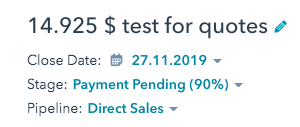
- Double check that the amount of the quote is the same as the amount in the deal.
The amount in the quote and invoice have to be the same as in the deal. This amount in the deal is reflected in the payment reminders!
7. Send to your customer:
The link to the quote can then be integrated in an email. The recipient can download the quote as a pdf.
Invoices are still sent from Pandadoc!!!!