This article clarifies the meaning of a list of errors that a user might encounter from WingtraOne and WingtraPilot. The errors appear as an audio output from the tablet and as text in the list accessible through the loudspeaker icon in WingtraPilot.
In normal conditions, without errors, the loudspeaker icon will look like this:
If the error appears the loudspeaker will change its form into the warning sign:

By clicking on warning, the list of events will appear where the actual error is visible: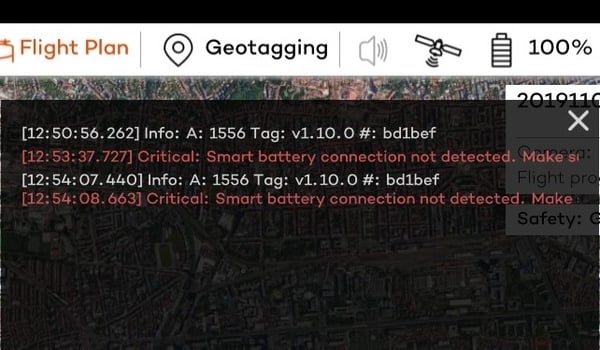
The warnings can be separated into categories depending on the cause of the issue.
Estimator error
WingtraOne's flight controller uses information from different on-board sensors (accelerometer, gyroscope, GPS, magnetometer, etc.) together with an estimation algorithm to estimate its own state, i.e. position, orientation, velocity, and so on, in real-time. This algorithm is called the state estimator.
If any of the errors mentioned below appear, please repower your WingtraOne and start with preflight check again. If the issue still appears, move WingtraOne to another take-off location and repeat the preflight check. If that doesn’t work, and the error appears consistently, get the flight logs and contact Wingtra Support.
- "Estimator error. Repower WingtraOne. If issue persists, please contact support."
- "Accelerometer inconsistent. Repower WingtraOne."
- "Gyro inconsistent. Repower WingtraOne"
- "Compass inconsistent. Repower WingtraOne"
To prevent estimator errors in the first place, place WingtraOne on the takeoff location and power WingtraOne now. In some situations, estimator errors appear if the drone is carried around before takeoff.
Magnetometer error
The magnetometer uses the magnetic field to define the WingtraOne's heading or direction. Flying with a bad magnetometer or without a magnetometer can cause the WingtraOne to fly in a totally wrong direction or, in the worst case scenario, crash.
- "Magnetic anomalies detected. Repower WingtraOne. If issue persists, please contact support." Magnetometer detects abnormal readings. This can be caused by magnetic field distortion from metal objects or electromagnetic interference from electronics and power stations. A possible immediate solution is to remove metal objects from your body and away from WingtraOne, place the WingtraOne in a location where it is far away from a strong magnetic source, repower the WingtraOne and try again. If all of the above fails to help, and this error appears consistently, get the flight logs and contact Wingtra Support.
Batteries error
WingtraOne uses two smart batteries as the power source. The smart batteries allow the WingtraOne to extract different information—state of charge, health, etc.—about the batteries that enhances safety when using them in flight. Instead of a single cell, two 99 Wh batteries are required to power up the WingtraOne, which eases the transportation process (airlines and air shipment do not accept batteries with more than 100 Wh). For more information about how to handle the batteries, please refer to the battery charging article.
- "Smart battery connection not detected. Make sure the cable is correctly plugged in." There will always be a black micro-USB cable on one of the paired batteries. This cable is the smart battery cable, which allows the WingtraOne to read more information from the batteries. A possible immediate solution is to check if the connector is properly plugged in, swap a different cable (you'll find such a spare cable in your pilot box) or batteries pair, to see if the problem is on the batteries. Otherwise, it is most likely the WingtraOne's connector which is faulty, contact Wingtra Support in this case.
Check if your WingtraOne provides 2 smart battery connector sockets. If yes, make sure both batteries are equipped with a smart battery cable. Find spare smart battery connectors in your pilot box or contact your dealer if you dont have enough for each battery.
- "Unequal battery levels detected. Make sure to use batteries at the same power level." The smart battery technology and cable allow WingtraOne to check if both batteries have the same power level and does not allow batteries with different power levels to take off. So please make sure you charge the batteries the right way and use them always in pairs. A possible immediate solution is to exchange another set of properly charged batteries. Otherwise, get the flight logs and contact Wingtra Support.
- "Batteries are overheated. Make sure to not expose them to the heat." WingtraOne batteries can only operate in the temperature range of 10°C to 40°C. Please keep them in an air-conditioned, indoor space (e.g. car) or under the shades when the weather is hot. As an additional precaution, only insert the batteries into the WingtraOne before starting the pre-flight checklist (after the flight plan is created).
- "Batteries are too cold. Warm them up to room temperature before flying." WingtraOne batteries can only operate in the temperature range of 10°C to 40°C. Please keep them in a heated indoor space when the weather is cold.
- “Faulty battery detected, please stop using the connected batteries pair for flying" This error will appear in case if one or more cells had voltage which diverge by more than 0.05V or capacity of the cells is critical. In order to avoid possible incidents, safety protocols will prevent take-off and this error will appear. If the error appears, you should not use the batteries anymore.
Motors / drivetrains error
WingtraOne runs motor checks before every take off. It spins each motor very quickly for two instances and checks the current drawn from these spins. WingtraOne will only take off if the detected current drawn is indicating that both motors are spinning.
- "Right/left motor failure. Please check if the propeller is screwed on correctly and then re-power the WingtraOne." If one or both propeller(s) is (are) not properly tightened before take-off, this can lead to a failed motor check. Another known issue is that, occasionally, the motor doesn't get power from the electronic speed controller and the motor doesn't spin (this will happen only upon take-off but not in the air). This will also lead to a failed motor check. A possible immediate solution is to check that the propellers are tightened properly and then try to take off again. In case this fails consistently for more than two attempts, get the flight logs and contact Wingtra Support.
- "Right/left motor is blocked. Please contact support." Before starting the flight, there is an automatic check that spins the motors separately to ensure that both of them function properly. If the check fails, please visually inspect the motors and check whether they are stuck by manually spinning them.
Airspeed sensor error
WingtraOne uses an airspeed sensor in order to calculate the velocity during the flight. If the problems with the calibration or initialization appear, the user will get one of those two messages:
- “Airspeed measurement exceeds XX threshold. Please re-calibrate airspeed sensor." This warning appears during the arming when the calibration is off. The issue is caused due to the temperature change of the sensor after calibration. The user should repeat the calibration process of the airspeed sensor.
- "Faulty airspeed sensor detected. Please inspect whether the pitot tube is blocked. If in doubt, contact support." The warning appears at the end of a flight and indicates that the pitot tube was blocked, e.g. with water drops, mud, ice or similar. In this situation, the flow of the air is limited or stopped, which can lead to inaccurate readings. If this error appears, please check the openings of the airspeed sensor (pitot tube). Blow into it or mechanically remove dirt. In case the tube is wet, let it dry for 24 hours.
GPS errors
WingtraOne uses a GPS (GNSS) to establish its home position and to navigate through the mission. For this to be done correctly, it needs to find a minimum amount of satellites to estimate its current position correctly. When powering WingtraOne for first time or when the new Home position is far away from the last one, it might take some minutes for the WingtraOne to establish its position.
- "Poor GPS reception." This message indicates a problem with the GPS reception. Obstacles like buildings, antennas, forests or other devices can influence the GPS reception quality. Move to an open space and repower WingtraOne. Wait for 2-5 minutes whether it disappears and does not reappear again. If the error appears consistently, get the flight logs and contact Wingtra Support.
- "Flight Plan rejected! No valid home position" The error appears during the flight plan upload to WingtraOne. The causes are the same as mentioned in the previous error. Please perform the steps mentioned above.
- "Home position not set yet” When doing the checklist, this sign might come up and it means that the GPS has not found enough satellites or that their signal is weak. Most of the times this can be solved by letting the WingtraOne on for 5 minutes. A possible problem is that WingtraOne is not in an open space and that most of the sky is not visible (inside a pit or surrounded by trees). If this is the case, please find a clearer space for Take-off and Landing. Another possible problem is that there is interference created by surrounding water or antennas with strong signals. A solution to this would be to move the WingtraOne and look for a place with no interference.
Wind errors
During the flight, WingtraOne measures the wind speed. If the wind speed exceeds a certain threshold the following warnings/actions will be triggered:
- "Wind speed above 8 m/s detected. Flight data and landing performance might be affected." By this message, the operator is warned, the flight data might be downgraded and the issues during the landing might appear. How to fly in those situations check this article.
- "Wind speed above 12 m/s detected. Return to Home advised." This message will appear if the wind magnitude is above 12m/s. In order to prevent possible incidents, we recommend manually triggering RTH.
- "Wind speed above 12 m/s detected. Returning to home!" If wind gusts during cruise exceed more than 12 m/s for 10s, return to home will be automatically triggered, and this message will appear.
Connection loss warnings and messages
Communication between the user and the drone is established via remote control (RC) and telemetry antenna attached to the tablet. Depending on the lost connection the following warnings and messages will appear.
- "RC connection lost." The maximum range between the remote control and the drone is usually 3-5 km. In case of signal interference or obstructing objects, the connection can be lost earlier. The message is sent if the connection has been lost for 10 seconds.
- "Data link lost." This message will appear if telemetry connection, responsible for data transfer between drone and tablet, is lost. The tested range of the telemetry signal is up to 8km; however, in some cases, this message can appear much closer, if the signal is obstructed by interference or obstacles.
- "Failsafe enable: no rc and datalink." This message appears if both connections are lost for longer than the value defined by the connection loss parameter. The default value is 10 seconds. What can impact connection loss and how to minimize the risk of loss, please check this article.