Get to know the Wingtra Lead App and how it helps you maximize the benefits you gain from the lead forwarding program!
Benefits of the Wingtra Leads App:
Easily track where all of your leads are in the sales process
Carry deals through to sales
Benefit from Wingtra digital marketing by providing the right information about the stage of your lead

Access the Lead App through the distributor dashboard with your company passcode. If you do not have a passcode or want to be enrolled in the lead program [link], please contact your wingtra sales or support manager. Once you’ve accessed the dashboard, open the Leads App by clicking on:

This app gives you immediate access to any relevant information you need for any lead that was shared with you by Wingtra.
Inside the Lead App you can adjust, update and scroll within to review the leads in your care.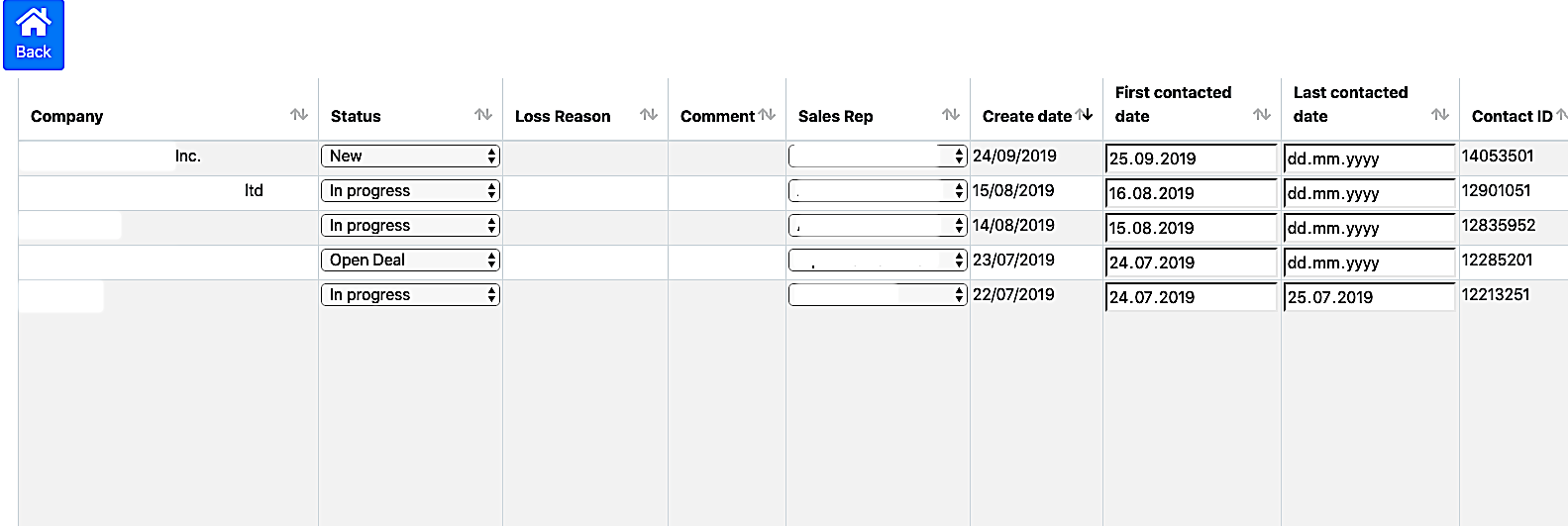
Track your leads

- Access the Lead App when receiving notification of a new lead by Wingtra.
- Select the assigned local sales representative in the field “sales rep”.
- The local sales representative is the person in charge of the lead.
- Once assigned, the local sales rep receives a notification email.
- Contact your Wingtra Sales Manager if your local sales representative is not shown in the drop down options.
- The assigned local sales rep contacts the lead and can update/track his leads by updating the following properties:
-
- Status:
- “New”: the lead is new and wasn’t contacted yet, sales rep should reach out
- “In progress”: the lead was contacted, and communication/sales process is ongoing
- “Open deal”: the lead is in the deal-closing stage
- “Won”: the lead was won, and the drone was sold
- “Lost”: the lead is lost without a sale, or the lead may buy at a later stage. Please add a loss reason.
- First contacted: The date the lead was contacted for the first time.
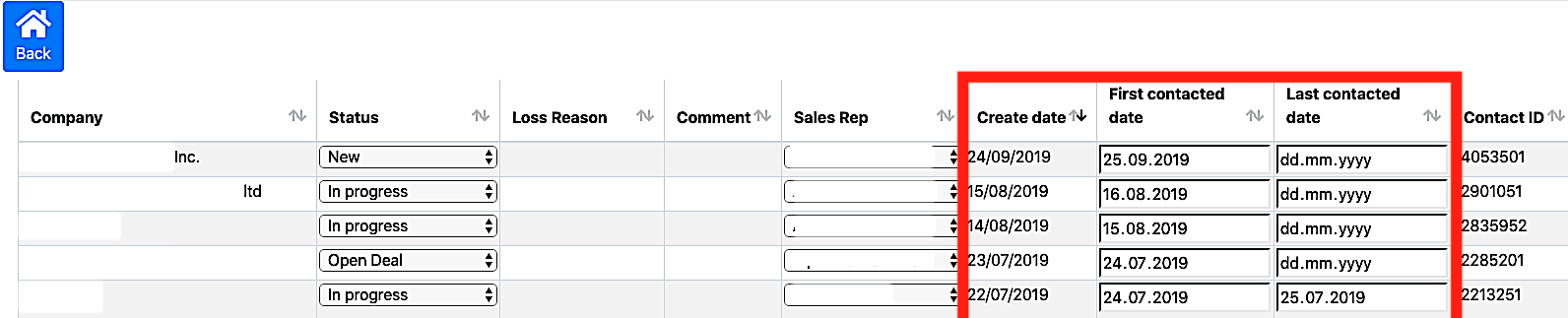
- Created date, First contacted date, and Last contacted date: see details about when you received the lead and manage your follow ups (red frame).
- Status:
-
- Comment: Use this field to add any additional comments you want to share with Wingtra.
- Loss reason: Indicate what was the reason for losing the lead
Updating Leads & Digital Marketing Campaigns of Wingtra
Wingtra uses the data you enter in the Leads App to optimise its online advertising and re-marketing campaigns. In order to benefit from Wingtra marketing campaigns have your leads up do date.
Add new leads manually
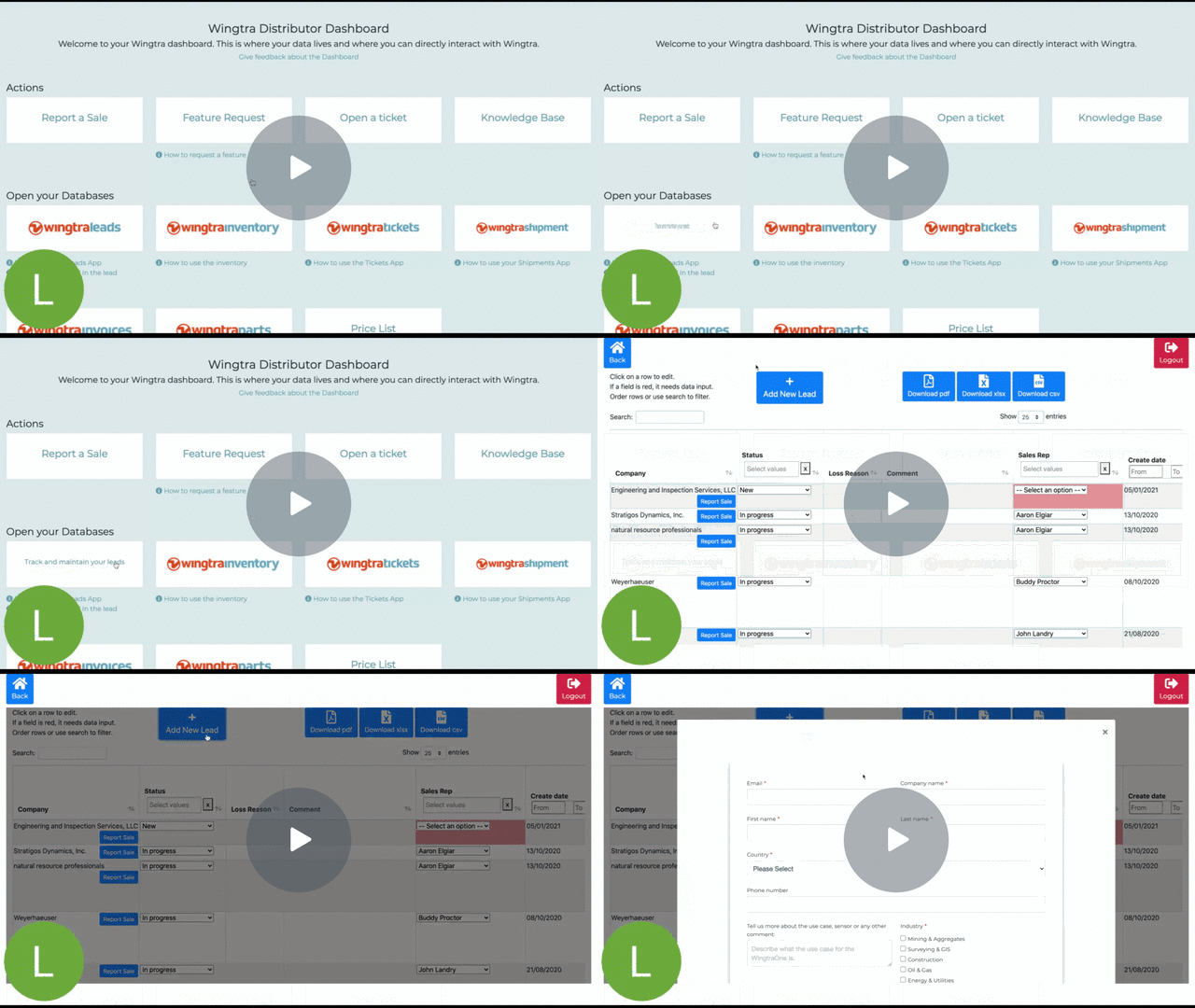
- To prevent internal competition you can add new leads that you are working on to the distributor portal. This way you give Wingtra visibility on the opportunity and avoid overlapping communication between the Lead and Wingtra or potential 3rd parties.
- Go to distributor.wingtra.com > Login > WingtraLeads > "Add New Lead" on the top bar (alternatively see video below)
Glossary
- Company name
- Status:
- “New:” the lead is new and wasn’t contacted yet, sales rep should reach out
- “In progress:” the lead was contacted, and communication/sales process is ongoing
- “Open deal:” the lead is in the deal-closing stage
- “Won:” the lead was won, and the drone was sold
- “Lost:” the lead is lost without a sale, or the lead may buy at a later stage. Please add a loss reason.
- Loss reason: Specify what was the reason for losing the lead
- Comment: use this field to add some comments
- Sales Rep
- Create date
- First contacted date
- Last contacted date
- Contact ID
- First name
- Last name
- Phone
- Address
- Life cycle status
- Industry
- Use case
Navigation
Sort your entries
Alongside all column titles you will find arrows to sort the information. Click on them to sort the information for the numerical value, status or alphabetically.

Search and filter your entries
The search field on the top left allows you to search and filter for names, status and numbers.

Card view
For viewing all entries of a contact click on the row and get the card view. Within the card view you can modify your entries.

Download
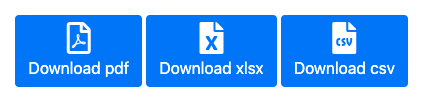
Download functions allow you to create PDF, .xlsx and .csv files.
Log out
To log out of the application, click on the logout button.
