There is a non-explained issue leading to flights on units < 1135 without images.
Background
For newer units > 1135, the interface to the camera is handled by a separate computer in the eleyctronics bay. For units < 1135 the Autopilot itself switches the camera on and off and commands triggers over its PWM pins.
There is a non-explained issue that leads to single flights without captured images on these old units. Very often, missing images within a flight are caused by wrong camera handling of the user. But there was past cases, where the issue happened even though the camera was handled correctly.
Sympthoms
WingtraOne QX1 (ID < 1135) does not capture images in single flights
Debugging
1) Revisit the customer workflow
Ask if it was a single flight issue and if they had successful flights before or after. Ask, if they captured no images at all or if they have had preflight images but no in-flight images.
Have a call with the customer and go through their workflow step-by-step. If they did something differently than as follows, check back if this explains the problem.
- Make sure SD card is correctly inserted into the camera (there is several ways to wrongly insert the SD card), and that all cables are plugged in (powering, triggering).
- Power WingtraOne, start WingtraPilot, connect to the drone
- Go through preflight checklist. After Flap dance, WingtraOne runs test picture routine. Listen if QX1 captures images. Make sure you are not connected to the camera with PlayMemories App during this process.
- Do not touch the camera anymore before flight. The camera should be switched off after the test procedure. WingtraOne will switch on the camera on forward transition. If the camera is manually switched on before takeoff, it will be switched off during forward transtion, which leads to no images in flight.
2) Check the drone and triggering interface
On a call, check the drone in the office. I.e. go though the workflow as described above and check if the preflight images are recorded as they should.
If the camera does not switch on after the flap dance, check the powering and triggering cables.
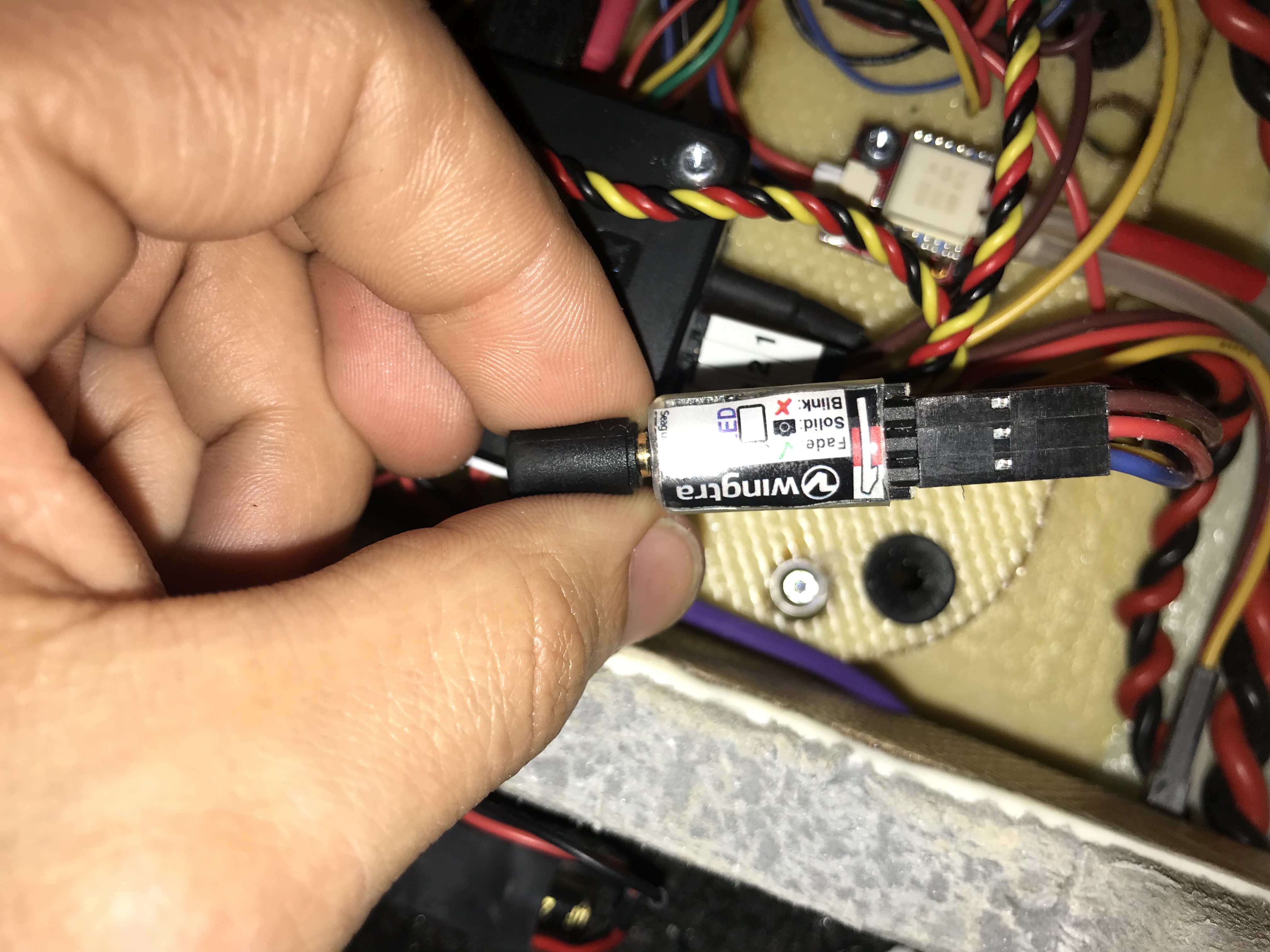
The purple triggering cable is plugged into a triggering device (Seagull #MAP2 device). Check the LED behavior of the device during the process. For more details include the devs or read the manual.
Resolution
Option 1: Do nothing and fly again
If the customer is unsure if she followed the workflow correctly, make sure she understands it and let her fly again. Often this solves the problem.
Option 2: Replace the purple triggering cable
Even if it is not 100% confirmed that the purple triggering cable was the root case for the problem, replacing it can solve the problem and is a comparably cheap solution. Share the following step-by-step procedure and picture:
1. Open the white electronics cover by opening the two torx M3 screws and sliding it out.
2. Locate the purple triggering cable coming from the camera. Take a picture that shows the purple cable, the Wingtra-branded triggering board, and the 6pin connector that is plugged into the board.
3. Unplug the board with Wingtra logo from the 6pin connector. Unplug the purple triggering cable from the camera. Remove the old purple triggering cable and board.
4. Plug in the new board into the 6pin connector. Make sure that the color of the cables matches the colors of the board. See picture attached. On the top side, you should match the brown red and blue cables with the black red and white marker on the board respectively.
5. Plug the new purple triggering cable into the board and into the camera. Make sure you route the cable through the hole connecting the electronics bay with the payload bay.
6. Close the white electronics cover again and tighten the two M3 screws.
Option 3: Replace the QX1 camera (not recommended)
There is a small chance that the problem is induced by the camera itself and that replacing the camera could help. This is not really confirmed and we should only go for this option in special cases.
Option 4: Upgrade the customer to a new drone (ID > 1135) or to RX1
If the customer is anyways considering updating to a drone of newest generation, such a support case can be a good moment to pitch the advantages of the newest generation drones. There is some flexibility with discounts, where you can use this support case to give a higher discount and make the customer happy.