Problem
For older WingtraOnes (ID ~ below 1500), we have seen some cases with unstable connections between drones and cameras. Typically this presents one or several of the following symptoms:
- Camera pre-flight check stays grey and/or changes to red when clicked
- Camera icon in WingtraPilot stays grey and says "camera not connected" if you click on it
- You get an orange or red warning after flight that there might be an issue with your data and the data is not organized correctly on your camera SD card
- You fail in accessing flight logs
With the introduction of PCB's on the camera interface, the problem is sustainably resolved on new hardware. One PCB was introduced plane-sided (below the white e-cover, just before the female USB-C plug). A second PCB was introduced on the camera mount.
Debugging
Typically, it is worth going onto a call and going through the pre-flight process calmly together. On the call, clarify:
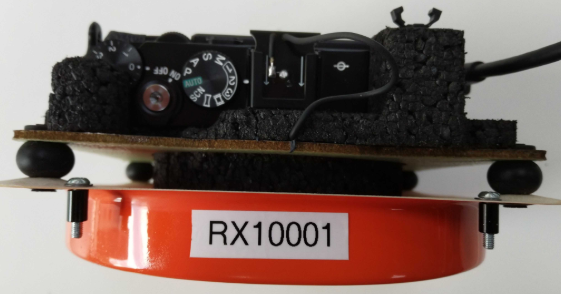
- What hardware version is used (WingtraOne ID and mount type or serial number, see picture below)
- Make sure that all cables are plugged in firmly (USB-C connector, mini-USB multi-port, dummy battery) and that the SD card has space and is inserted into RX1.
- Reproduce the problem on the call and note down all steps (especially note down at which step the problem surfaces), i.e. go through the preflight checklist together.
- Check the camera settings (See checks below)
- Reformat the SC card once together and try again.
- Try to access flight logs through WingtraPilot. If this does not work, access flight logs directly from the SD cards (fallback method).
If the above does not fix the problem, decide early on for replacing the camera mount (and, if needed the drone as well). Include the developers to decide how likely a mount replacement will resolve the issue sustainably (needed to decide if we replace full drone or camera mount only).
Check RX1 Mount version
Always check and note down what camera mount version the customer has. If the mount has a number as shown below it has the new pcb cables. If it has no number it is an older version.
Check camera settings
Check that
- Mode dial is on "2" (dial beside the hotshoe connector)
- "USB Connection" mode is on "Mass storage":
- Power RX1 with the camera battery
- Click "menu"
- Navigate to the suitcase symbol (Setup) and click on "USB Connection"
- Check that the sleep timeout is set to 30 minutes.
- MENU button -> Setup (suitcase symbol) -> PWR save Start Time -> 30 minutes