Learn about the Wingtra Invoices App and how it provides the full overview on your orders and invoices.
Benefits of the Wingtra Invoices App:
- Easily monitor and track your account
- Enjoy full visibility on invoices, amount and payment status
- Have full transparency on what was ordered and paid

Access the Invoices App through the distributor dashboard with your personal company passcode. If you do not have a passcode, please contact your Wingtra sales or support manager. Once you’ve accessed the dashboard, open the Invoices App by clicking on:

This app gives you immediate access to any relevant information you need about your account. Inside the App you can monitor and scroll within to review all of your invoices:
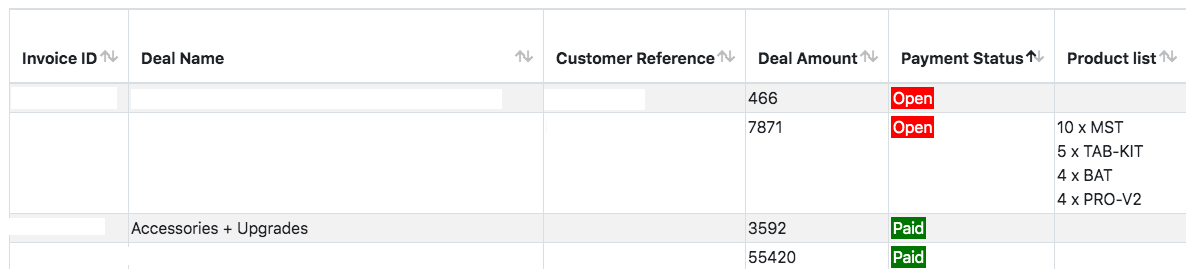
Of particular importance for managing your invoices is the “payment status” which indicates which payments have been paid and which are open. This gives you full transparency on what was ordered and paid.
The table allows you to see when the order has been signed in the “signing date” and what is included in the order in the “product list”.
Glossary
- Invoice ID: this corresponds to the ID of the invoice and the deal/order
- Deal name: the corresponding order name
- Customer Reference: if wished the distributor can indicate a customer reference number for internal purposes
- Deal amount: amount in USD
- Payment status
- Open: payment is expected
- Paid: payment was received
- Product list: items that are included in the order
- Number of drones: drones that are included in the order
- Signing date: date the purchase agreement was signed
- Payment received: date the payment was received
- Comment: any comment that wants to be shared with Wingtra
- Deal owner: Wingtra sales or support manager that was involved in the order
Navigation
Sort your entries
Alongside all column titles you will find arrows to sort the information. Click on them to sort the information for the numerical value, status or alphabetically.

Search and filter your entries
The search field on the top left allows you to search and filter for names, status and numbers.

Card view
For viewing all entries of a contact click on the row and get the card view. Within the card view you can modify your entries.

Download
Download functions allow you to create PDF, .xlsx and .csv files.
Log out
To log out of the application, click on the logout button.
