Step-by-step instructions on how to install the PPK module
Required equipment
- WingtraOne
- Torx screwdriver
- PPK module PPK-ADD
- Three M3X12 torx screws
Step-by-step instructions
The instructions should be followed carefully. Deviating from the described procedure can lead to damage on the sensor and hence missing or corrupt PPK data.
1. Make sure the WingtraOne is not powered on
2. Lay the WingtraOne on a flat surface
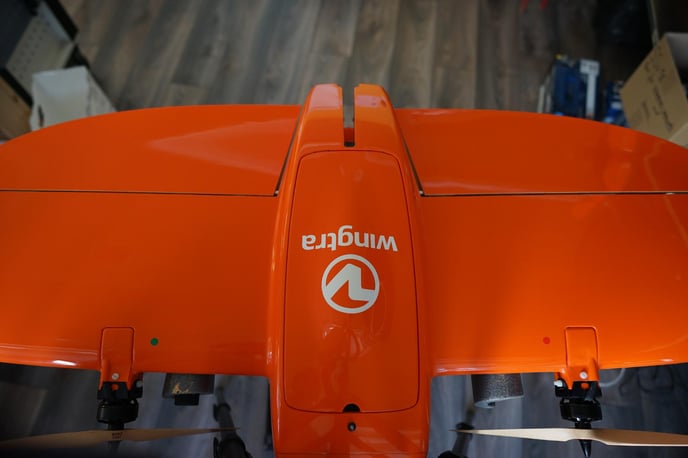
3. Open the top cover
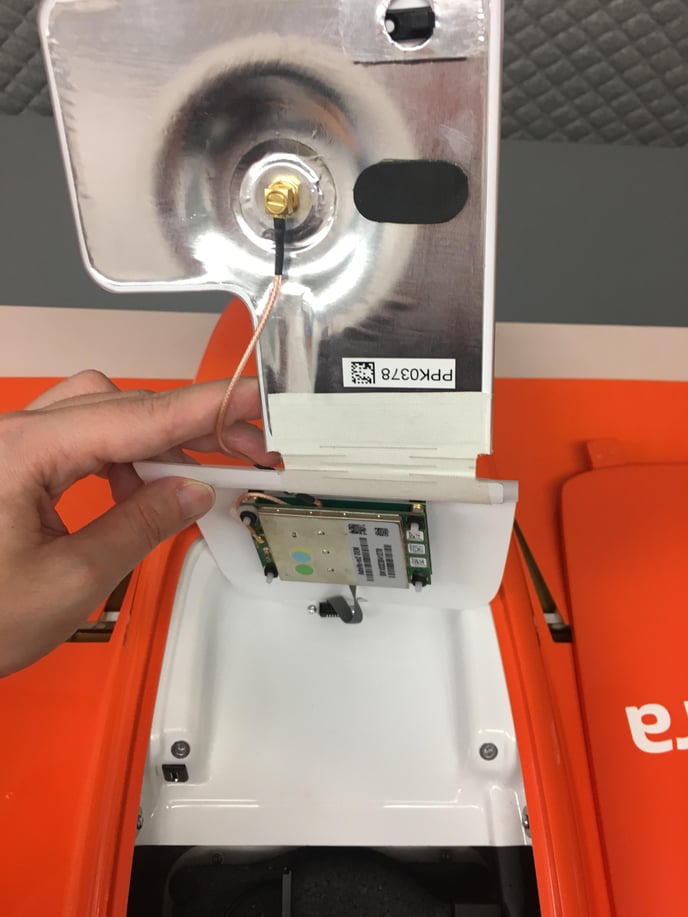
4. Insert the plug of the white PPK module into the protruding connector
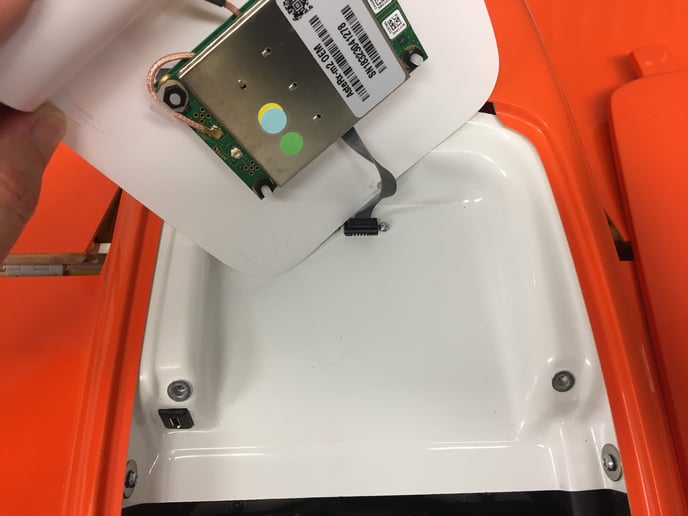
5. Carefully insert the PPK module, and pay attention not to pull out the connected cable
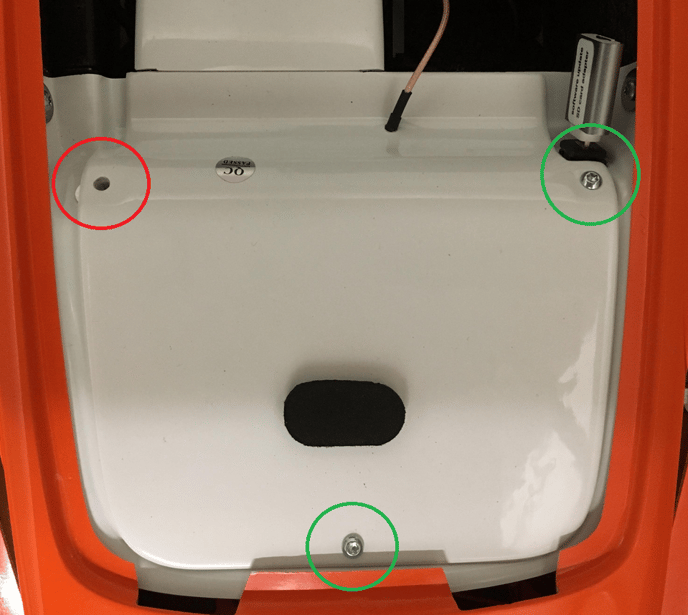
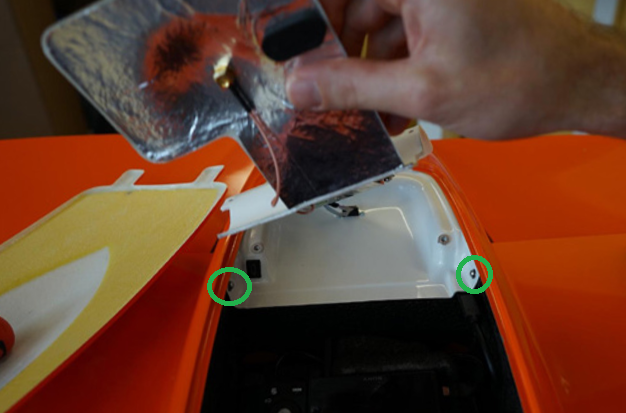
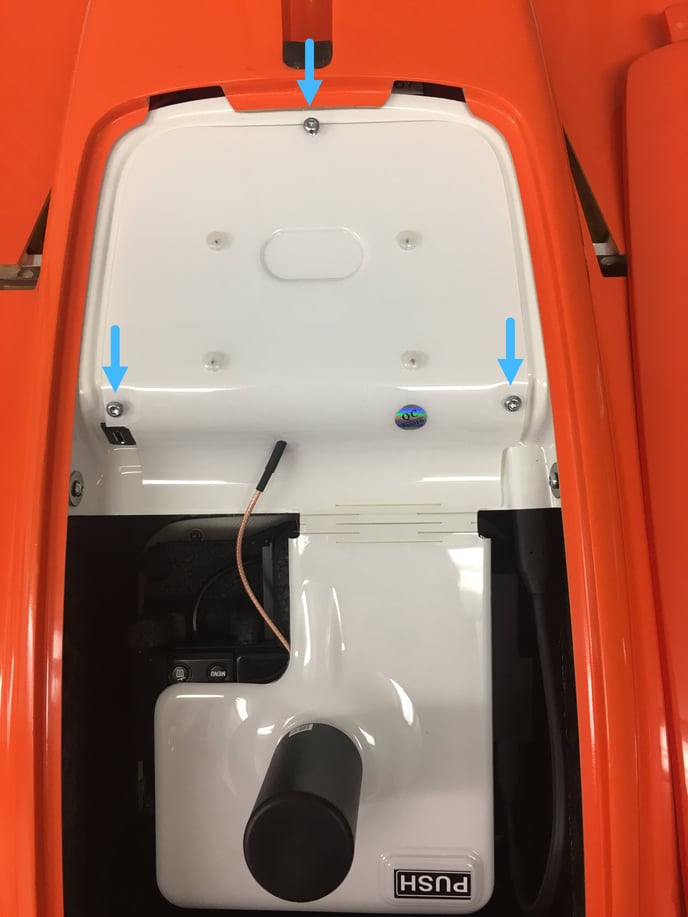
6. Fixate the PPK module using the three torx screws (M3x12) with the torx screwdriver (maximum torque 0.4 Nm)
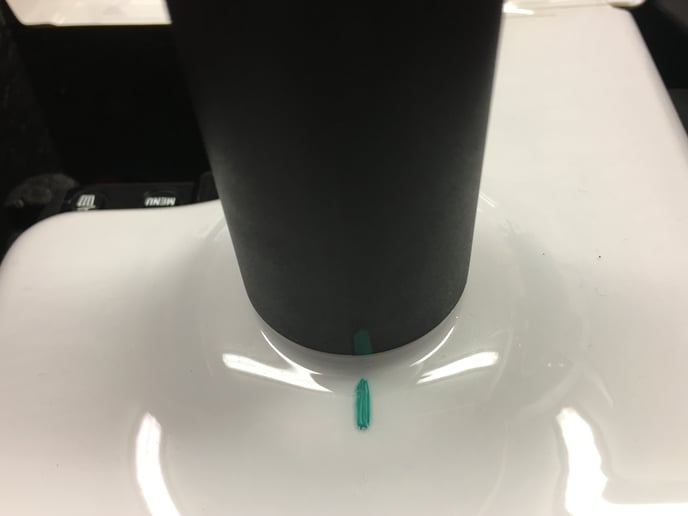
7. If the black antenna of the PPK module is not yet installed, screw it onto the connector. Make sure that the green mark on the antenna is aligned to the green mark on the module
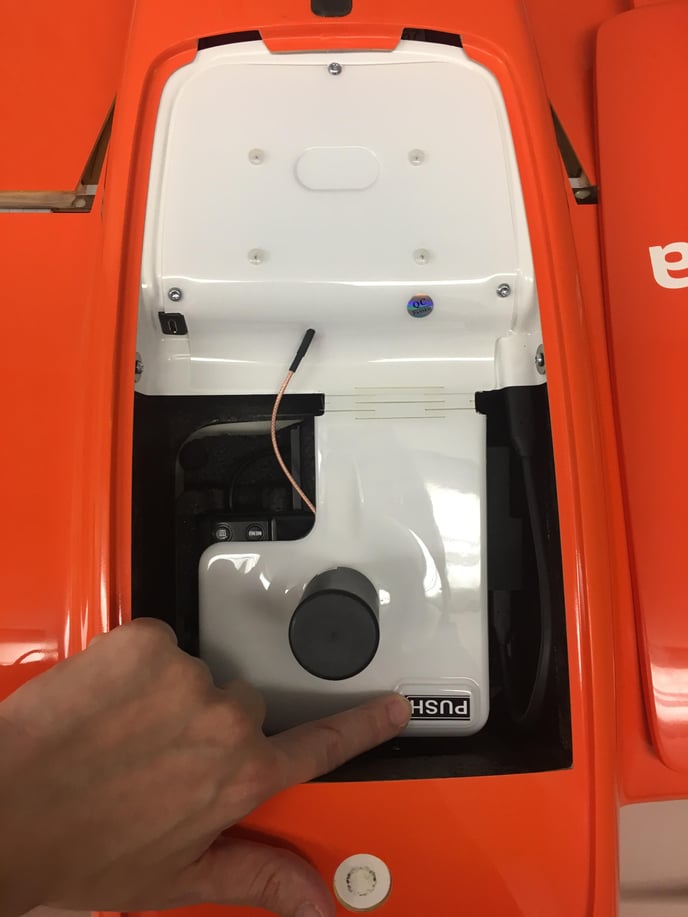
8. Close the PPK cover by using the push button
9. Take the top cover and close the WingtraOne payload area
Troubleshooting: screws do not align with inserts
Perform the following troubleshooting steps in case the screw holes of the PPK module are not aligned with the inserts.