Check this article to get a better overview of which software you should use to create videos, GIFs or annotative screenshots.
For 1on1 customer emails: Use Loom
If you would like to create an instantly shareable video and send it to the customer/reseller via email in HubSpot, please use Loom. In order to download the application or extension for Chrome please check this link.
NOTE: The Loom extension is only available for Google Chrome browser
After running the application/extension, Loom menu will appear. Simply click on Start Recording button, choose a desirable screen (if you are using multiple screens) and your video is ready to be recorded.
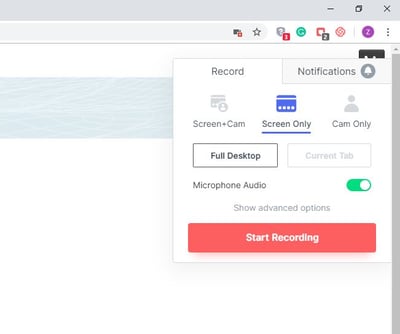
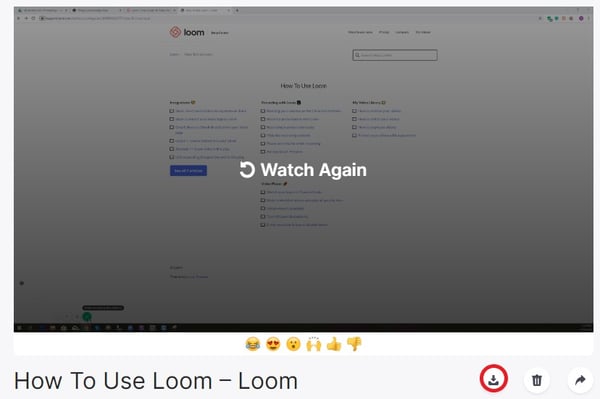
After the recording is finished, you can download the video on your drive by clicking on the download button.
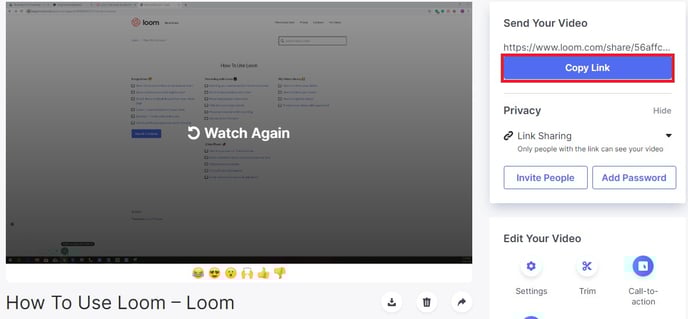
To add the video into a HubSpot email, copy the link from Loom interface,
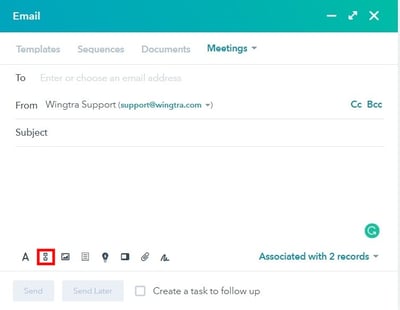
and just embed the video by inserting the link into the mail.
For public KB pages: Use Youtube
Support videos embedded in public Knowledge base articles should be always published on Wingtra official Youtube channel, so avoid publishing on private channels.
After the video is created, please do the following steps:
- upload the video to the Wingtra drive folder
- In the same folder create the google doc with a description of the video. To avoid a mess, please name the .doc file with the same name as the video file. The description should contain the link to the Knowledge base page where the video will be embedded
- Inform Justina about the new videos. She will upload it to YouTube and give you back the link
- Embed the link in the Knowledge base article.
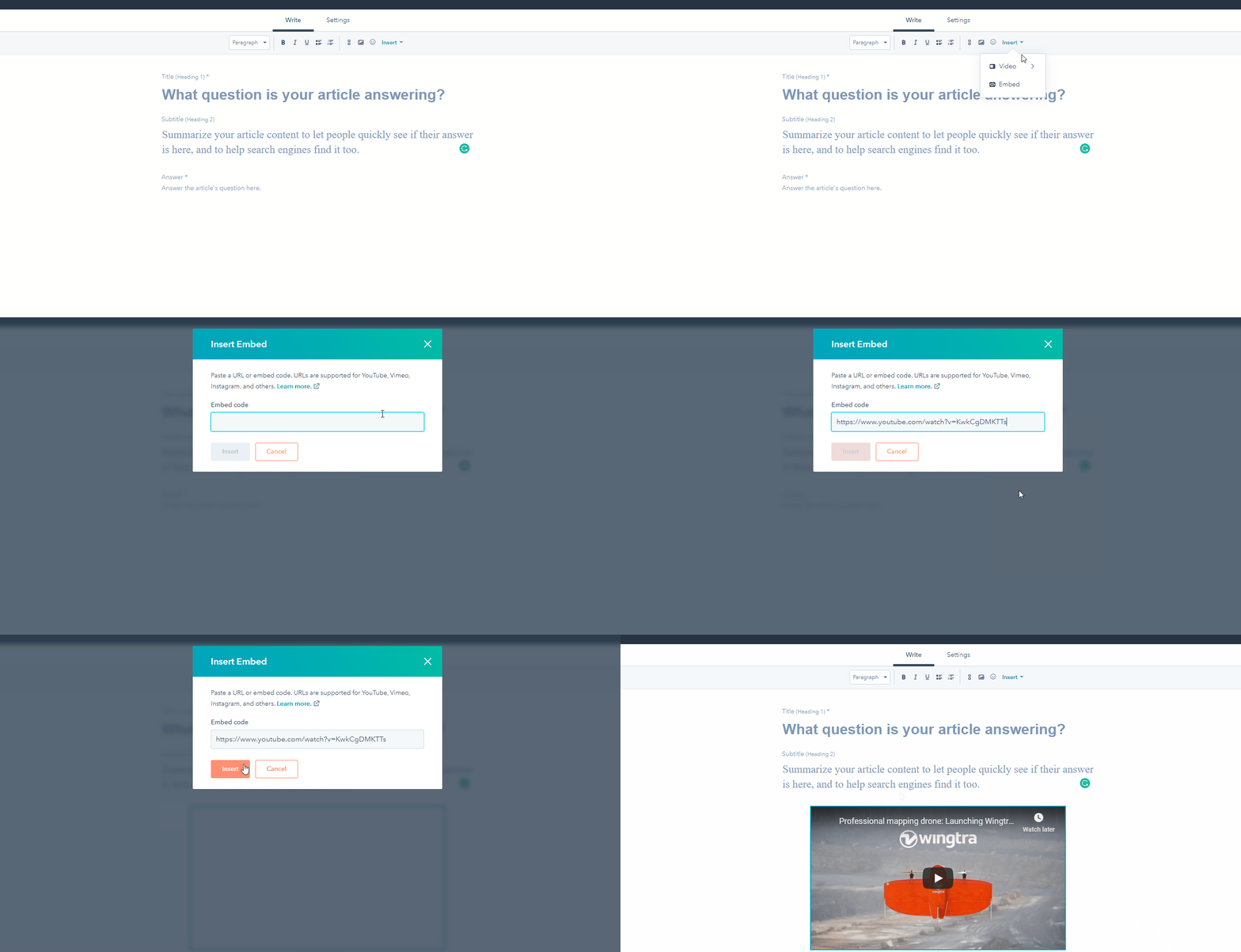
For private / internal KB articles use Vidyard/Hubspod embed
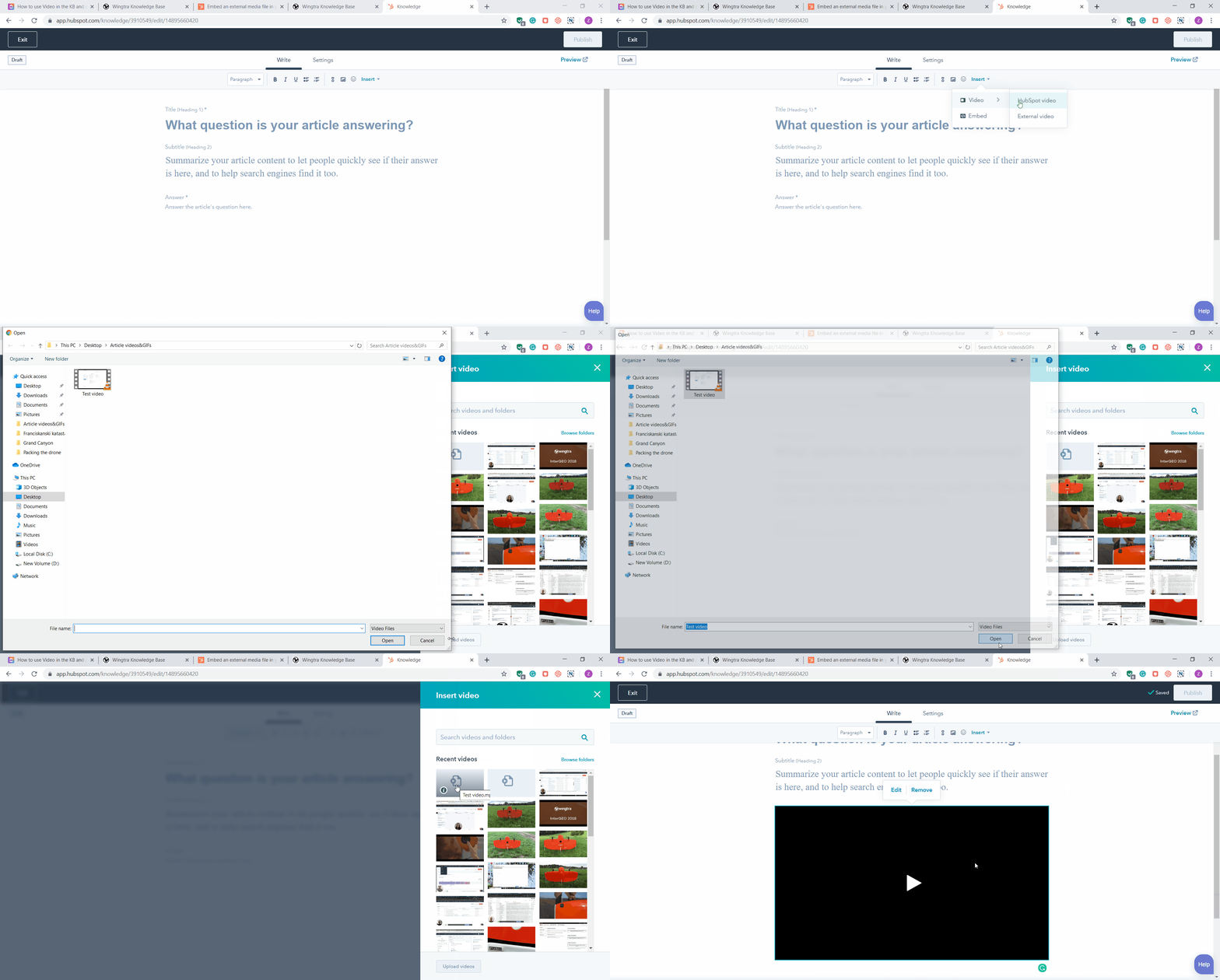
If you want to embed the video into a private Knowledge base article, embed it directly into your Knowledge base article by clicking on Insert button in HubSpot editor, and choose one of two options:
- Video, to directly upload the video file from your local disc or
- Embed, to paste a URL or code from one of the support formats. To check which formats are supported please visit this link. If you choose this option, the workflow is the same as embedding the YouTube videos for public articles
Note: Loom videos are not supported so if you want to insert them, please just paste the link, or upload video from your local drive.
For GIFs use Kap (Mac OS) or ScreenToGif (Windows)
If you would like to capture your screen and create the animated GIFs to explain your work, please use Kap for Mac OS, or ScreenToGif for Windows.
Sometimes animated GIF is worth a thousand words, so be free to use it in order to make the workflows more understandable to our resellers and end users.
To learn how to work with them, please check this video tutorial for Kap, and the user guide for ScreenToGif.
An alternative for those two is CloudApp. It can be used both on Mac OS and Windows (as an application or Chrome extension) and is suitable for creating GIFs and many other things (videos, screenshots, etc.).
Workflow for embedding GIFs in mails and knowledge base article is the same as for the images.
For annotated screenshots use Nimbus or TinyTake
For annotated screenshots, you can use an extension for Chrome called Nimbus
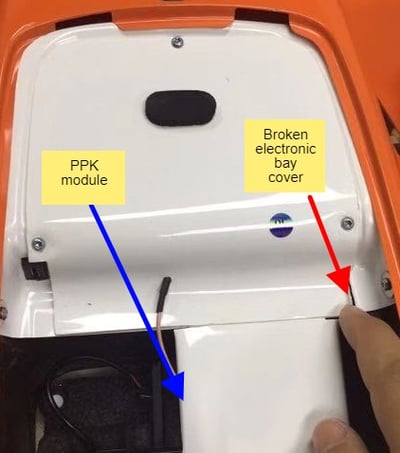
or if you need to screenshot something outside the browser, you can use TinyTake (only for Windows) or Monosnap (Windows, Mac OS or as Chrome extension).
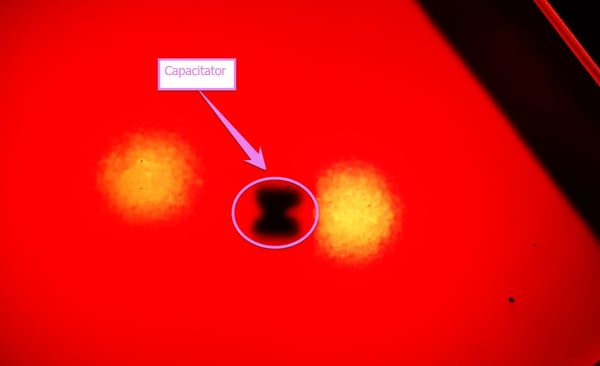
All of them will allow you to edit the screenshots by drawing arrows, rectangles, adding stickers, and many other things to underline important parts and make a screenshot more understandable both for Wingtranouts or our customers and resellers.