- Help Center
- Wingtra Internal
- Customer Success
How to simulate a WingtraOne flight using the tablet
This article describes how to install and to use the WingtraPilot devs version in order to simulate a flight in the office.
The following instructions should be used to familiarize ourselves with new functionalities, check the new UI and make screenshots for a new release. The devs version should not be used for flying WingtraOne or for demos, neither internally nor for partners.
The WingtraPilot devs version can be downloaded from here. Find the version you want to install and download the WingtraPilotDev_version_number.apk file. In case a user built is installed on your tablet, you need to uninstall it first. To do this, press and hold on the WingtraPilot icon and select Uninstall. Then copy the file on the tablet and install the dev version.
Use the Mock link functionality
1. In WingtraPilot go to Settings and select the Mock Link tab
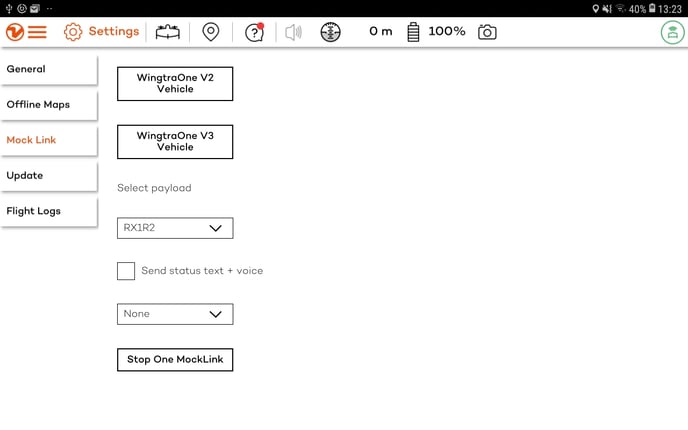 2. Select WingtraOne V2 Vehicle
3. Create a new flight plan
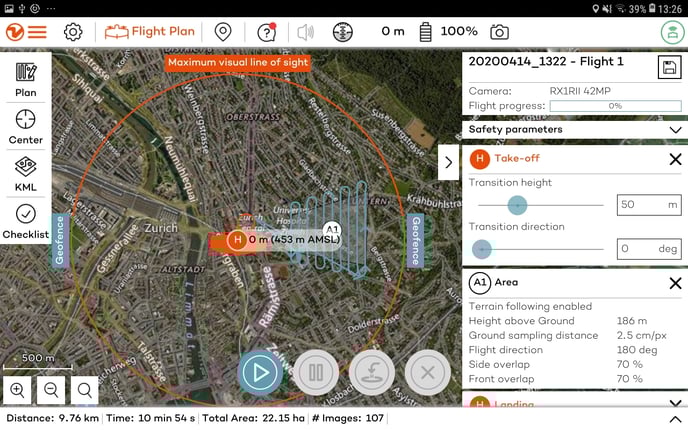 4. Go through all the steps in the Preflight Checklist. After you click on an item, this will be turning green.
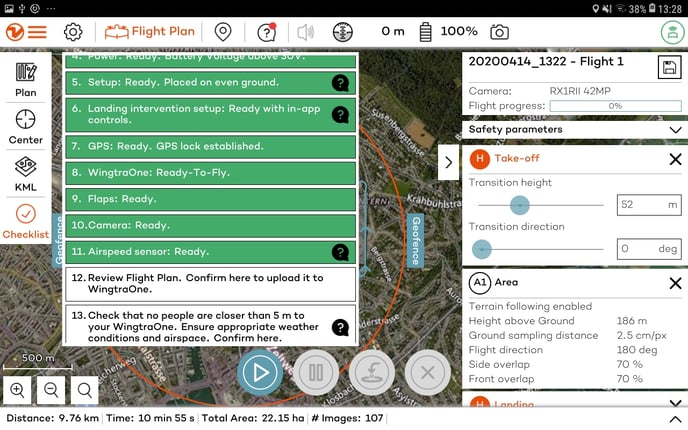 5. When the checklist is completed, press the Start button and slide to start the flight
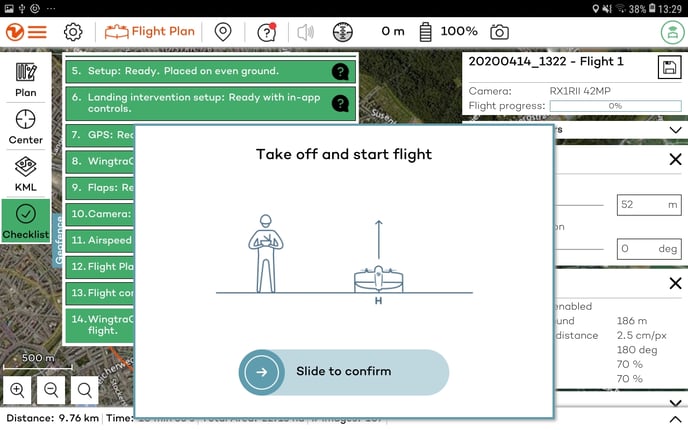
The WingtraOne icon will start following the flight path and you can interact using the in-app buttons.
To simulate a new flight after one is completed, you need to close and re-open WingtraPilot.