How to work with Clickup. This article explains the general app structure, views and how customer teams work with it.
Apps
You can use clickup in the browser, but apps are there for Linux, Mac, Windows, iOS, Android!
Hierarchy

Clickup has a more complex hierarchy structure than Github or other tools. However, this allows it to connect the high level overview with the low level organisation. At first, the hierarchy is a bit confusing - but give it a chance - it actually is useful!
There is 8 levels of hierarchy in the following order:
- Team: This are departments, like the customer team, engineering or administration.
- Space: Larger domains, like marketing, customer success, sales as well as your personal space for just your private to do's
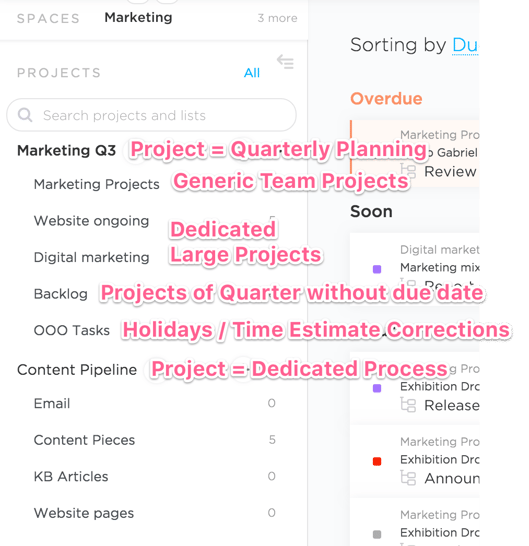
- Projects (Folders): Can be anything where you want to put in lists. For now, these are quarters and dedicated processes like the marketing content pipeline.
- Lists: Contain and structure tasks like marketing projects, backlog, or container of very large dedicated projects like Intergeo or opening an office.
- Tasks: Equivalent to a large github issue, in many cases an entire project. This has a time estimate, owner, due date, description, conversations.
- Subtasks: Equivalent to a small github issue. Has the same funtionality as a task, but is a child of a larger overarching task. Can be toggled on and off to switch between high level overview and smaller steps of a project. Can be drawn on the Gantt.
- Checklist items: Smaller to do's that are part of a tasks or sub-task. Can be assigned, but don't have their own due date and conversation history.
- (Assigned) comments: Equivalent to a github post, can also be assigned to people.
You don't need to use all levels for every project. For many things it is functional to put them into a generic list of a team and just have a description or a simple checklist. Then for larger projects with dependencies you might need subtasks or even lists.
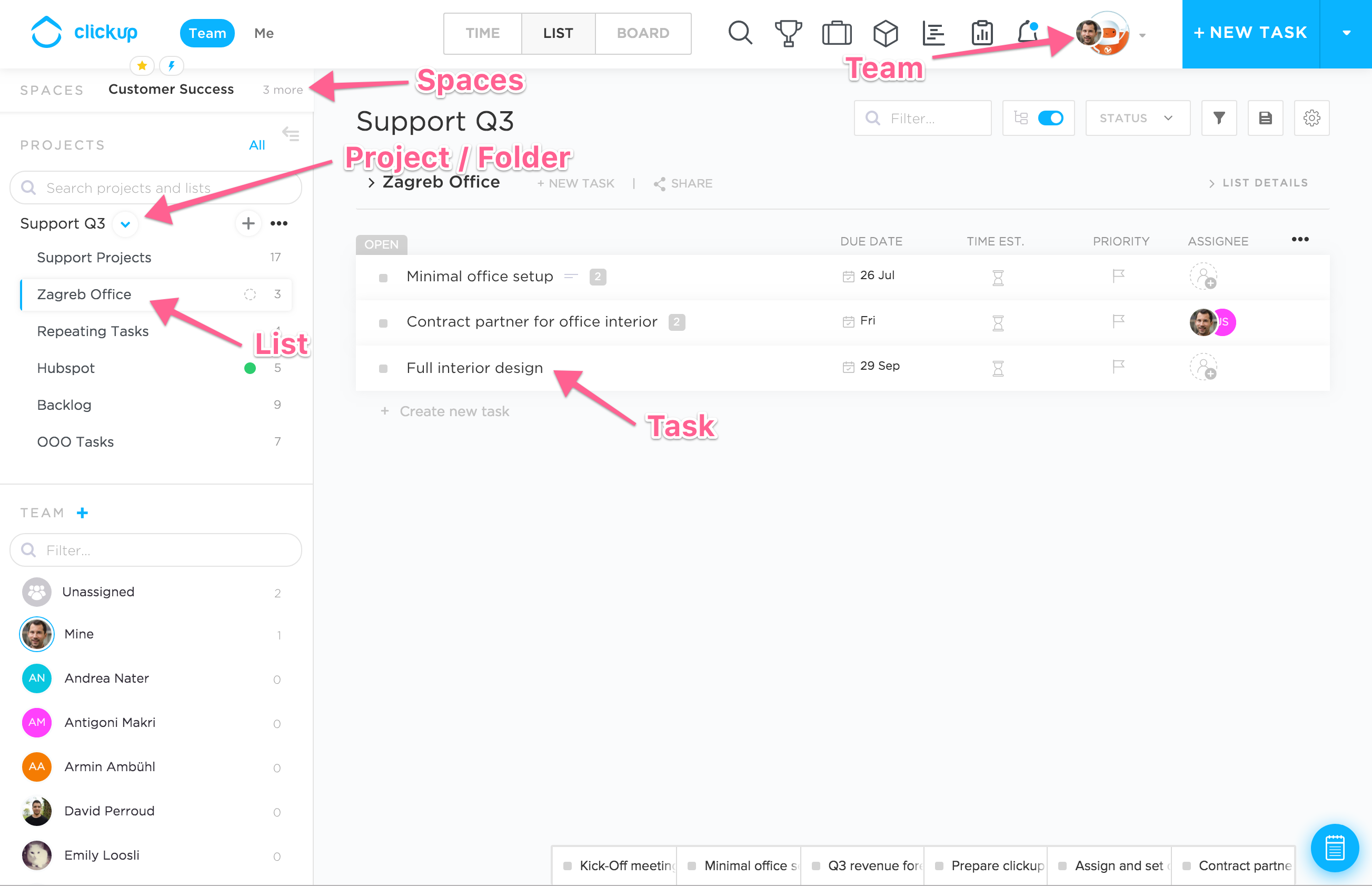
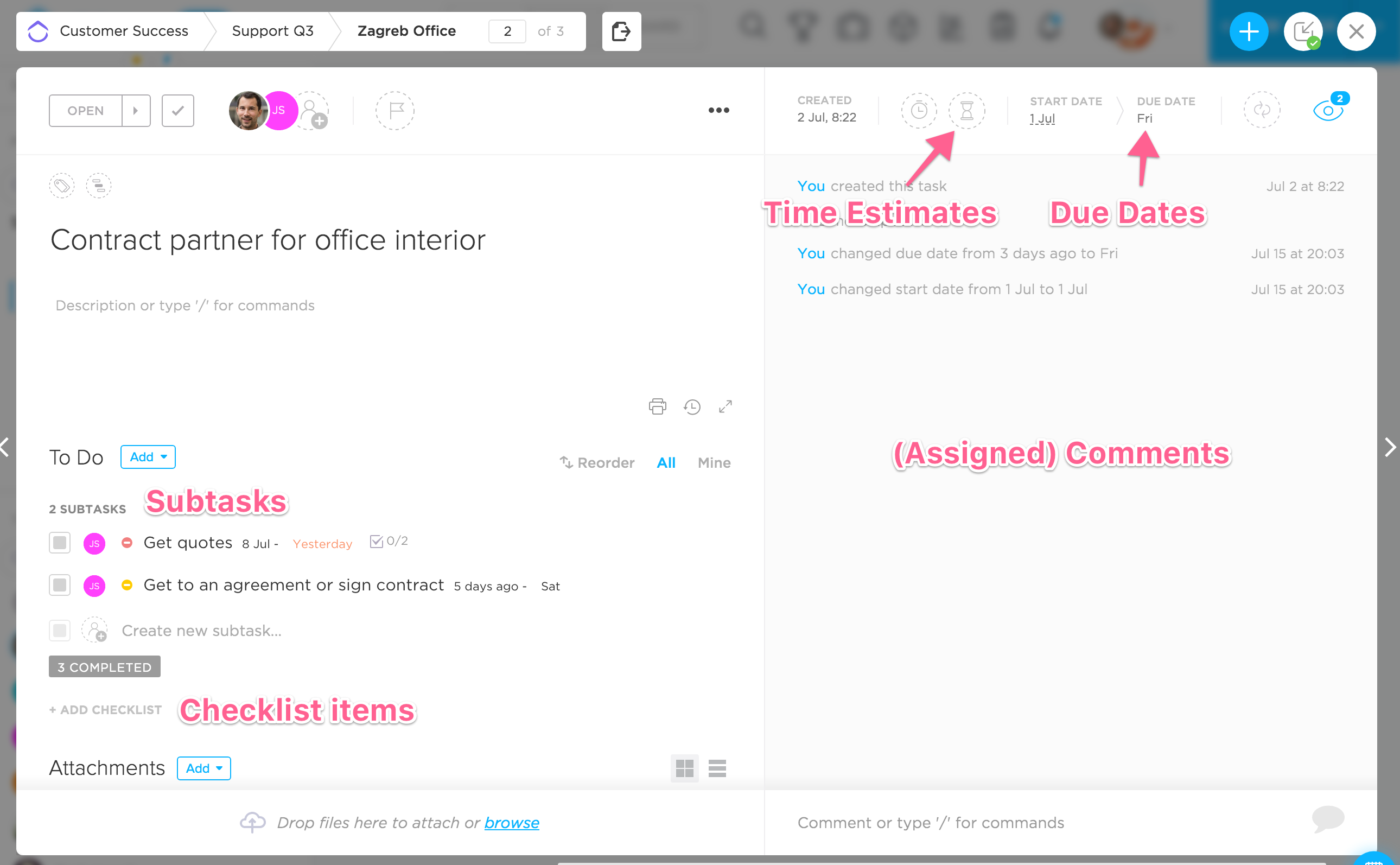
Here is how you go through the hierarchy:
Different views
Depending on what you want to do, you can view tasks in different views.
- List: Easiest view to get started. You can see tasks grouped by their project, list and status.
- Board: Kanban boards as in Github projects.
- Calendar: Calendar view that is particularly useful if you break down your subtasks into chunks that are smaller than 1 day because you can then put them directly into your calendar!
- Gantt: Good for complex projects with dependencies or for long term overview.
Filtering
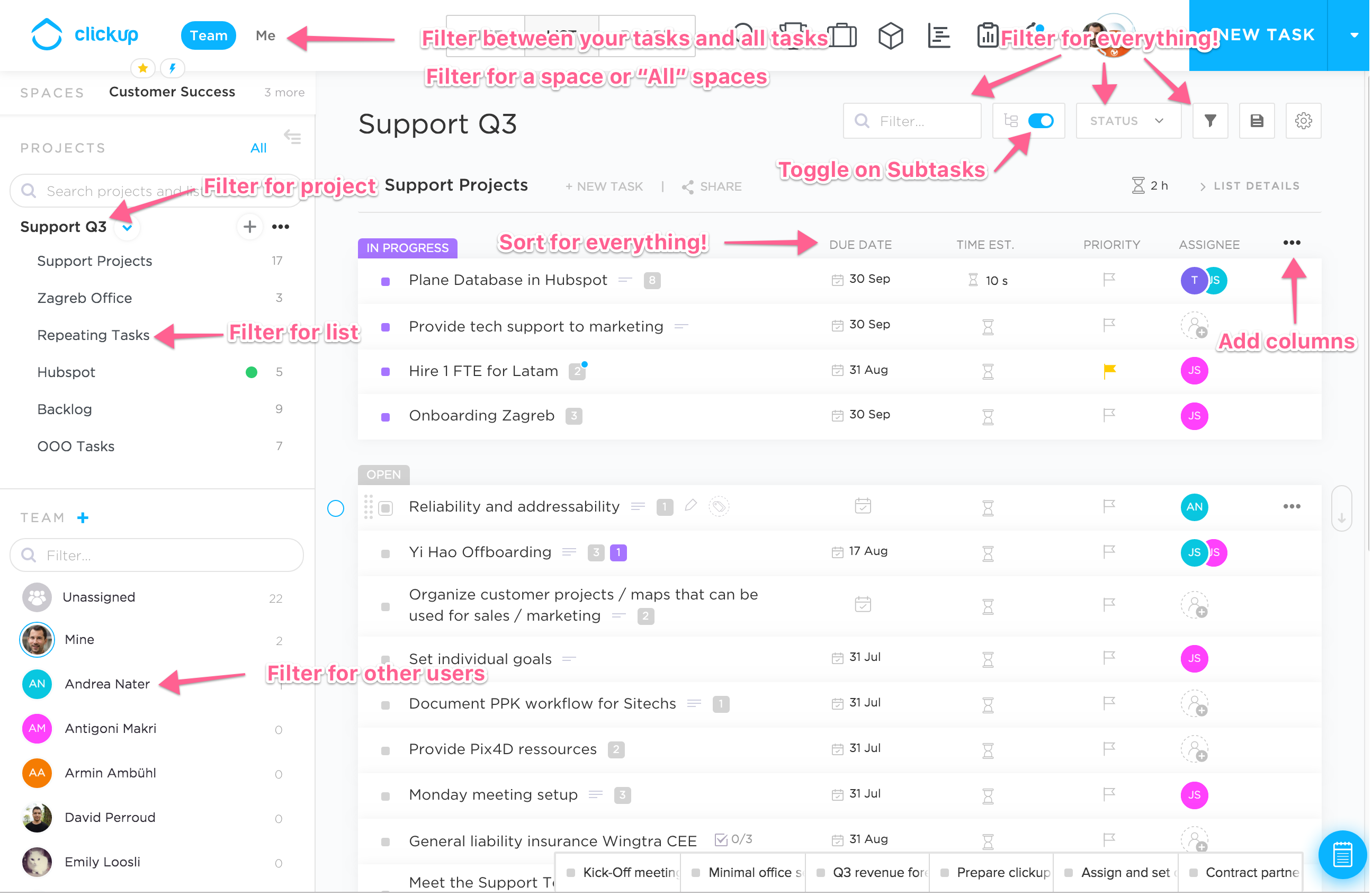
Almost every click onto hierarchy elements / UI elements filters your main view! For example just click on the space name, project name, list name or user name to filter for that. Remember to click onto a higher hierarchy element to again display everything!
Use the note taking app
You will hardly use the tool if you do not manage your personal To Dos. For that you can use the note taking app to quickly collect notes during meetings. That also works on your phone!
Tipp: Try to write notes for the person you need to discuss it with!
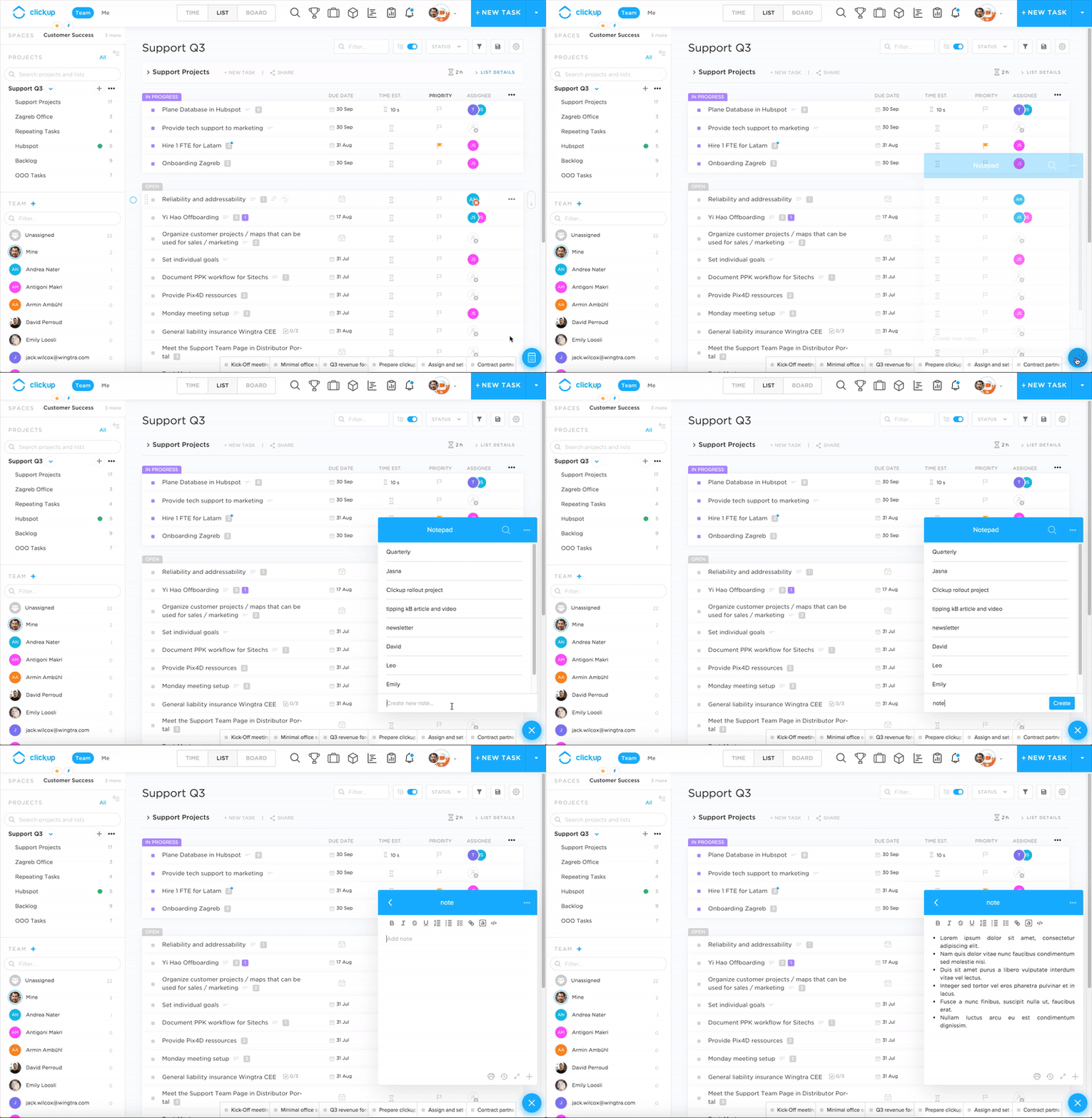
Once you created your note, you can just delete it once done for small tasks or convert them to proper tasks in either a team space or your private space. Converting them to tasks allows you to put a due date, priorities and assignees. Especially the due dates help that your To Do list is sorted in a meaningful way.
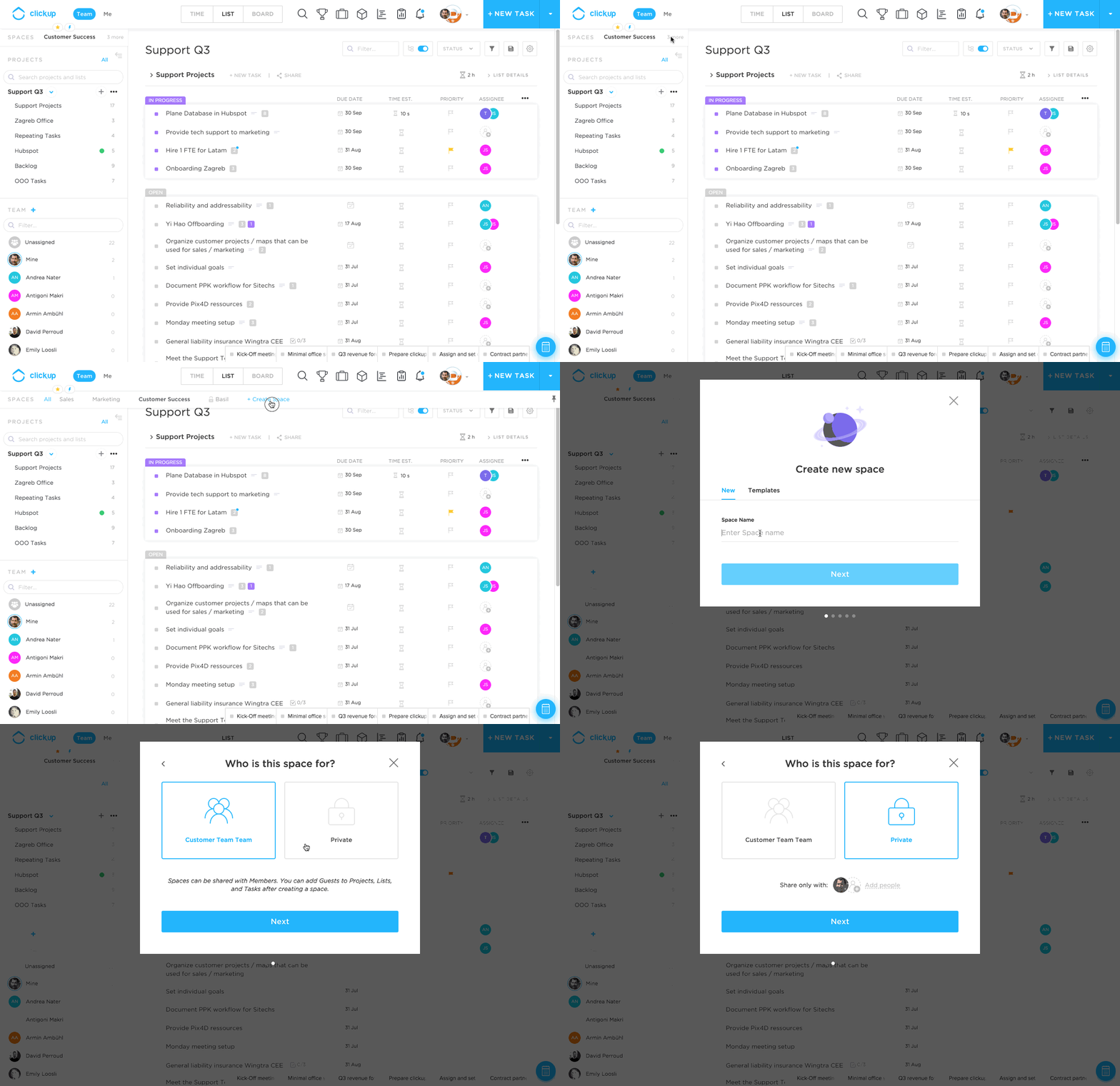
Create your personal space
To organise your very own personal task that only you can see, create a personal space!
Shortcuts
Just type ? in Clickup to bring up a list of all shortcuts! They make you awesome fast! For example
Main window
- k to quickly switch between your spaces
- s to search
In a task text field
- /m to assign to me
- /d to set due date (then try to write Friday for next Friday)
- /p to set priority
- ## to link to other tasks.
How to create a task
Type t and use tab to jump to the next field. Use / commands to set values of the task.
Tipp Customer Success: Make sure to set a due date and a time estimate. Otherwise the weekly time estimates will not work! If you estimate time for a task with multiple assignees, then the time gets estimated for every assignee.
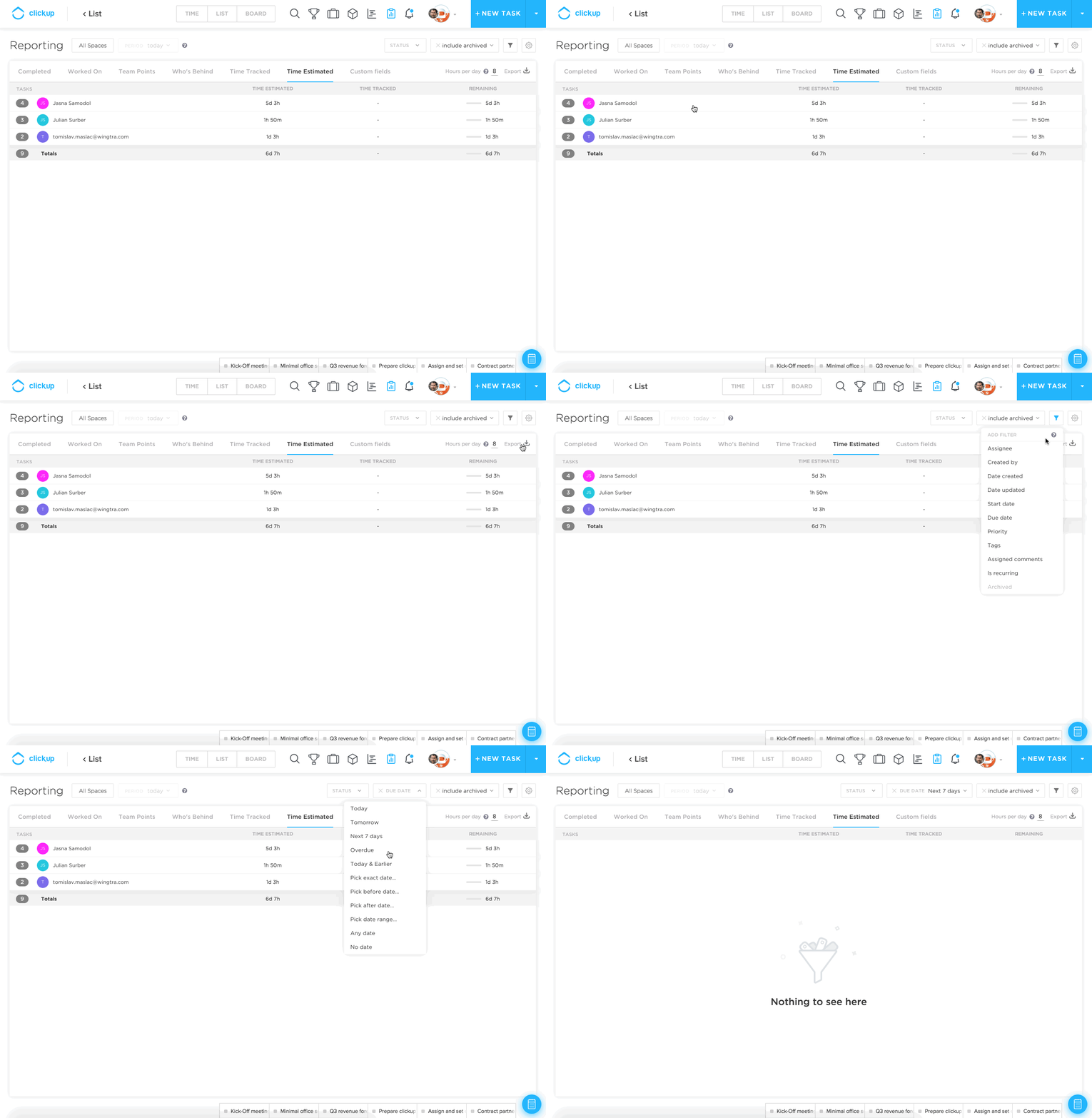
Customer Success: See your weekly time estimate
First open the reporting view and go to the Time Estimated tab.
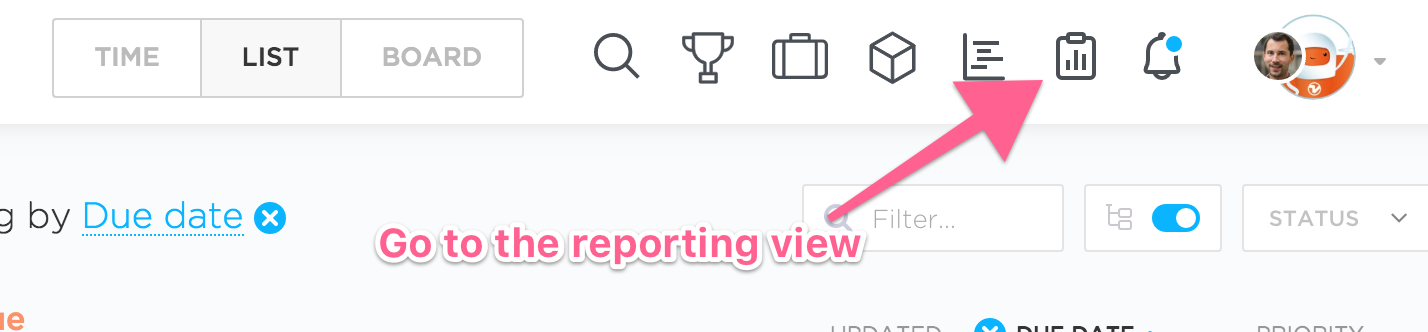
You can expand your task list. To see your weekly time estimate, filter for the due date.
Project Structure in Customer Teams
What not to do
- Discuss with your team lead if you want to change or extend the organisation logic, like
- introduce new statuses
- create new projects
- create new lists
What is next?
- Adjust your notification settings!
- Sync with either your personal google calendar or with a dedicated separate clickup calendar
-
- Project Templates
- Have a look at all the features of clickupGet some inspiration for
- Google "Clickup" + what you want to do. There is everything online!