Learn how to create a permalink for a specific section (paragraph or heading) in a Hubspot article to link it elsewhere.
In Hubspot, we can add anchors to create a permalink for a specific section in an article. It is useful when there is a long article with many small sections. To do so, we need to add an anchor to each section in the article which needs to be linked.
Create an anchor
- In Hubspot, open Edit mode of the article with sections that you would like to link elsewhere
- Place the cursor at the end of the title of the section
- Click Insert from the top menu and click Anchor
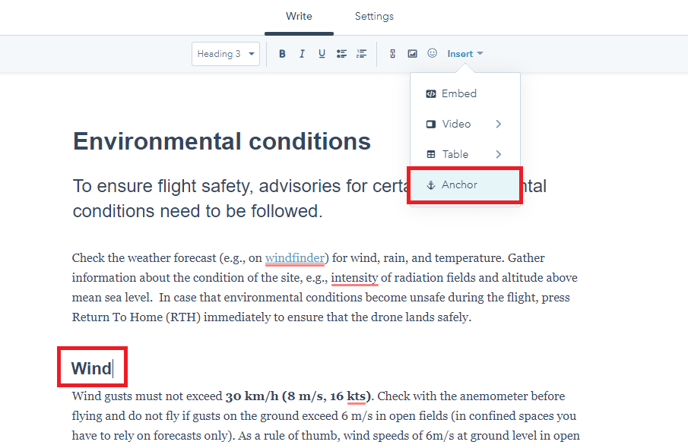
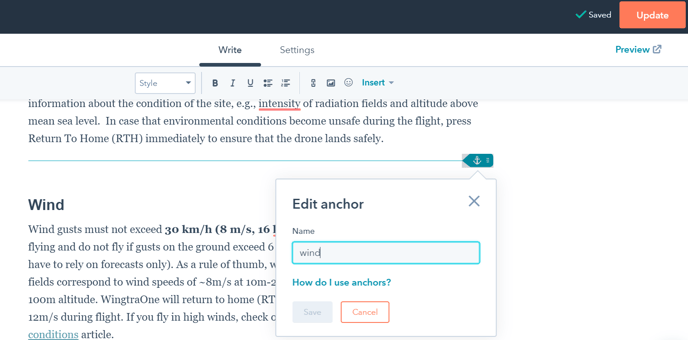
- Add the name of the anchor and save it.
Notes:
-
The name has to begin with a letter and may contain numbers, hyphens, underscores, colons and periods
-
The name has to be unique within the article
-
Anchors can only be set for the titles of the section
-
Anchors work only with headings, not text in the paragraph
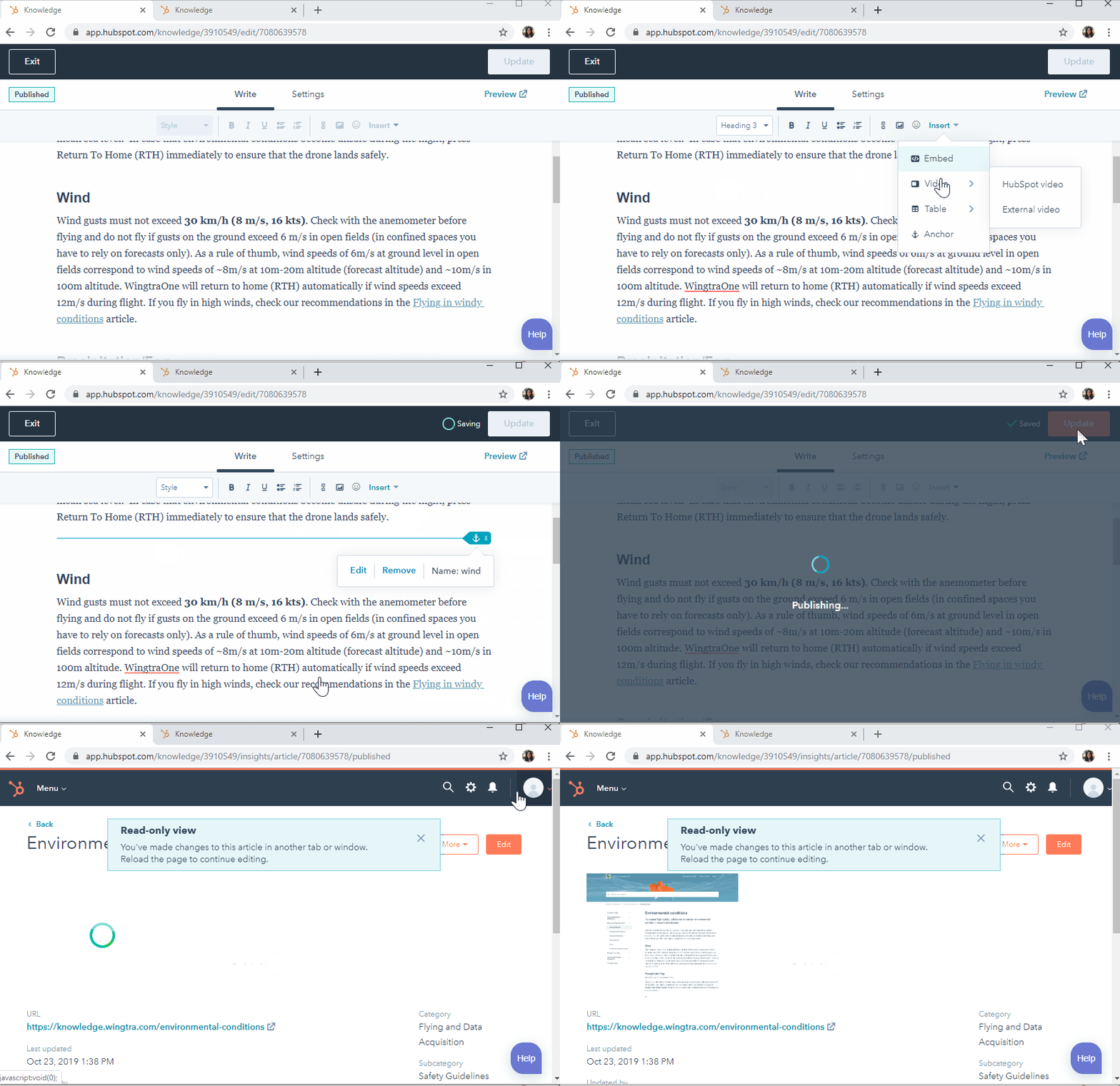
- Click Update in top right corner to save changes in the article
- Click the permalink of the article, add the hashtag (#) and the name of the anchor
E.g. https://knowledge.wingtra.com/environmental-conditions#wind
Note: when you click on the permalink, it needs to adjust the screen to this section
Here is a short GIF which shows the steps above:
Link the anchor to another article
The generated permalink works in Hubspot, emails, Google Docs, etc. Basically it needs to have the link to the article, hashtag symbol and name of the anchor (section).
Here are instructions on how to add a link to a Hubspot article:
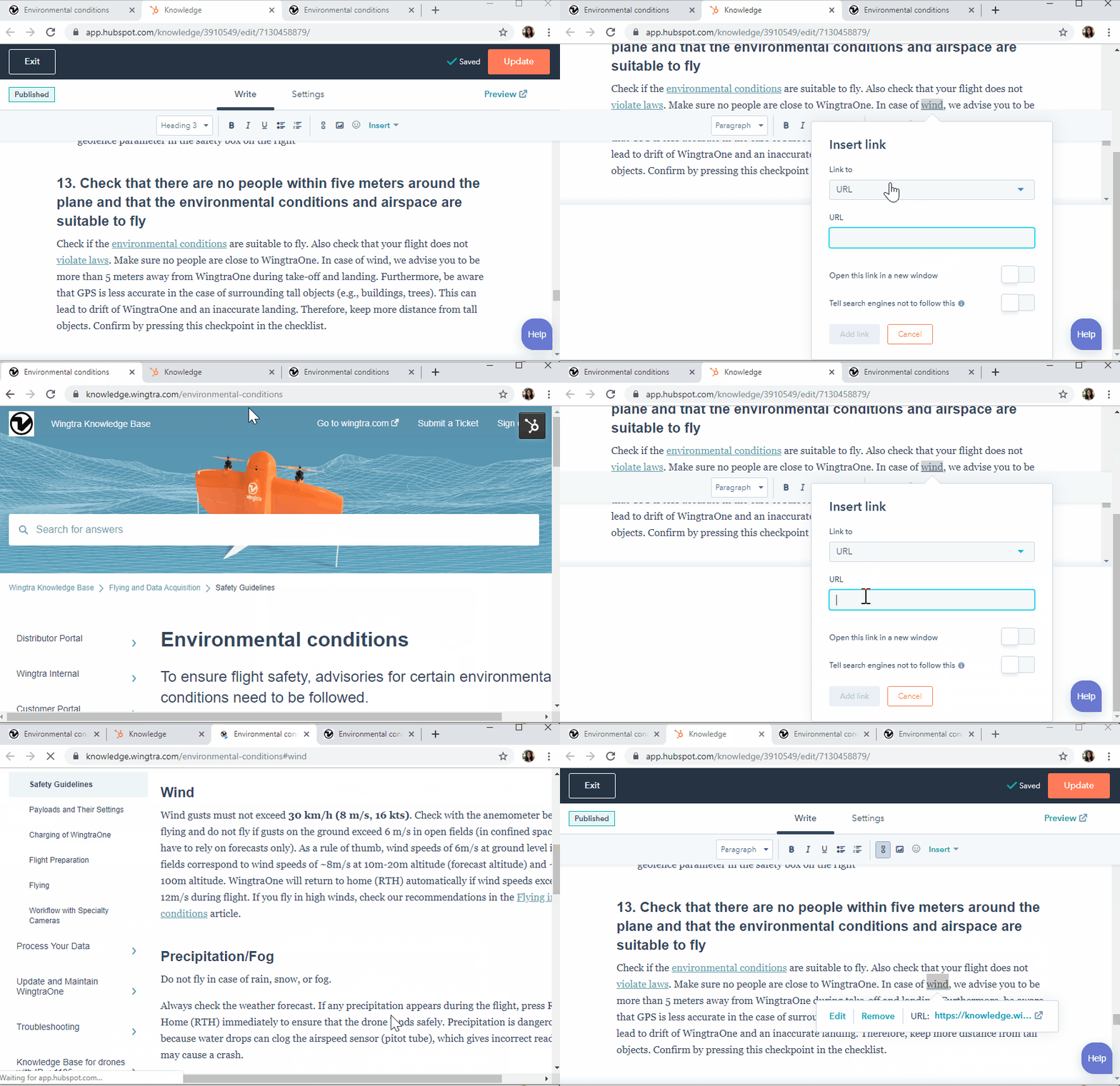
- Open the article where you want to add the link
- Select the word and click the“Link” icon from the top menu
- Select the URL from the drop-down list and add the permalink. The permalink needs to have the hashtag and name of the anchor
- Save changes