In order to increase the output power of the telemetry module, and therefore the range of your WingtraOne, please use these instructions.
Use these instructions only if instructed by Wingtra support!
Before starting the procedure, check which telemetry frequency (868 or 900 Mhz) your WingtraOne uses, and use the appropriate parameters. If you are not sure on which frequency the drone is, contact Wingtra support.
The procedure for 900 Mhz units is only possible if an older version of the tablet (Samsung Galaxy Tab A) is used.
Caution:
- Deviating from the described procedure can lead to damage to WingtraOne’s electronics
- If the procedure fails, it is very difficult to restore the correct configuration remotely
- If the procedure fails WingtraOne will not take off
Required equipment:
- WingtraOne
- Flight battery pair
- Samsung Galaxy Tab Active 2 or Samsung Galaxy Tab A tablet (charged) with internet connection over Wifi
- Telemetry antenna with cable to connect to the tablet
- The following instructions
Step-by-step procedure
- Make sure that the tablet is powered
- Go to the google play store and install the following app on your tablet: Serial USB Terminal. Note: You may have to create a google play store account.
- Reset device defaults on the tablet
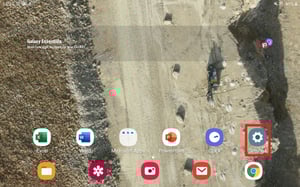
- Go to the “Settings App” of Android and select “Apps”
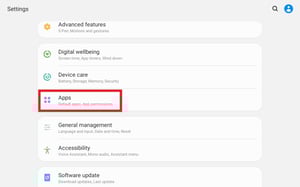
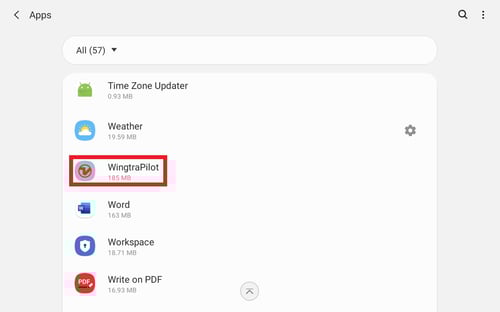
- Scroll to “WingtraPilot” and click on it
- Scroll down and click on “Set as defaults”
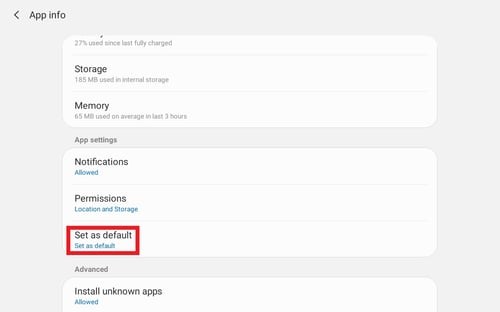
- Click on "Clear defaults"
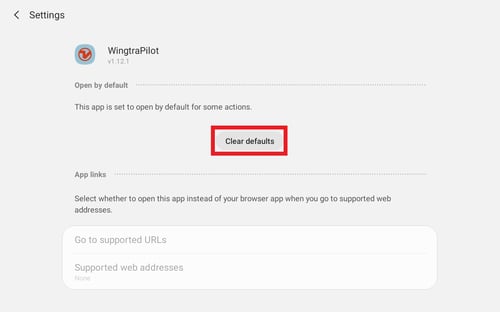
- Go to the “Settings App” of Android and select “Apps”
- Make sure WingtraOne is not powered
- Connect the telemetry antenna to the tablet
- Choose the app “Serial USB Terminal” to use the USB device (a pop-up prompt appears when connecting the telemetry)
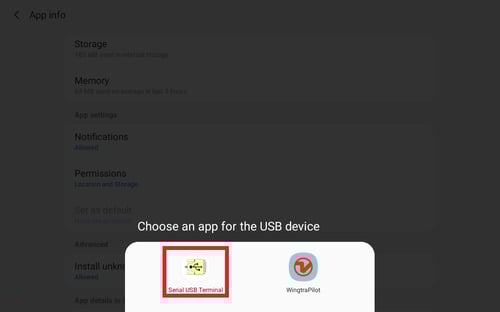
- If not opened already, open the Serial USB Terminal app
- Set up the connection
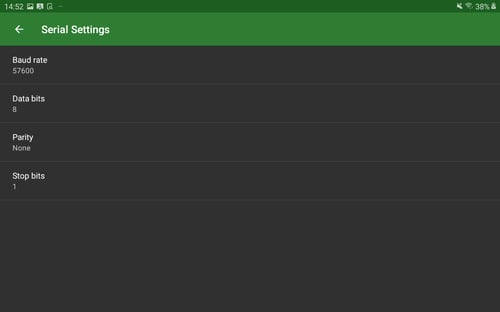
- Go to settings (tap the three lines in the top left corner) and click on "Serial menu"
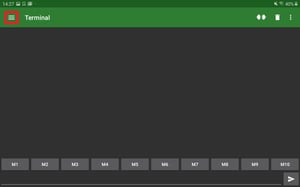
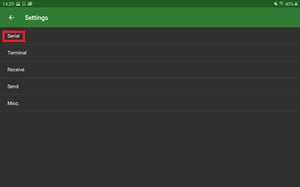
- Choose Baud rate: “57600”
- Choose Data bits: “8”
- Choose parity bit: “None”
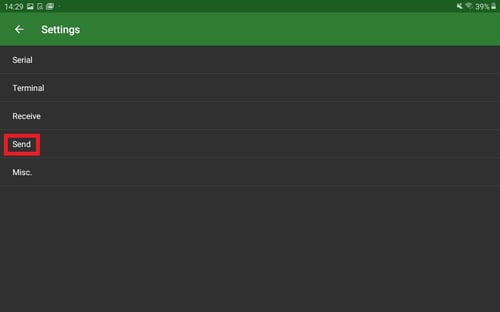
- Go back to the settings (arrow on top left) and click on “Send”
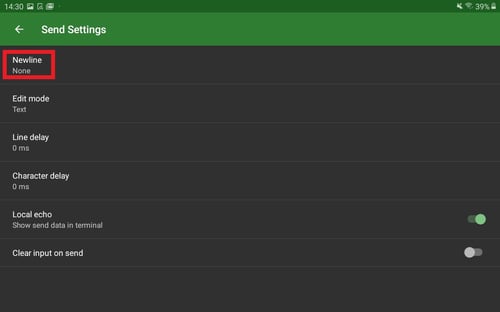
- Chose Newline: “None”
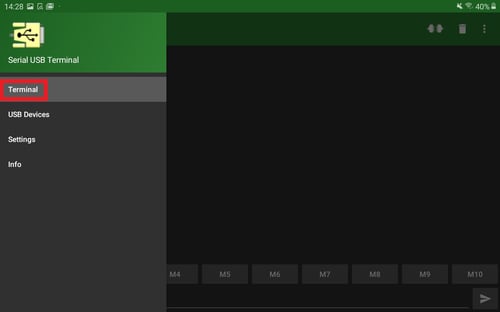
- Click on the three lines in the top left corner and select "Terminal"
- Go to settings (tap the three lines in the top left corner) and click on "Serial menu"
- Establish a connection to the telemetry
- Click the connect symbol (third from the right): "connected to FTDI device" message should appear in the command line
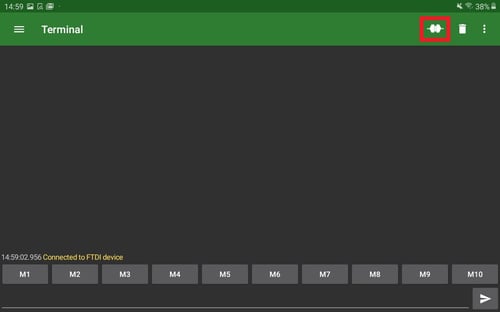
- Click in the send line (see below), and type +++
- Press send (icon in the red box below)
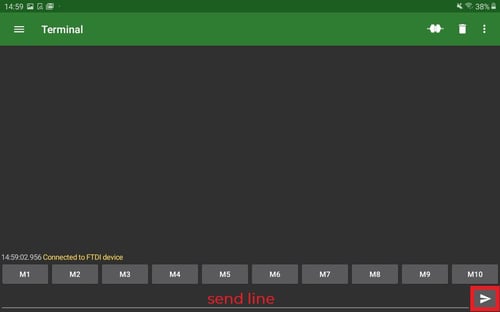
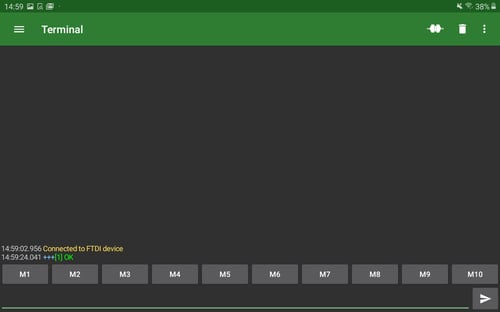
- It should receive: [1] OK
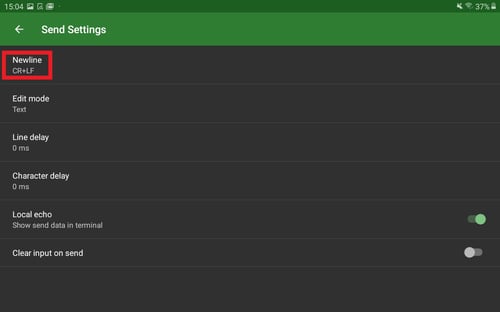
- Go to settings (tap the three lines in the top left corner) and scroll to "Settings-Send"
- Chose Newline: “CR+LF”
- Click on the three lines in the top left corner and press "Terminal"
- Click the connect symbol (third from the right): "connected to FTDI device" message should appear in the command line
- Now: Power up WingtraOne by connecting both flight batteries
- Configure new settings
CAUTION - IT'S VERY IMPORTANT TO KEEP THE EXACT COMMAND AND ORDER of the following commands. (Note: the results of the commands are visible in the main interface of the program.)- Type the command RTI5 and press send
- It should print out an entire list with 18 lines
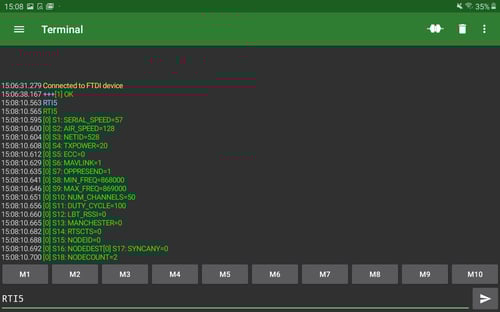
- It should print out an entire list with 18 lines
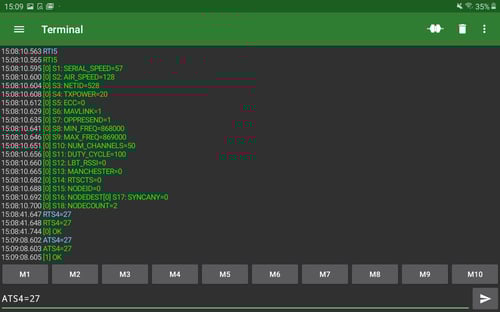
- Type the following commands based on your unit:
- For 868 Mhz units
- RTS4=27 and press send
- ATS4=27 and press send
- For 900 Mhz units
- RTS4=30 and press send
- ATS4=30 and press send
- For 868 Mhz units
- Confirm the settings
- Type the command RTI5 and press send. The value for parameter S4 should be:
[0] S4: TXPOWER=27 (for 868 Mhz units) or TXPOWER=30 (for 900 Mhz units)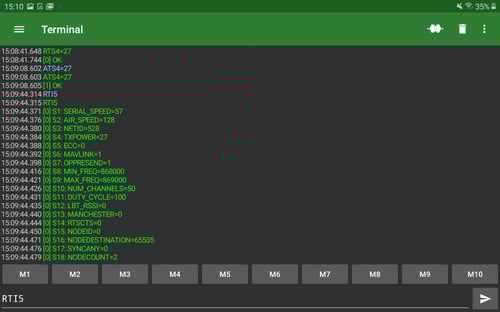
- Type the command ATI5 and press send. The value for parameter S4 should be:
[0] S4: TXPOWER=27 (for 868 Mhz units) or TXPOWER=30 (for 900 Mhz units) - BOTH replies should contain the very same parameter on S4!
- Type the command RTI5 and press send. The value for parameter S4 should be:
- ONLY IF BOTH replies are the same, proceed with step 12. If they are not the same for RTI5 and ATI5 then repeat from step 11b.
- Type the command RTI5 and press send
- Store settings permanently:
- Type the command RT&W and press send
- Type the command AT&W and press send
- Type the command RTZ and press send
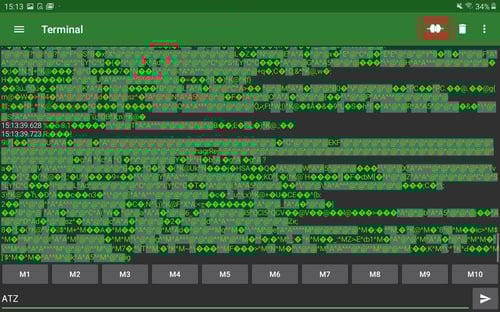
- Type the command ATZ and press send
- You should observe incoming scrolling green characters
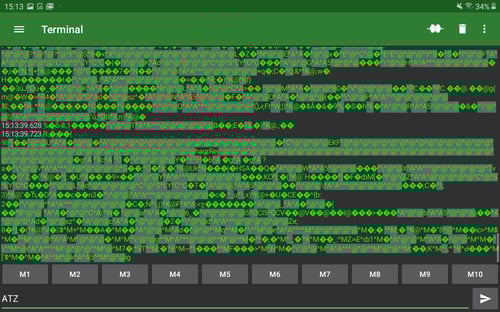
- IF NOT please inform support on wingtra.com/support
- IF YES proceed
- Close the connection to the telemetry module in the Serial USB Terminal app by clicking the connection button in the top right (next to the bin)
- Disconnect the telemetry antenna cable from the tablet
- Close the Serial USB Terminal app
- Reset device defaults on the tablet via the following steps:
- Go to the “Settings App” of Android and select “Apps”
- Scroll to “Serial USB Terminal” and click on it
- Scroll down and click on “Set as defaults”
- Click “Clear Defaults” of the Serial USB Terminal App
- Verify that the telemetry connection works:
- Reconnect the telemetry antenna to the tablet
- Select “WingtraPilot” app as the default app to work with the connected device
- Open WingtraPilot and wait until you receive information from your WingtraOne
- Shut down your WingtraOne
- Next time you fly the WingtraOne with the new settings, observer the telemetry behavior and report your observations to wingtra.com/support