- Help Center
- Troubleshooting
- Advanced Troubleshooting
How to generate a missing json file in the DATA folder
This article will help you troubleshoot if the .json file is missing in the DATA folder after a PPK flight.
If the json file (text file containing time, non-PPK coordinates and attitudes for all images) is missing, PPK geotagging will fail. You will get the following ERROR message.

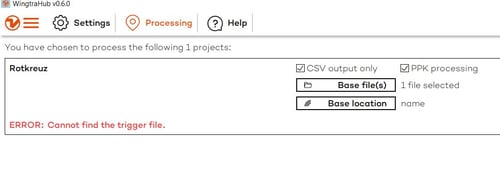
Wingtra developers are investigating why the file is missing. In order to not lose the whole project, you can do the following workaround to process the gathered data.
- Make sure the sbf file is stored in the DATA folder and it is not empty (check the size of the file). If it is also missing, check this article on how to retrieve it.
- Copy the .json file from one of the previous projects to the DATA folder of the project where the file is missing.
- Rename it according to the actual project name (e.g. your_project_name.json).
- Open it using a text editor (e.g. Notepad).
- Copy in it the following content
{
"flights": [
{
"geotag": [
],
"name": "Raw"
}
]
}
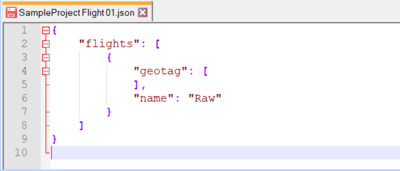
- Save it. Now you have the “dummy” json file.
- Restart WingtraHub, select the project and start processing once again. During the processing the json file will be reconstructed and you will be able to PPK geotag your flight images successfully.