All Support members should be able to create new articles (public or internal) so that all the knowledge is documented. This article explains how to create a new article, when you should do it and where you should place it.
When to create an article?
A new article (public or internal) should be created in the following cases:
- New big features are introduced in a new release
- There are features that are not adequately explained in the Manual articles
- There are known issues that several customers are facing and we want to provide a workaround
- You had an interesting case that is worthy sharing the troubleshooting steps and solution with the team
- There are workflows and processes that are not documented.
How to create an article?
- Open the Wingtra Knowledge Base
- On the top right corner you see this icon:
- Click on it and select Knowledge Articles from the drop-down menu
- Select Create article in the new page
- In the Write tab, give a title and a description to the article and add the content under the Answer section. You can add images, videos or links from the top toolbar.
- In the Settings tab, give the URL of the article, select the category in which you want to add your article, and set the access rights.
- While writing, a draft is already created and it is automatically saved regularly. In this stage it is possible to preview it. When the article is completed, click on Publish.
General guidelines:
- Give a discriptive title to the article
- Write for the average customer - better to provide more information than less
- Link other articles or resources
- Add images, bullet points, videos to better explain something
How to set access rights?
The Knowledge Base consists of articles that are public and articles with restricted access. The default setting is public:
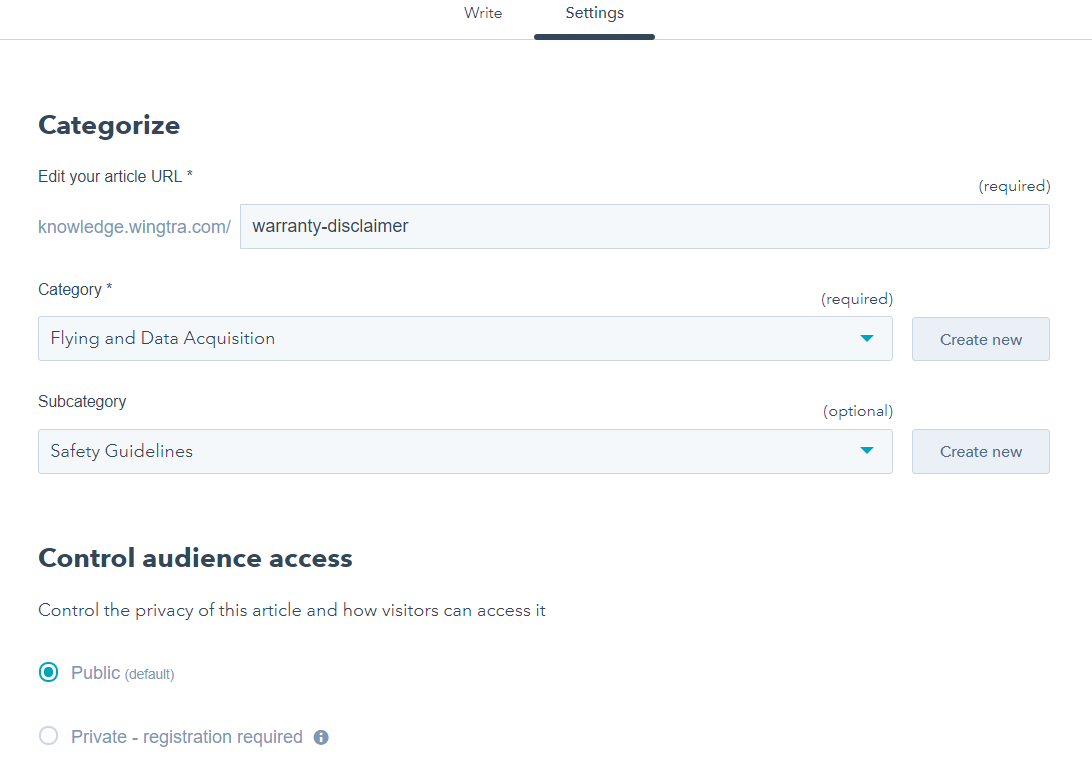
To restrict the access to specific contacts groups, click on the Private - registration required option and select an option from the dropdown menu. It is possible to select multiple options from the list.
For internal articles that are accessible only for Wingtra members select the Wingtra Internal category for the article and the Access to Wingtra Internal Knowledge Base Category option.
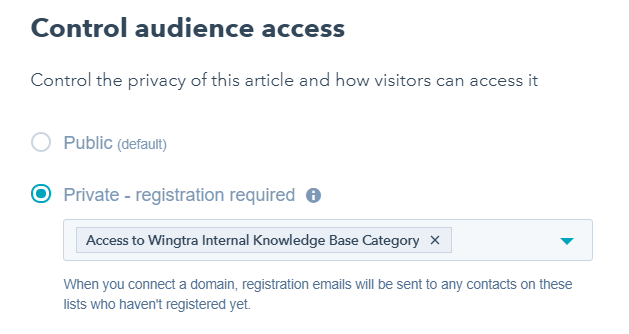
To publish an article to the Distributor portal, place it in the Distributor Portal category and select both the Access to Wingtra Internal Knowledge Base Category and the Access to Distributor Portal Knowledge Base Category [Static] options.