Tips on how to demonstrate a project using Pix4Dmapper
Pix4D Desktop
Pix4D processing is time-consuming, especially when high-resolution images like the ones captured by SONY RX1 are processed. Before processing the data make sure your computer meets the minimum hardware and software requirements. To demonstrate the results that can be achieved when processing WingtraOne images during a demo, you can follow one of the upcoming workflows.
Reduce the image resolution
- Create a project following the instructions of the article Process WingtraOne Images with Pix4D up to step 5.
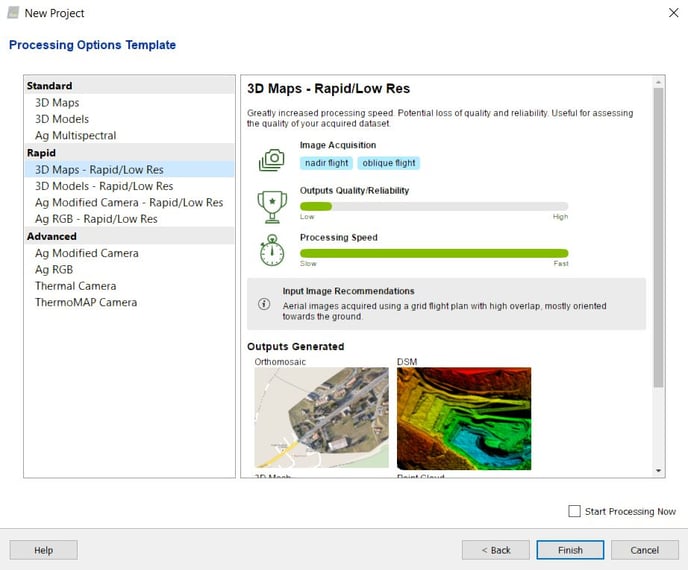
- Select 3D Maps - Rapid/Low Res template in the Processing Options Template page.
- Select step 1. Initial Processing and Start.
After defining the input parameters, importing images and defining coordinate systems, the processing options template is selected. Usually, for mapping nadir flights it is recommended to select standard 3D Maps (designed to give best outputs), but for reducing the processing time, the Rapid templates (for nadir flights choose 3D Maps- Rapid/Low Res) should be selected. It is important to underline that choosing this template will reduce the time of processing, but also the accuracy of the outputs, by reducing the resolution of input images. Usually, this template is used while the user is still on the field and would like to check the collected data before returning to the office.
Use of Processing Area
- Create a project following the instructions of the article Process WingtraOne Images with Pix4D up to step 6.
- Select step 1. Initial Processing and Start.
Note: De-selecting the option Generate Orthomosaic Preview in Quality Report speeds up significantly the processing. - (Optional) After step 1 is completed, import and mark GCPs in case of non-PPK image geotags and re-optimize the processing. In the case of PPK geotags, the measured points can be used as check points.
- One way to reduce the area which will be computed is to introduce a Processing Area following the instructions of the Pix4D article How to select/draw a Processing Area. The software will process the data only inside this area, which can save a lot of time. Set up a Processing Area around objects of interest, such as buildings or stockpile.
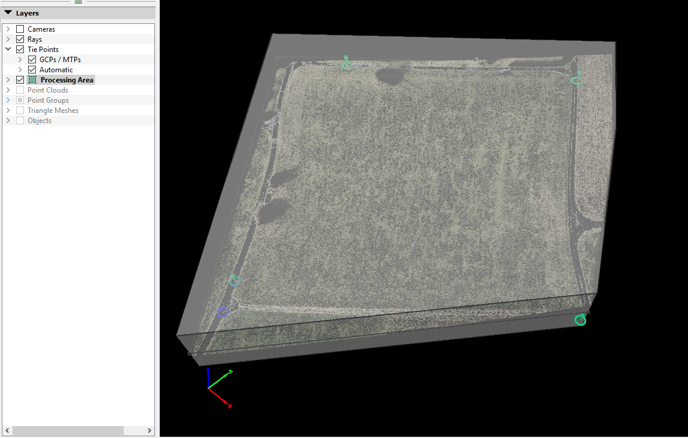
- Select steps 2 and 3 and Start. In case you do not need all the results, you can modify the Processing Options to deselect specific outputs, for example, the 3D textured mesh. The results will be generated only for the area inside the Processing Area polygon. If the DSM and orthomosaic are not needed, unticking the step 3. DSM, Orthomosaic and Index can save a lot of time.
Generate fewer keypoints
If the full project needs to be processed, speed up processing following the steps below:
- Create a project following the instructions of the article Process WingtraOne Images with Pix4D up to step 6 for a small sample of about 10 images.
- Select step 1. Initial Processing and Start.
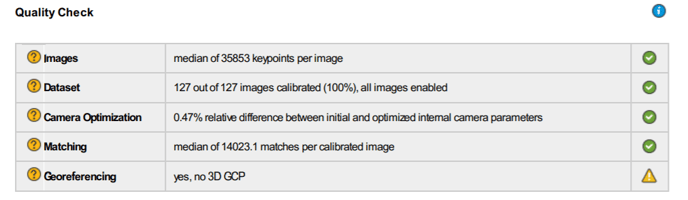
- Open the Quality Report and check the median of keypoints per image in the Quality Check table.
- Create a new project with the full dataset.
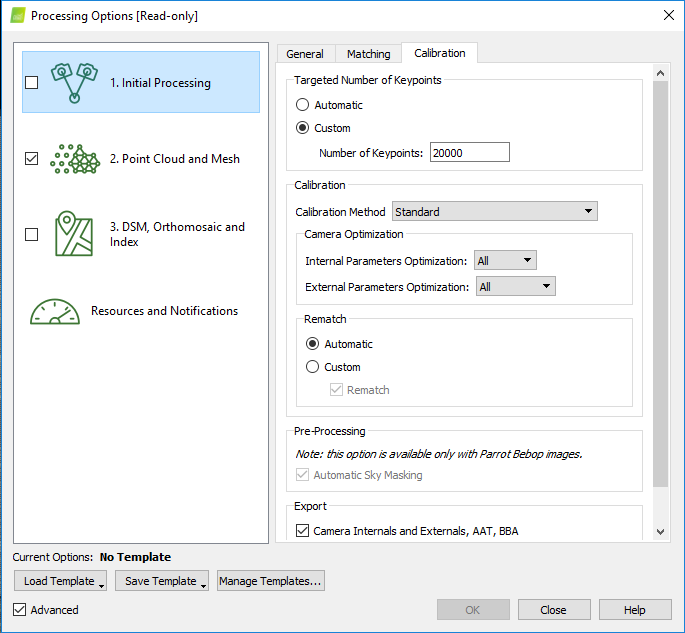
- Open the Processing Options window and set about half of the above number in the Targeted Number of Keypoints section.
- Select step 1 and Start.
Generate fewer points
For high-resolution images, the default processing options for the Point Cloud Densification result in a very large point cloud. Reducing the processing options to the following will speed up the processing while it will not affect significantly the relative accuracy.
- Point Density: low. A 3D point is computed for every (16/Image Scale) pixel.
- Minimum Number of Matches: 4. Each 3D point has to be correctly re-projected in at least 4 images.
Pix4D Cloud
To save computing resources or process multiple projects in parallel you can upload the projects from Pix4Dmapper to the cloud and process them there.
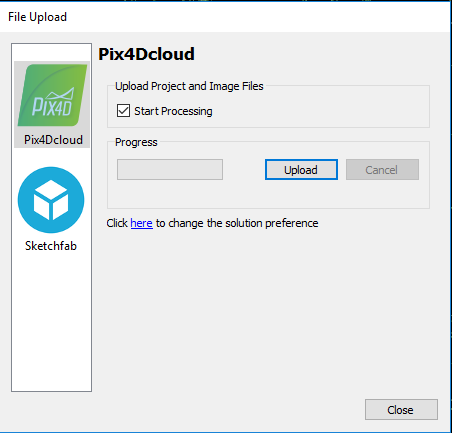
Note that the processing options should be selected in Pix4D Desktop after the project creation and before uploading it on the cloud. Additionally, importing GCPs or control points directly on Pix4D Cloud is not possible.
Measures of quality of a project
RayCloud
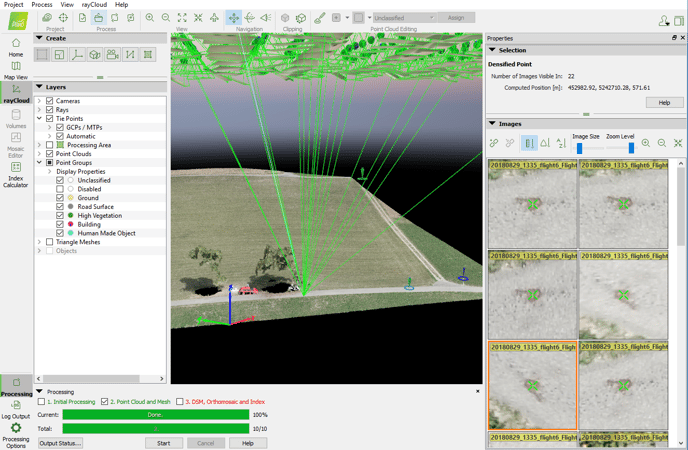
The reprojection error gives a good indicator of the quality of the reconstruction of a model. It can be visualized in the rayCloud by selecting a 3D point. The reprojection of the point is the green cross that can be seen on the images in the Images section of the right sidebar.
Select a distinct point on the rayCloud, like the edge of a building and check if this is correctly reprojected on the images.
Relative accuracy
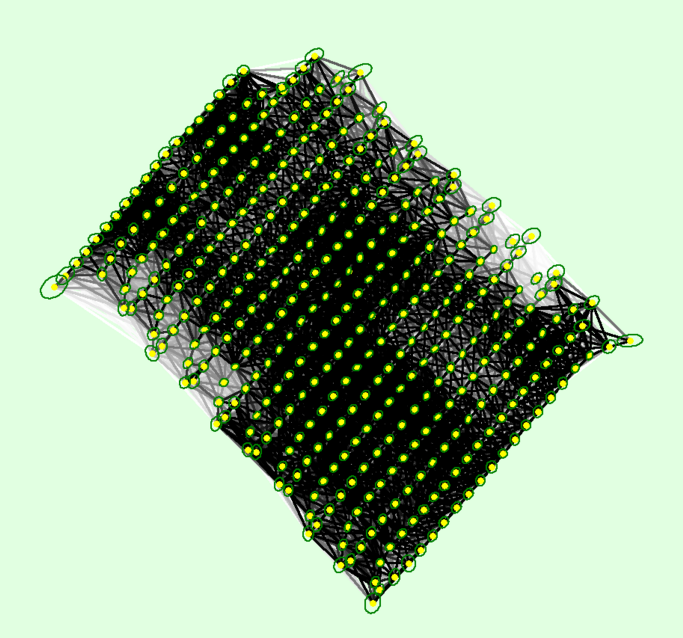
The relative accuracy depends on the overlap between images, the visual content of the images, and many other parameters. It can be assessed based on the 2D Keypoint Matches graph in the Quality Report. The areas with weak matches (lower relative accuracy) in this graph are displayed with a brighter colour.
Absolute accuracy
The absolute accuracy of the WingtraOne survey depends on the PPK data or on the Ground Control Points (GCPs) measured in the area.
It can never be better than their accuracy and it can be assessed using control points or comparing against other data that their accuracy has been verified. The absolute accuracy depends also on the relative accuracy of the model, as this defines the overall quality of the stitching.
To assess the absolute accuracy use measured points as check points (see: step 7) and check the RMS error in the Ground Control Point section in the quality report. For an accurate project, the horizontal error should be 1-2 times the project GSD and the vertical error should be 2-3 times the GSD.