This article describes the technical details of the warranty and the extended services tracking workflow.
About:
To track the warranty, we are using the dates acquired from:
- the report a sale app - the date of sale
- the metadata - first flight outside of Zurich
The warranty start date is whichever of these two dates occur first. To record the warranty start date, we are using the HubSpot's property "Warranty start date" and to record the status of the warranty, we are using the HubSpot's property "Warranty Status".
The Warranty start date is the most accurate if both of the dates are known (First flight outside of Zurich and Date of Sale). If we are looking at one of the earlier sold drones and we find that the Date of Sale is not available, the best approach is to ask the customer or the reseller for the invoice and populate the property Date of Sale in HubSpot (which will trigger a workflow to automatically update the Warranty Start Date).
For the earlier sold drones it was allowed for the distributor to test a drone by performing a test flight. Currently, all the testing is done in Zurich, before the shipment and sale.
You can find our warranty policy on https://wingtra.com/warranty/
HubSpot contact properties in use:
- Date of Sale - the property is populated once a sale is reported via the "report a sale" button in the distributor portal. The date is originally saved as the deal close date, but we copy it as the date of sale as well.
- First Flight Outside of Zurich - the property is populated with the dates sent by the drone to the metadata.
- Warranty start date - the date used to track the warranty. The property is automatically populated by a workflow, based on the properties "Date of Sale" and "First Flight Outside of Zurich", whichever is first. This property can be set manually in HubSpot and the workflows will not change it afterward.
- Warranty Status - the property is automatically populated by a workflow, based on the properties Warranty start date and purchased extended services, the property is set to the values Active, Active SYW, Active TMP or Expired.
Workflows in use:
To populate the above-mentioned properties and to maintain the warranty status we are using three workflows:
1 - Set warranty start date after the first flight outside of Zurich or if a sale was reported
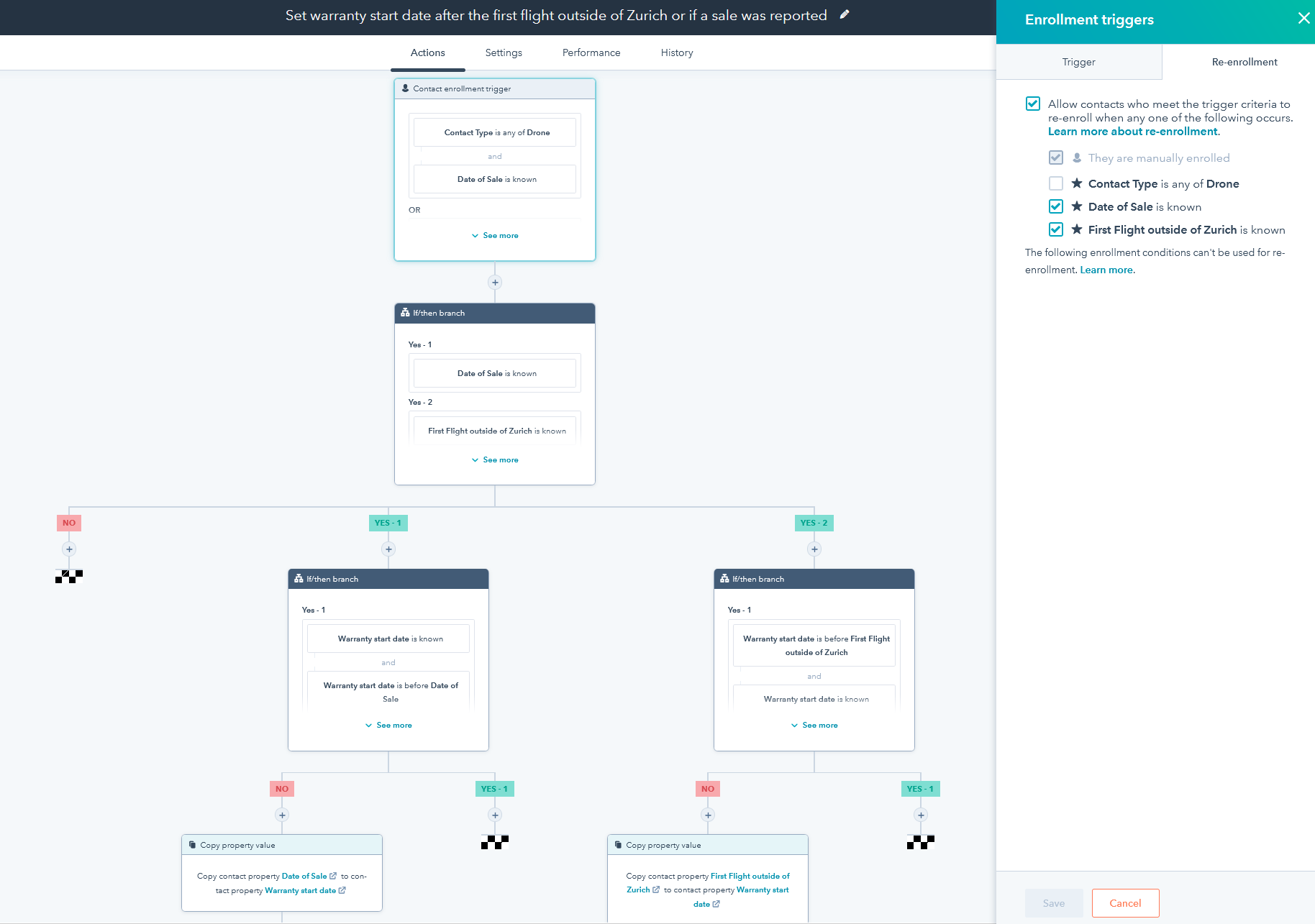
The workflow is handling the warranty dates. The workflow is re-enrolled as the properties "Date of Sale" and "First flight outside of Zurich" are updated. Each time the workflow is re-enrolled, the workflows checks:
- If the "Warranty Start Date" is unknown, populate the property "Warranty Start Date" with the first date received.
- If the "Warranty Start Date" is known, then compare the dates and update only if the properties "Date of Sale" or "First flight outside of Zurich" are with the earlier dates than the current warranty start date.
2 - Set the property "Warranty status" depending on the 1st year warranty and extended services
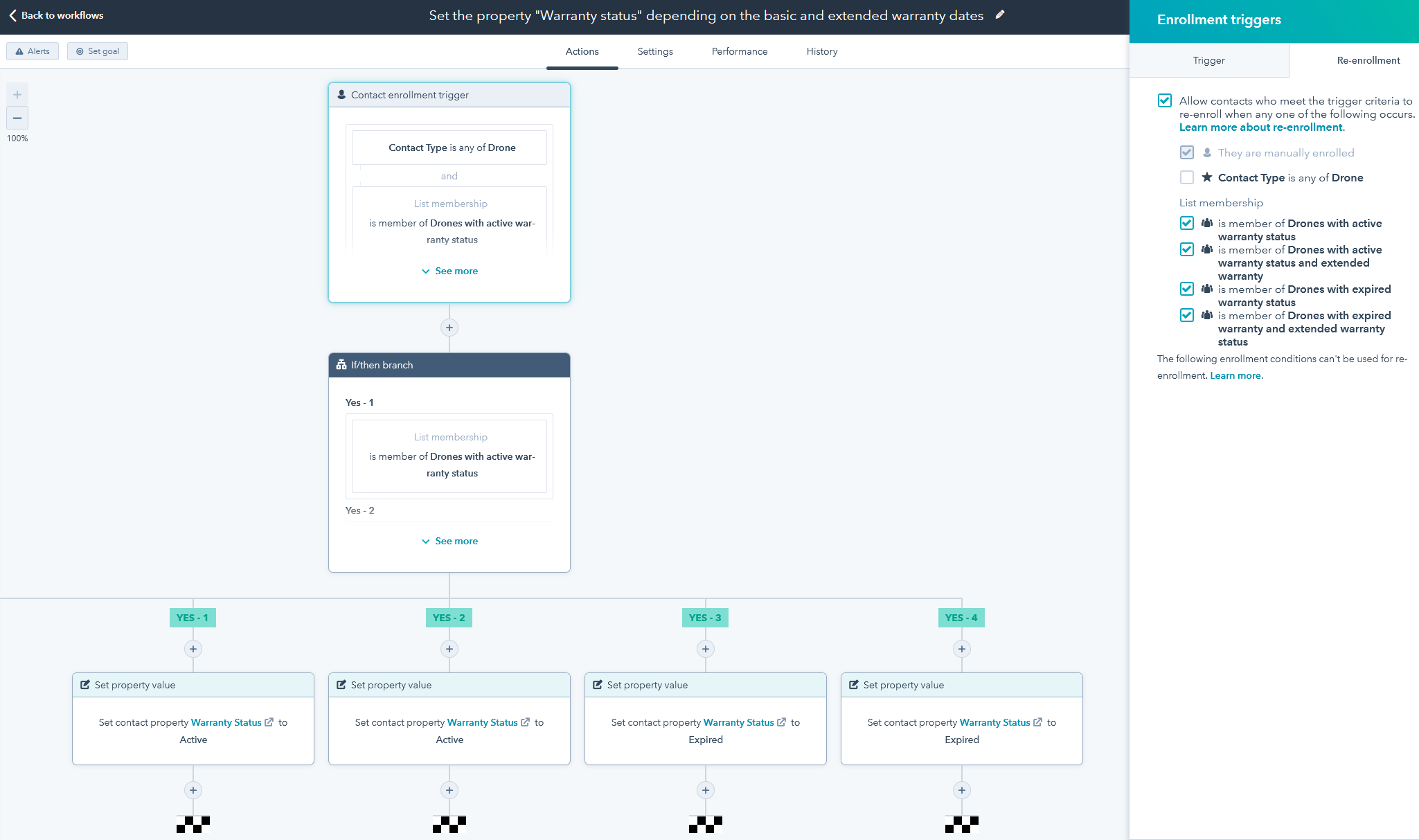
The workflow is handling the Warranty Status property. The workflow is re-enrolled as the drones (contacts) are members of the dynamic lists and sets the values "Active" or "Expired" accordingly:
- Drones with active 1st year warranty status - this list contains all of the drones with:
- Warranty start date less than 365 days ago
- no active TMP or SYW
- Drones with expired warranty status - this list contains all of the drones with:
- Warranty start date more than 365 days ago
- no acive TMP or SYW
-
Drones with active warranty status and activated SYW - this list contains all of the drones with:
- Warranty start date less than 730 days ago
- known SYW Activation Date
- SYW Type is any of Unlimited
- Drones with active warranty status and SYW (up to 100h) - this list contains all of the drones with:
- Warranty start date less than 730 days ago
- with SYW (up to 100h)
- Drones with expired warranty and SYW (up to 100h) - this list contains all of the drones with:
-
Warranty start date more than 730 days ago
-
with SYW (up to 100h)
-
-
- OR
-
- Warranty start date more than 365 days ago
- with SYW (up to 100h)
- Total Flight Hours is greater than 100
- Drones with active TMP (unlimited) warranty status
- TMP Type is any of Unlimited
-
TMP Activation Date is less than 365 days ago
- Drones with active TMP (up to 100h) warranty status
- TMP Activation Date is less than 365 days ago
- TMP Type is any of Up to 100h
- Total Flight Hours is less than 100
- Drones with expired TMP warranty status or TMP (up to 100h)
- TMP Activation Date is more than 365 days ago
- TMP Type is any of Up to 100h
- OR
- TMP Activation Date is less than 365 days ago
- TMP Type is any of Up to 100h
- Total Flight Hours is more than 100
All of the data from the above lists can be seen visualized in the Warranty Tracking dashboard.
3 - Send the email notification two months before 1st year warranty expires
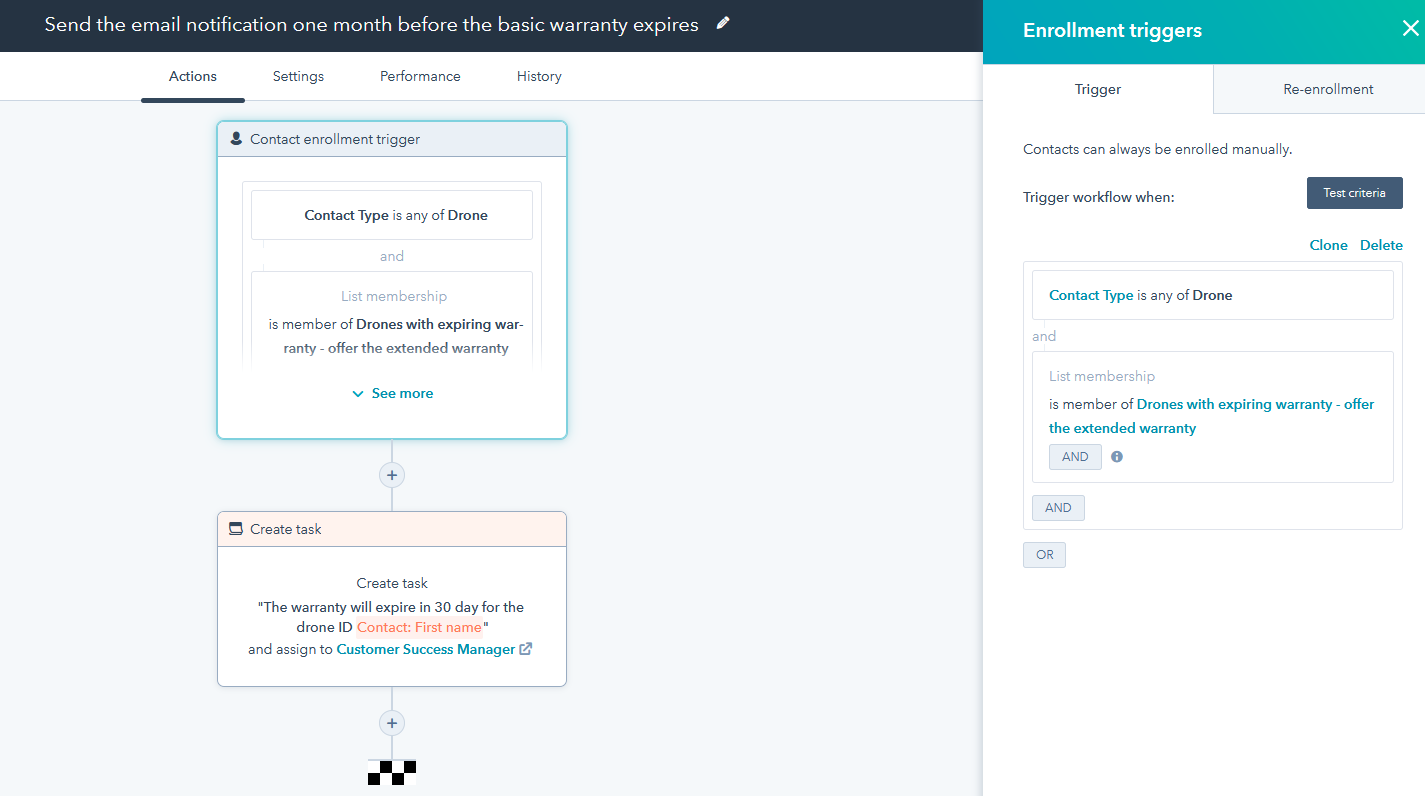
The workflow is handling the reminder for the warranty that is expiring in 60 days. The workflow is enrolled as a drone becomes a member of the dynamic list below, and send a reminder to the sales representative.
- Drones with expiring warranty - offer the extended warranty - this list contains all of the drones with:
-
-
a Warranty start date less than 365 days ago
- a Warranty start date more than 305 days ago
- no extended services.
-
Licences for extended services:
- Procedure on how to create a licence is covered in the article - How to create a licence for Accidental Drone Protection, Total Maintenance Plan or Second-year Warranty?
- Procedure on how to activate a licence is covered in the article - How to activate an extended service licence?
What happens after the licence activation?
- The licence number gets automatically copied from HS licence object to the drone contact the first time the licence gets associated with a drone using workflows.
- Copy TMP Licence Key from Licence to Drone
- Copy SYW Licence Key from Licence to Drone
- Copy ADP Licence Key from Licence to Drone
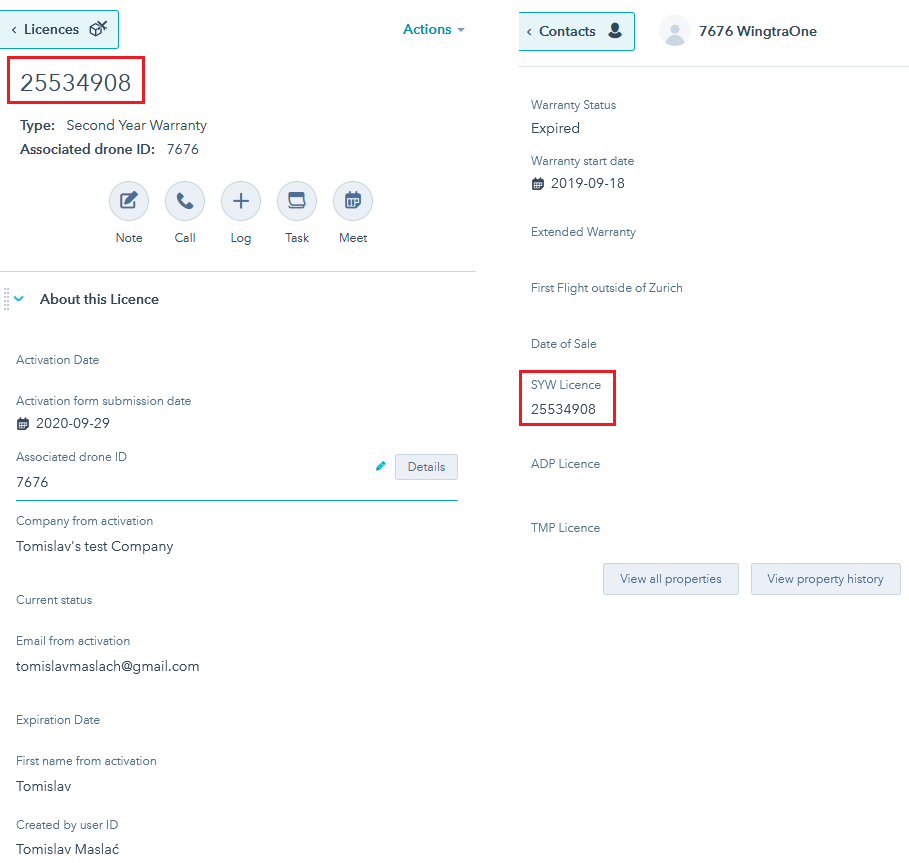
- However, if there was a mistake (the customer activated the licence with the wrong drone ID), and the licence has to be reassocaited with another drone, then we have to:
- Manually edit the HubSpot drone contact property storing the licence number, deleting it in one contact, adding it in the other contact.

- Reassociate the licence object to the correct drone and remove association from the incorect drone.
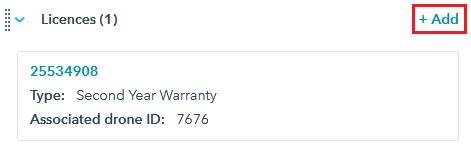
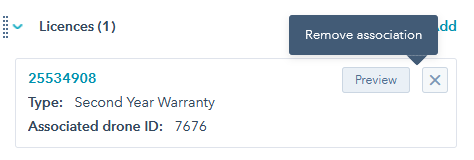
- Reassociate the correct drone contact to the licence object.

- Manually edit the HubSpot drone contact property storing the licence number, deleting it in one contact, adding it in the other contact.