(Outdated instructions) Unblock Plane With Critical Sensor Error
If instructed to unblock a plane because of an internal sensor issue this article will guide through the process
Caution:
- Deviating from the described procedure may cause a fatal system failure
- Use this support doc only when you are given permission from Wingtra Support
- Please take verification screenshots of settings to send to support once complete
Required Equipment:
- WingtraOne
- A pair of fully charged batteries
- Tablet (with WingtraPilot version 1.9.4 or above)
- Telemetry
- Normal flight operation equipment (pilot box)
Step by step procedure
- Follow the normal flight preparation procedure:
- Create and adjust your flight plan.
- Go through the preflight checklist and start the flight.
- If the compass inclination error does not appear, please ignore this document and fly WingtraOne with the normal procedure.
- If the compass inclination error appears, please continue following the instructions below.
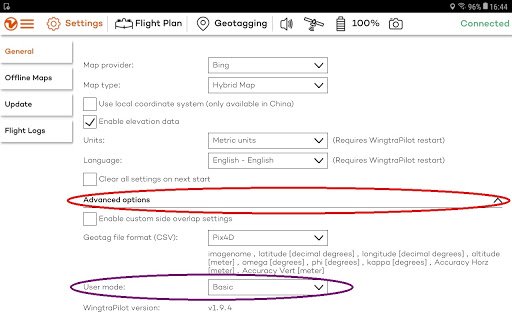
- Go to “General” tab under “Settings”, click and open up “Advanced options” (red circle). Change “User mode” from “Basic” to “Wingtra” (purple circle). The password is wingtra.1. Make sure to change back to Basic mode before starting a flight.
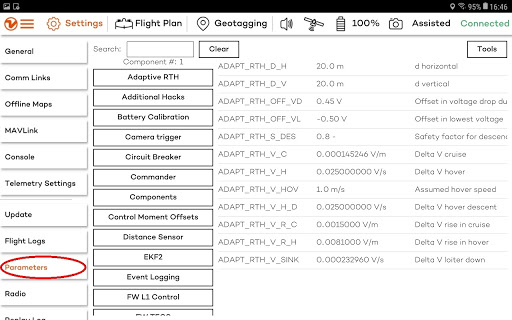
- On the left column, go to “Parameters” (red circle).
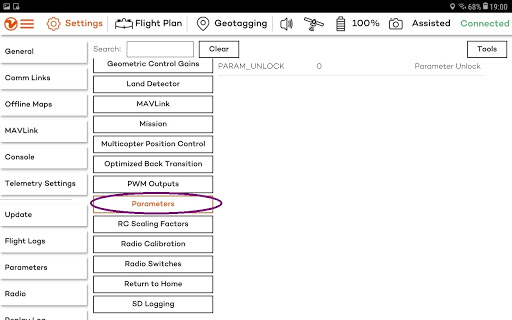
- On the second left column, scroll down until you find “Parameters” (purple circle) and select it.
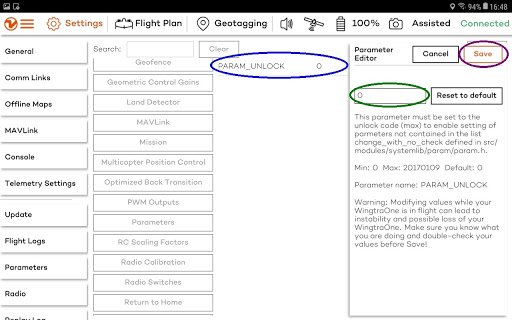
- Select “PARAM_UNLOCK” (blue circle). There will be a parameter changing interface popping up on the right. Change the parameter value from 0 to 20170109 (green circle), and then save it (purple circle).
- On the top right, press “Tools” (red circle) and then press “Refresh” (green circle).
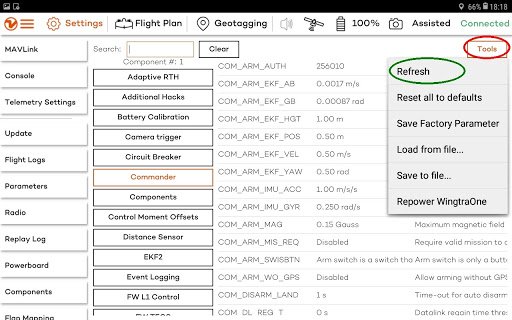
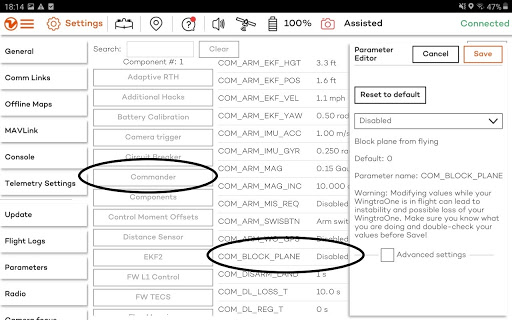
- Search for the COM_BLOCK_PLANE (under Commander sub-group) and set the value to 0. Hit save in the top right corner.
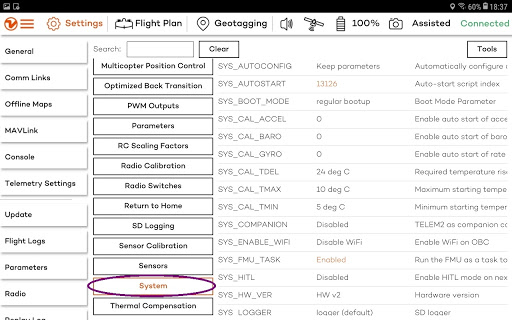
- On the second left column, scroll down until you find “System” (purple circle) and select it.
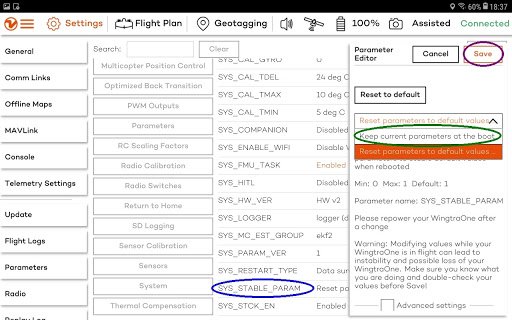
- Scroll down the parameters and select “SYS_STABLE_PARAM” (blue circle). There will be a parameter changing interface popping up on the right. Change the parameter value from “Reset parameters to default values …” to “Keep current parameters at the boot” (green circle), and then save it (purple circle).
- Repeat steps 4-5 to reset the “PARAM_UNLOCK” parameter value back to 0.
- Repower WingtraOne and restart WingtraPilot to reset the User mode to “Basic”. Then continue to proceed with your flight operation.
- From now on, the internal sensor error should not appear again.
- After the firmware is updated past V1.12 or the plane restarted please go back to the previous image to set System ---> SYS_STABLE_PARAM --> Reset parameters to default values.