When encountering a specific problem related to the camera first review this article before moving to the debugging process to verify the issue and narrow down the correct solution.
Preflight issues
Q: The preflight check has timed out?
- For RX1:
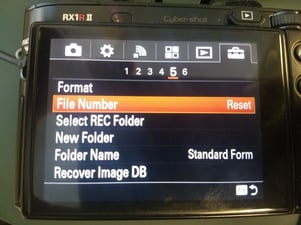
- Check that the camera setting "File Number" is set to "Reset".
- There are two options to access the camera MENU which allows you to change the camera settings:
- 1. Take the camera out of the camera mount and power the camera with the external camera battery.
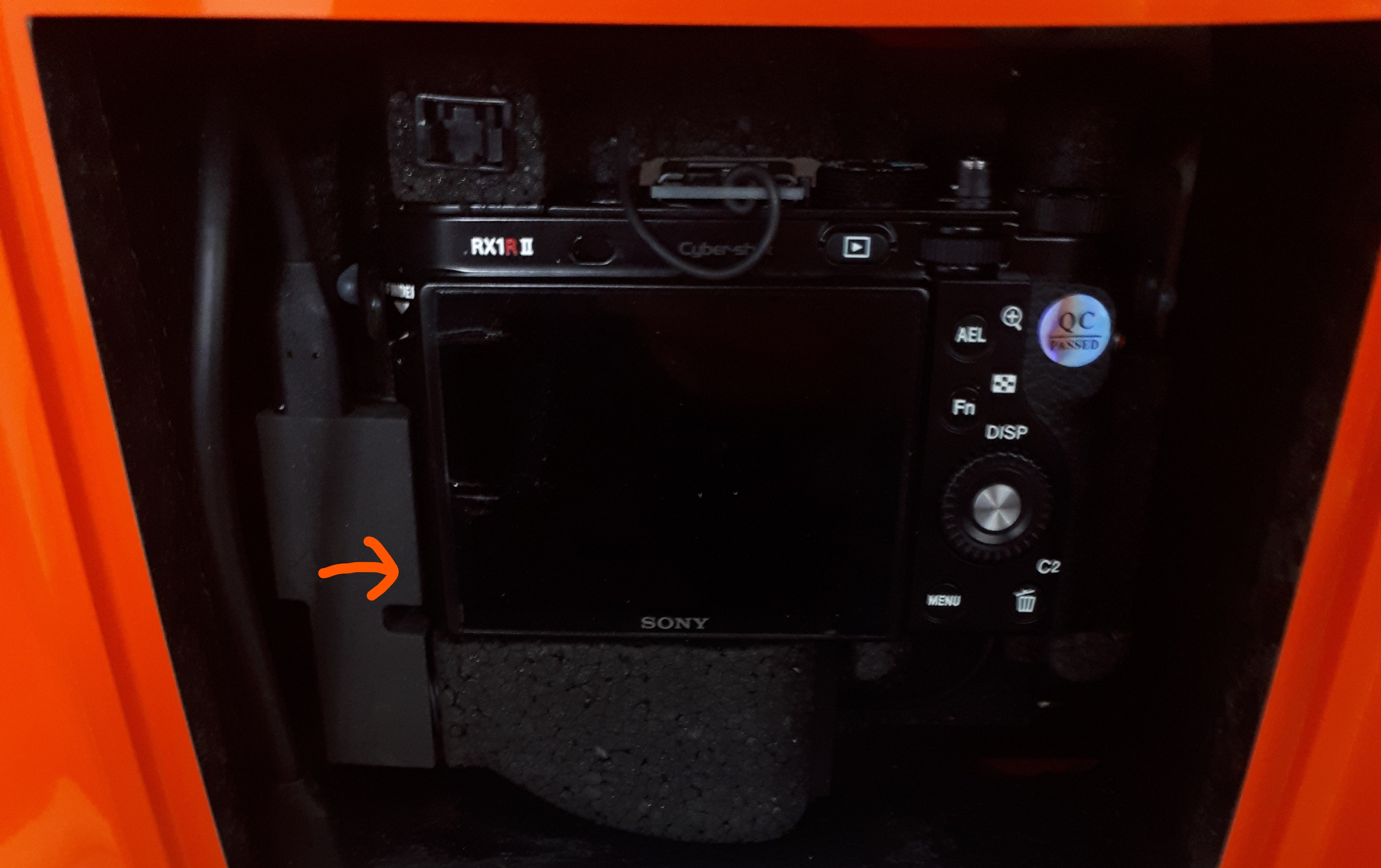
- 2. Leave the camera in the WingtraOne, unplug the micro USB connector that is plugged into the camera on the left of the camera screen, power WingtraOne with the flight batteries.
- There are two options to access the camera MENU which allows you to change the camera settings:
- To save the changed setting permanently turn off the camera using the manual on/off switch. Wait for 2 minutes and turn the camera back on, check if the setting has been saved successfully.
- Check that the camera setting "File Number" is set to "Reset".
- General guidelines:
- Ensure the camera SD card is inserted and the camera mount cables are well connected
- Repower WingtraOne
- Check that the telemetry connection is established
- Check the camera screen and click OK if a message appears after the mass storage mode
- If the issue persists, check out the camera debugging article to ensure the camera is setup correctly.
Q: The camera check stays orange: Camera discovery in progress?
- Reformat the SD card
- Ensure that the camera cable is fully plugged in. Unplug the cable and plug it back in.
Q: Is the camera check greyed out during the preflight checklist?
- Replug the cables in and review that the correct camera is selected when creating a mission.
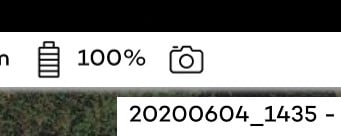
- Check the camera symbol icon in WingtraPilot to see if it is black within 60 seconds of powering up. If it is red, grey, or has a slash through it, follow the debugging guidelines.
Q: Did the camera check fail or turn red?
- Click on the exclamation mark on the preflight check and follow the instructions.
- If the issue can not be resolved follow the sanity check in the RX1 payload debugging guide.
Post flight issues
Q: What error message appeared on the tablet after the flight?
Always note or capture an image of the error message. Document what steps you tried to resolve it and send the information to wingtra support.
Q: Did the camera not take any images during the flight?
- If the camera took 0 photos follow here, but if there are some photos go to the next section.
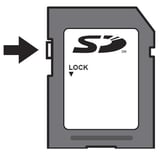
- Check that the SD card adapter is not locked (small slider on the adapter needs to be on top)
- Repower WingtraOne, check if there is a message on the camera screen which prevents taking images. If there is a message, press OK or save the required settings.
- Image database pop up message.
- Language & time zone selection.
-
Check if a WingtraPilotProjects folder was created then see if there are images in the DCIM folder. Try to retrieve missing data from the SD card by following the article How to Retrieve Missing Data.
- Check if the camera is able to take images manually outside the mount with the Sony battery.
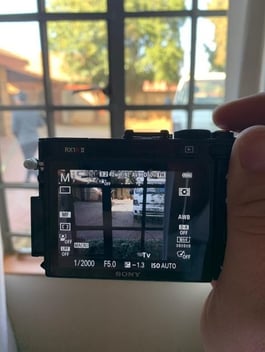
- Please check the other steps described in the RX1 payload debugging guide and do a test flight as described.
Q: Did the camera not take as many images as expected?
- Make sure you are using an SD card which is fast enough and is the correct type recommended by Wingtra. A different SD card can cause a slower maximum trigger speed.
- Missing images or skipped images can be caused by overloading the camera write speed. The factors that contribute to triggering interval speed:
- Flight height - Flying too low increases the trigger speed so try flying higher.
- Heavy winds - High tailwinds can increase the speed of the drone. Try to maintain consistent flight speed by adjusting flight direction.
-
- High overlap - Increasing the front overlap reduces the trigger speed so try to reduce the overlap.
-
- Camera settings - Changing the settings to Extra Fine or RAW & JPEG increases the file size of the images which slows down the camera.
- Remove the camera from the mount and insert the Sony battery into the camera. Run a trigger test by taking pictures manually a bit faster than once every second.
- Otherwise, please check the other steps described in the RX1 payload debugging guide to solve your issue.
Post-processing
Q: Why does the geotagging process last very long?
- The file size of individual images taken with the RX1R II is up to 25MB (for quality setting "extra fine" up to 40MB, for RAW+jpeg up to 45MB+25MB). For large projects with high overlaps, this results in project sizes of up to 40GB of image data (for default settings). Handling this amount of data on the tablet can take up to 60 minutes of processing time.
- We recommend using the image quality setting "fine" as defined in the RX1 general information article. Furthermore, geotagging speed can be increased by selecting the option "csv only."
Camera standalone
Q: The camera does not keep the adjusted settings after re-powering WingtraOne?
- To store camera capture settings permanently, the camera has to be turned off and on again via its on/off switch. It is recommended to wait 30 seconds before turning the camera back on. Depowering the WingtraOne directly cuts the power off the camera and does not save settings.
- If this does not work, please contact support. Describe your problem, refer to this article, and write down the camera serial number. It would also help to have a video showing the behavior if possible.
If you did not find your problem described here
Check if the steps described in the RX1 payload debugging guide solve your issue.