This article contains step by step instructions on how to format the SD card.
The WingtraOne SD cards can be formatted using the camera, the tablet, or a computer. Formatting will delete all data on the SD card, therefore make sure to save all data you require on another device. We highly recommend to format the camera SD cards regularly (e.g. every 10 flights). To ensure smooth data acquisition, ensure the used SD cards fulfill the requirements. (WingtraOne compatible SD cards)
- Format SD card with the RX1 camera
- Format SD card with the a6100 camera
- Format SD card with the tablet
- Format SD card with a computer
- Format MicaSense SD cards
In case formatting the SD card fails, check out the troubleshooting section.
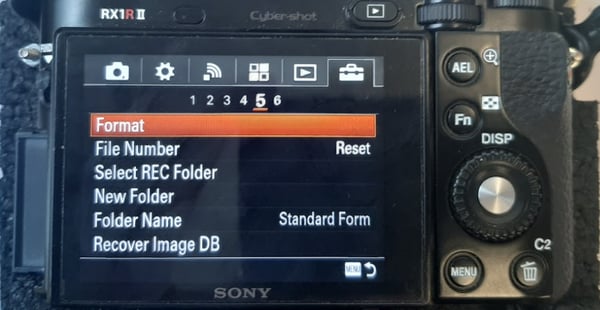
Format SD card with the RX1 camera
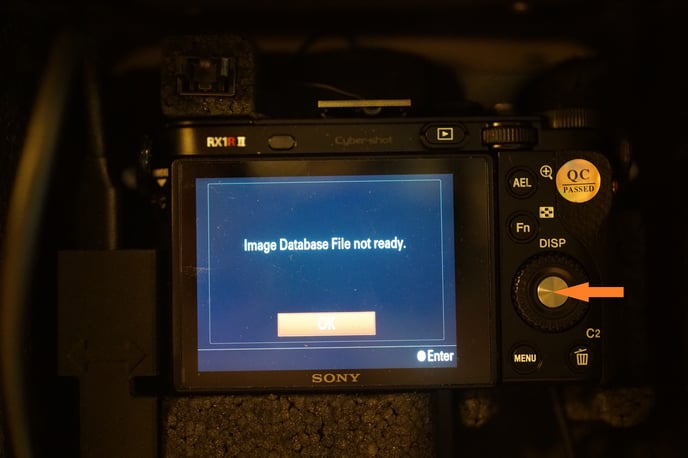
- Power up the drone and wait until the mass storage mode message on the camera display disappears
- Press menu, go to the Suitcase symbol and then to page 5 as shown in the picture
- Select Format and confirm
- Select New Folder to create a new folder
- Select REC Folder and confirm the default folder
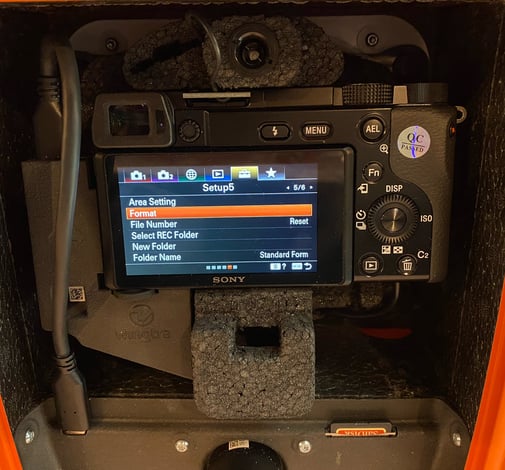
Format SD card with the a6100 camera
- Power up the drone and wait until the mass storage mode message on the camera display disappears
- Press menu, go to the Suitcase symbol and then to page 5 as shown in the picture
- Select Format and confirm
- Select New Folder to create a new folder
- Select REC Folder and confirm the default folder
Format SD card with the tablet
1. Make sure the WingtraOne is not powered
2. Take out the SD card from the camera (for WingtraOne RX1) or the micro-USB card adapter (for WingtraOne QX1)
3. Insert the SD card into the tablet (by using tablet SD card adapter)
4. Open the "Settings" app of the tablet
5. Browse to "Device Care" and click on it
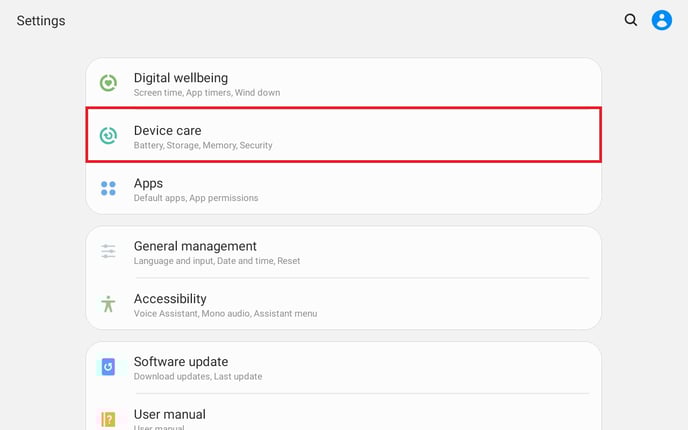
6. Select "Storage"
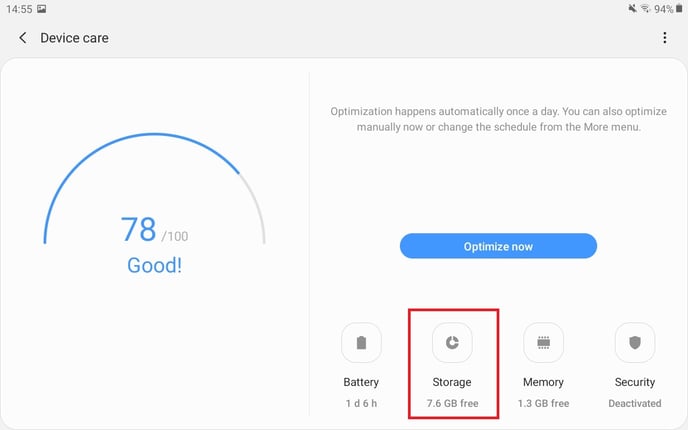
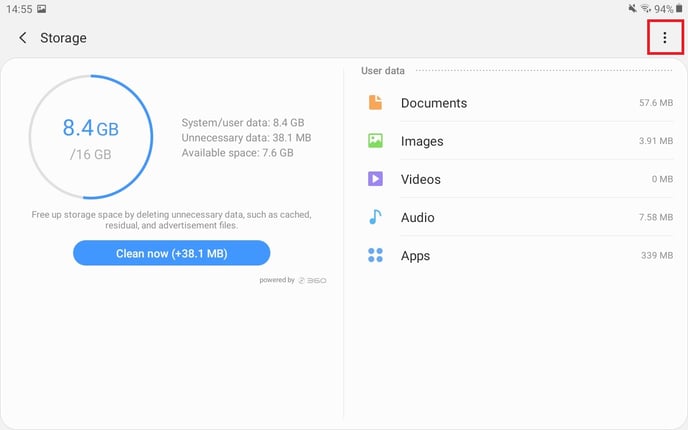
7. Click on the three dots on the top right
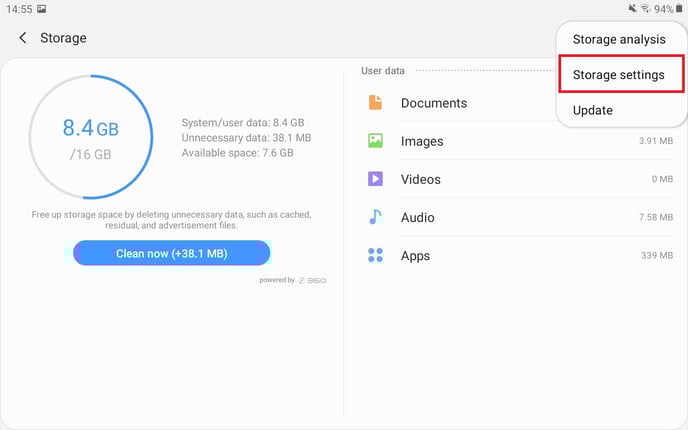
8. Click on "Storage settings" on the top right
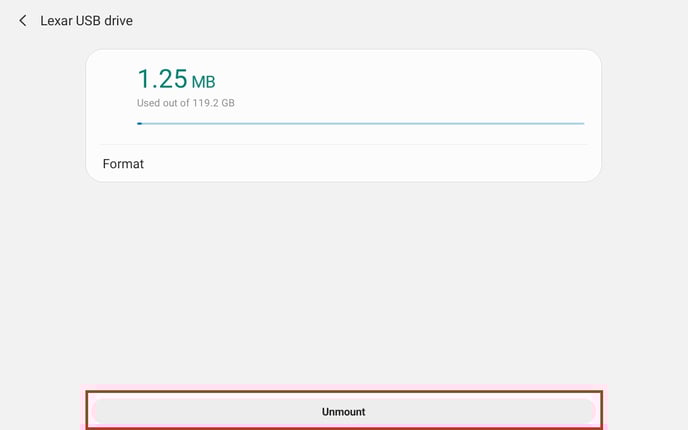
9. Select the SD card by clicking on "Lexar USB drive"
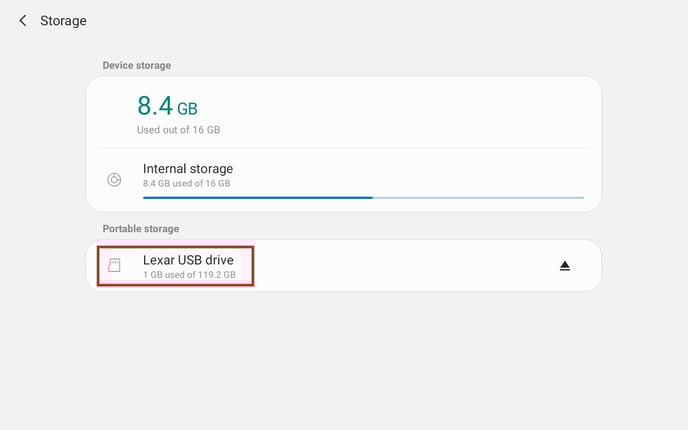
10. Click on "Format"
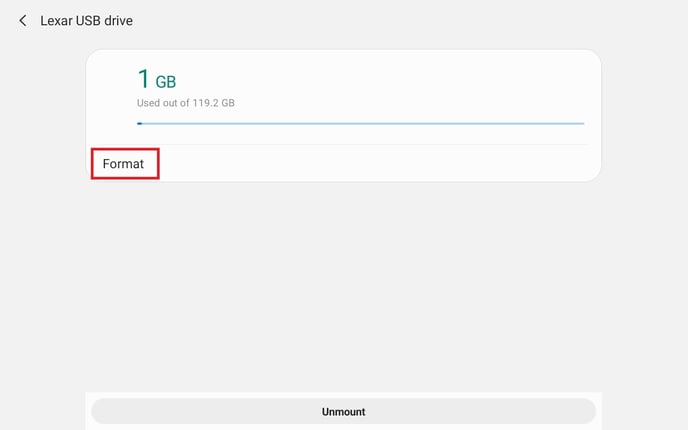
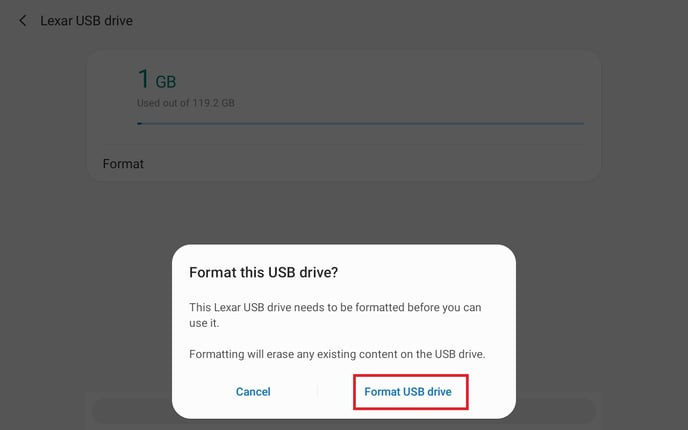
11. Proceed through the Android Wizard by clicking on "Format USB drive" and "Done" at the bottom right
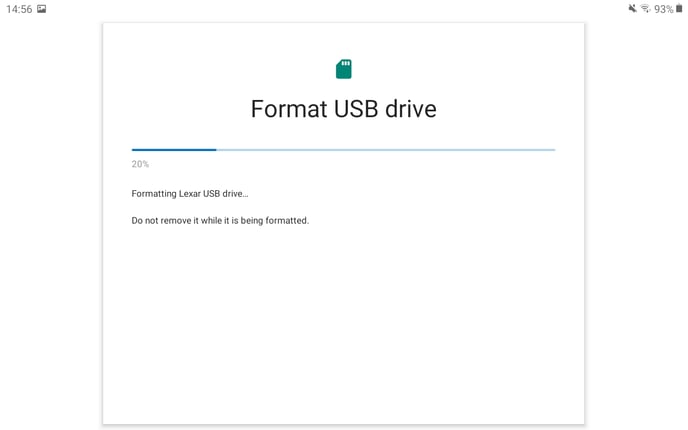
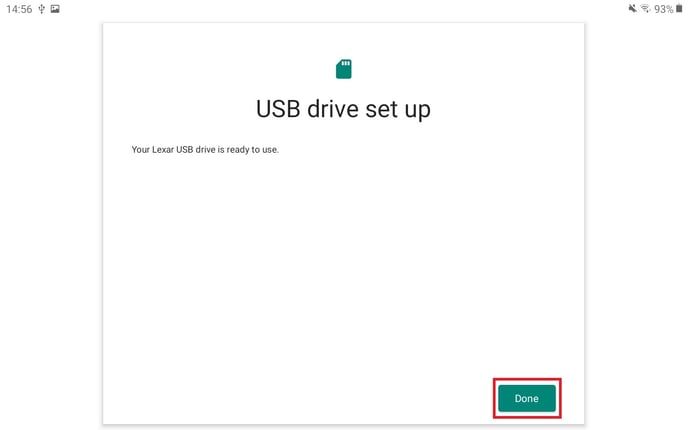
12. Your SD card is formatted with Ex-FAT. Unmount the SD card and it is ready to be used in your WingtraOne.
Format SD card with a computer
- Select the correct file system
- Eject the SD card before pulling it out
- For the RX1: Check the camera screen. If there is a message, press OK to confirm. In case you missed the message, WingtraOne needs to be repowered to establish the camera connection.