This article guides you on how to process WingtraOne imagery in Bentley ContextCapture photogrammetry software. The step-by step instructions are tailored to the generation of 3D models with a6100 oblique imagery.
Setup new project
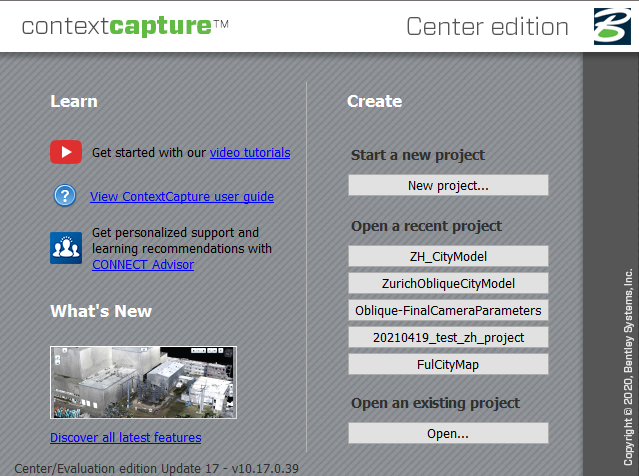
- Start a new project or open an existing one.
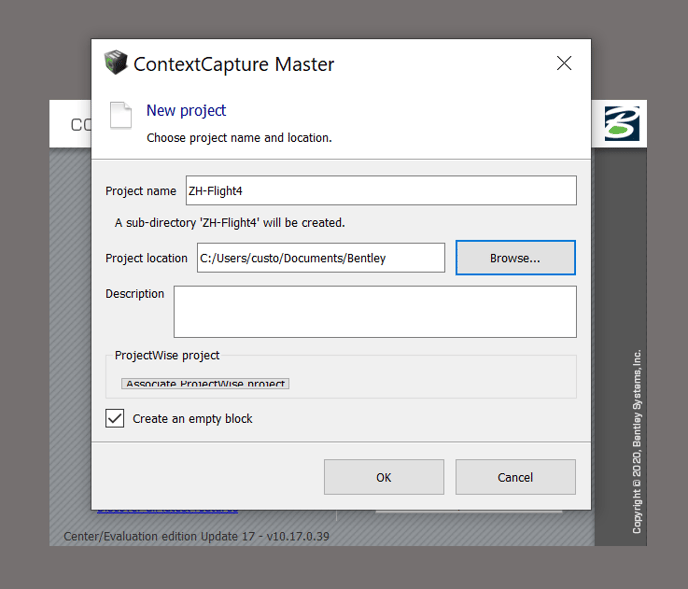
- Enter a project name and specify the path.
- Go to the Photos tab.
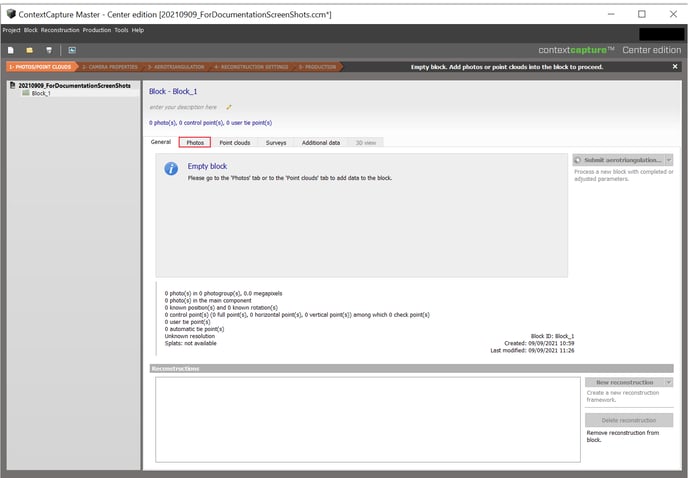
- Add images by selecting photos or by adding an entire directory. To import you have the following two options:
- Select the images in the OUTPUT folder. The coordinate system is automatically set to WGS84, ensure to specify the height system (PPK: Ellipsoidal height, Non-PPK: Sea level)
- Select the IMAGES folder and click on "Import Positions" to load the geotags from the .csv in the OUTPUT folder. You will be asked to specify the coordinate system of the geotags.
Importing Geotagged csv/txt data(Optional)
- To import geotagged points after importing your images, click on the Import Positions on the photos tag.
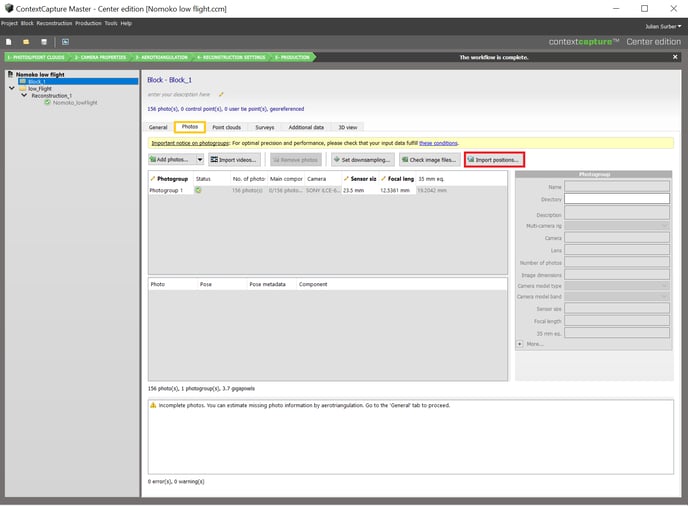
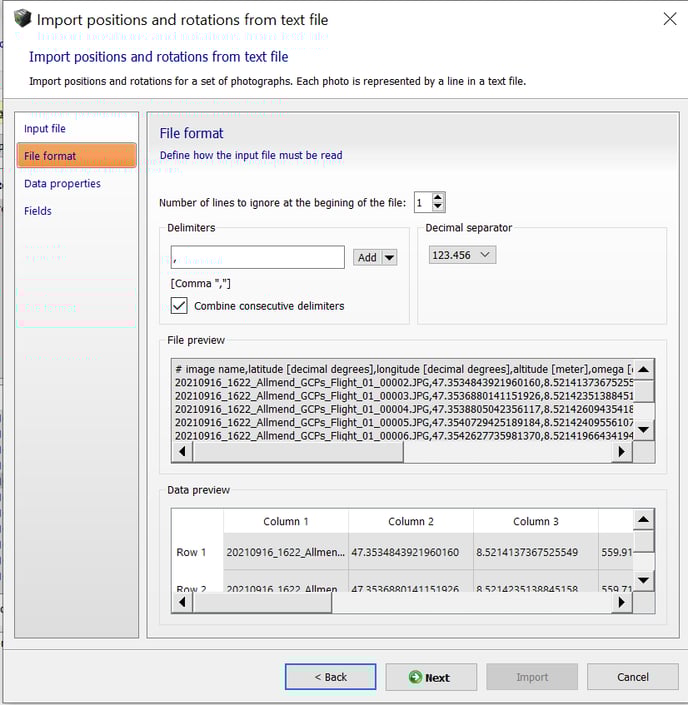
- After browsing to the location of your CSV file, specify “,” as the column delimiter.
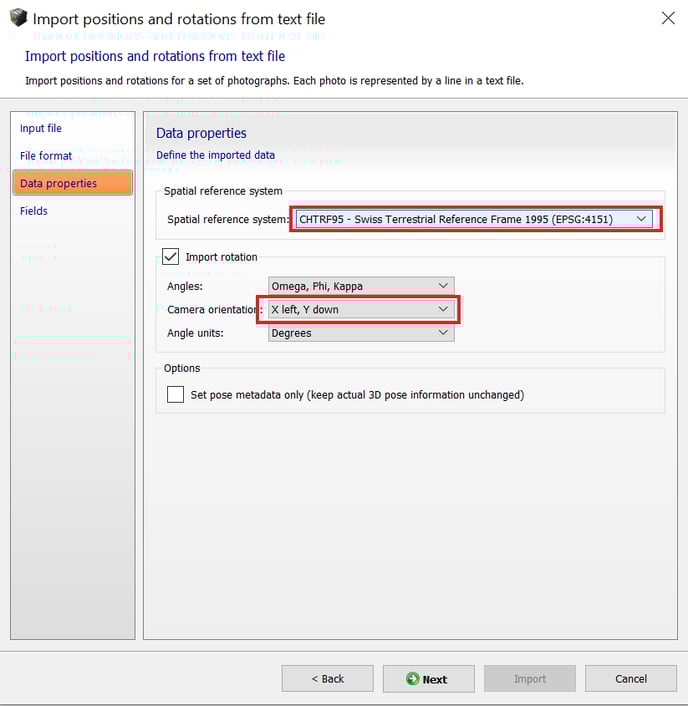
- Next, select the Spatial reference system depending on the coordinate system of the geotags. Set the camera orientation to X left, Y down. Click next when you are done.
- The final step is to assign the column to match the column in your dataset. The default settings in WingtraHub are as following:
Latitude -> Longitude -> Height -> Omega -> Phi -> Kappa
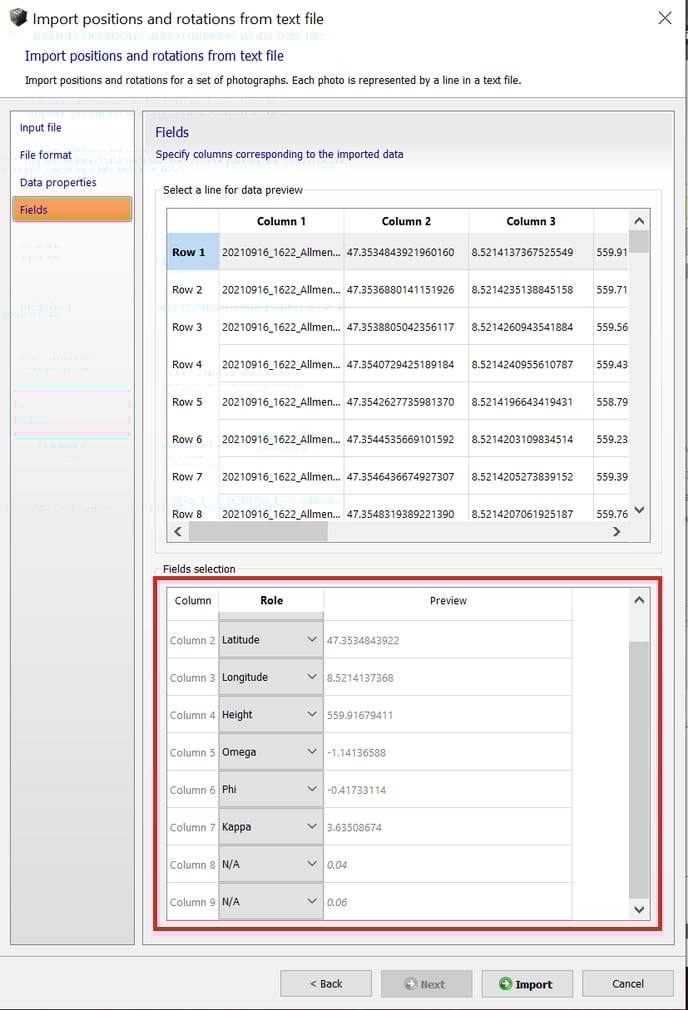
- Click on Import to complete the process.
When importing the geotags from CSV, you will need to manually specify the focal length: 12mm.
Include GCPs / checkpoints (optional)
By importing ground points, you can assess the accuracy of your project within Bentley ContextCapture. For more information on how many GCPs vs Checkpoints you should use, read the following article.
After setting up the project go to the "Surveys" tab and import a text file.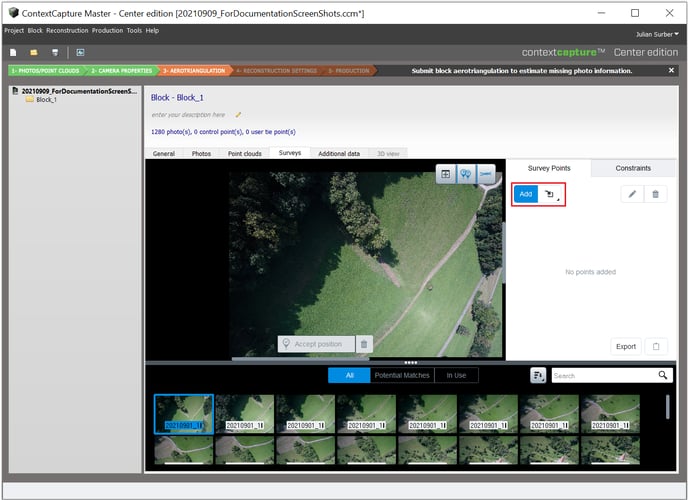
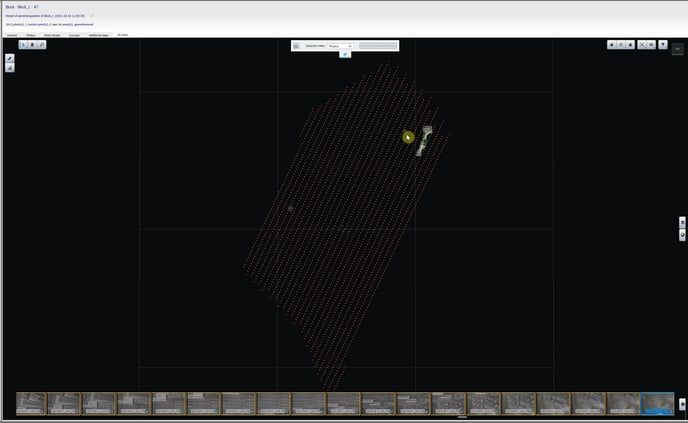
In the "3D view" tab, you can see the location of the checkpoints and the imported geotags. By clicking on one of the geotags close to a checkpoint, the respective image is highlighted in the preview list on the bottom. When changing back to the "Surveys" tab, the highlighted image that should contain a checkpoint will be displayed.
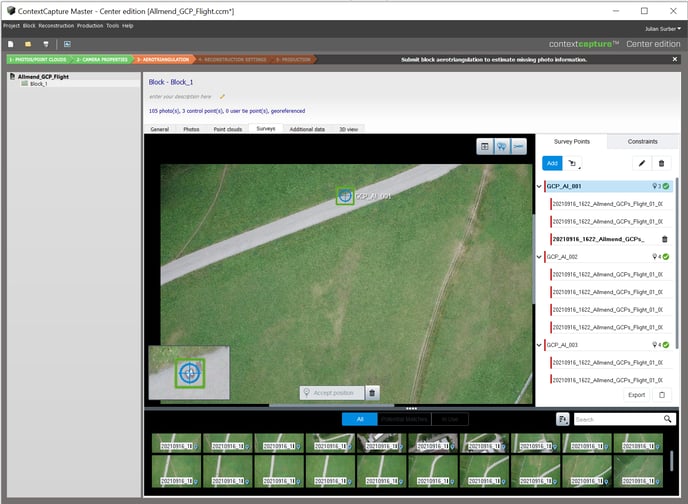
Zoom in on the checkpoint and right-click on the measured location and assign this location to one of the imported points.
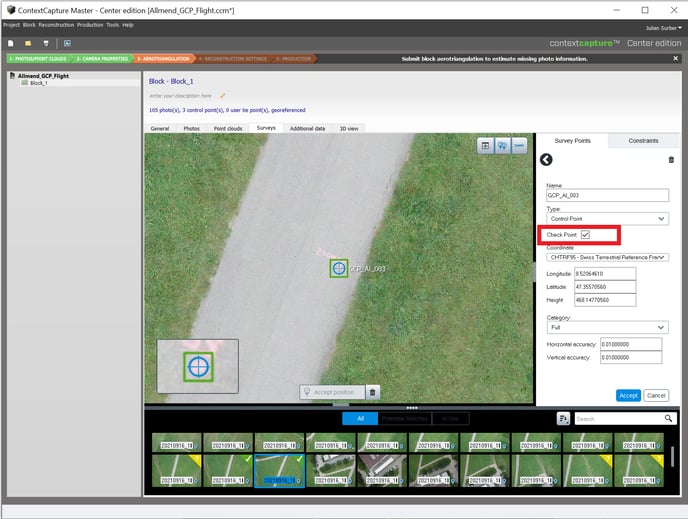
Run aerotriangulation
Go to the General tab and click on "Submit aerotriangulation". Specify if you want to process the project on your desktop or in the cloud.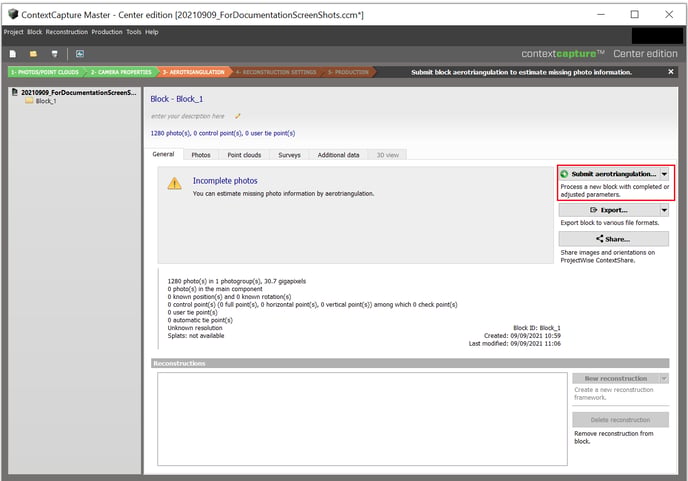
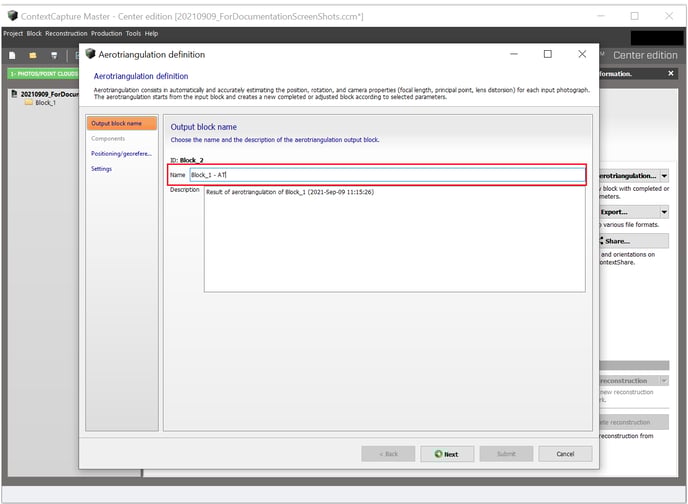
Give the AT a name or use the default one.
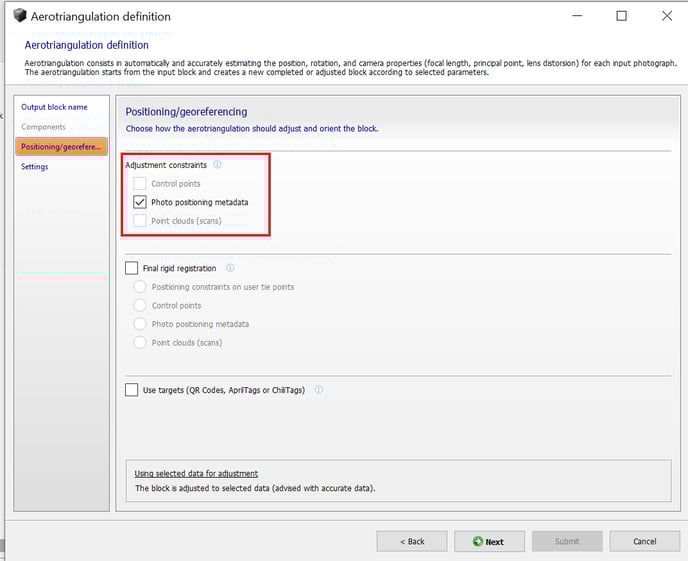
Define the positioning settings. We recommend the following settings:
- For PPK flights, set the 'Adjustment constraints' to Photo positioning metadata and leave the 'Final rigid registration' blank.
- For non-PPK flights, leave the 'Adjustment constraints' blank and set the 'Final rigid registration' to 'control points'
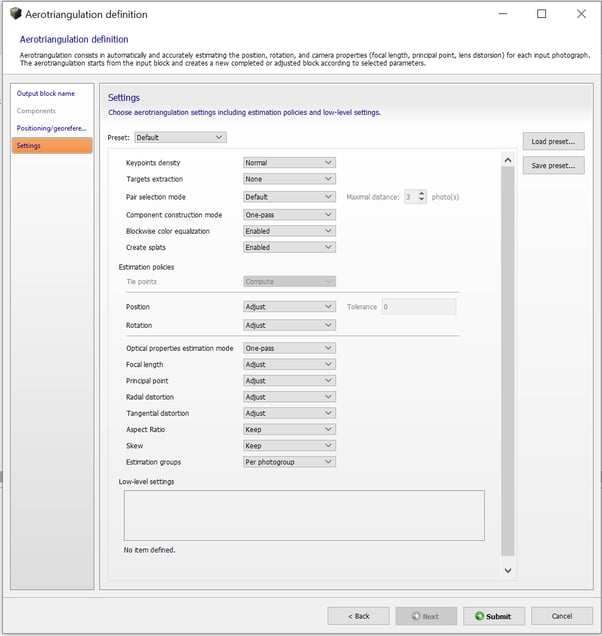
It is recommended to leave the Aerotriangulation settings at default :
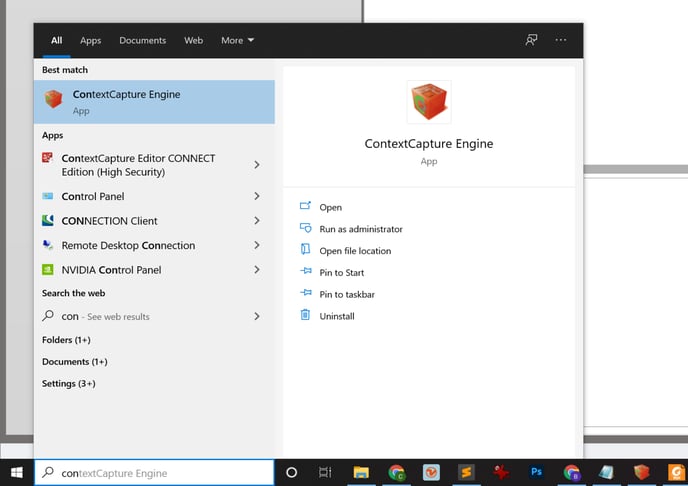
Open ContextCapture Engine to process the aerotriangulation, if it is not open already.
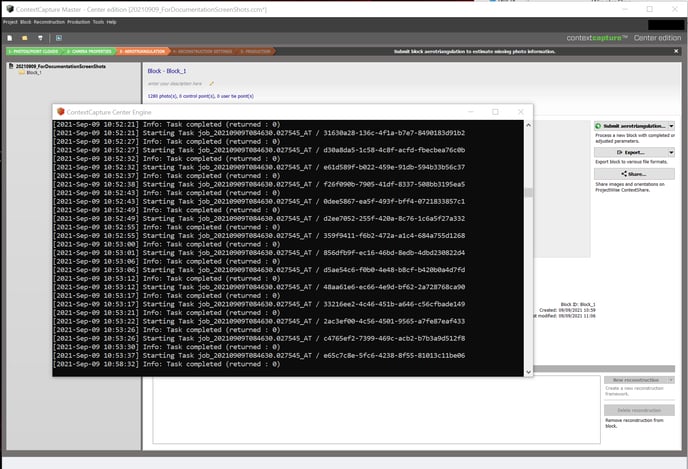
Once the ContextCapture Engine is opened, the processing starts automatically.
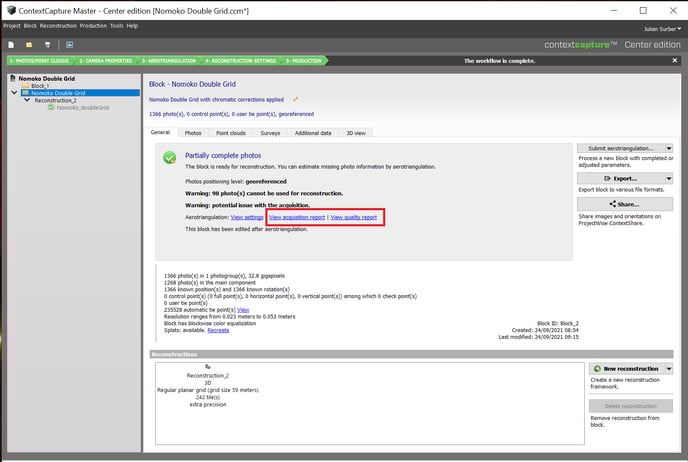
When the AT is finished, you can inspect the acquisition report and the quality report.
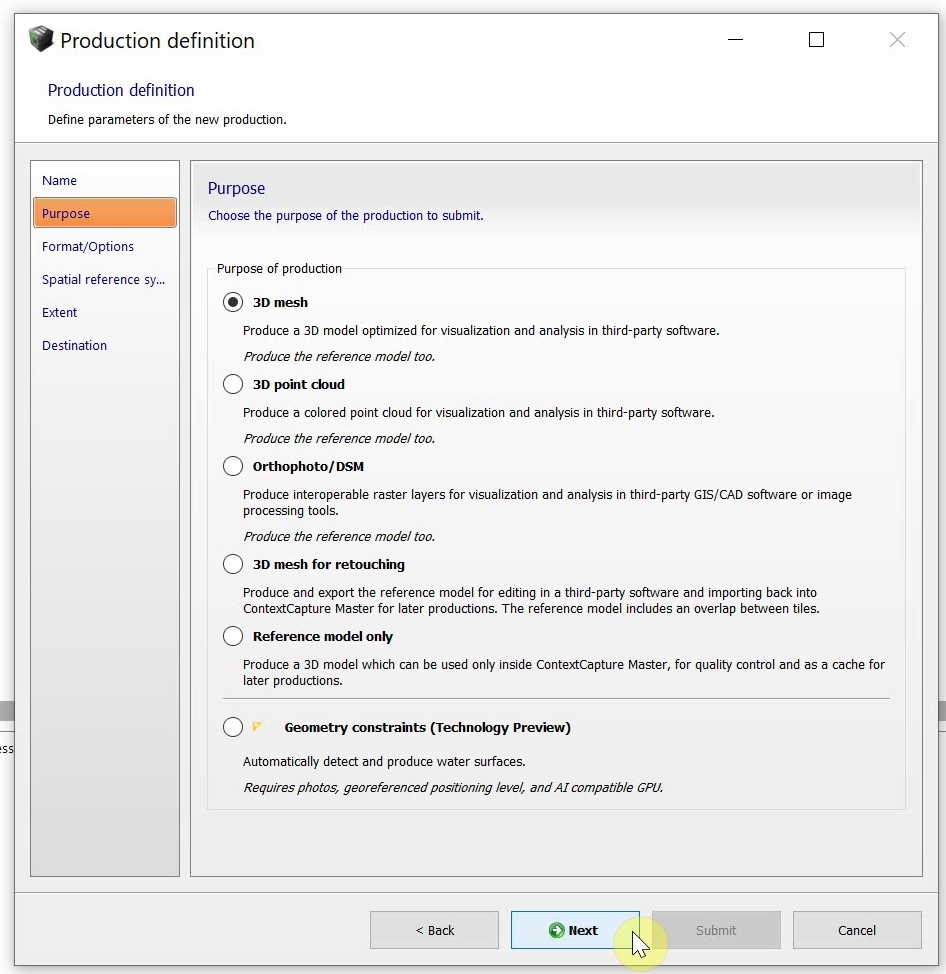
Generate 3D model
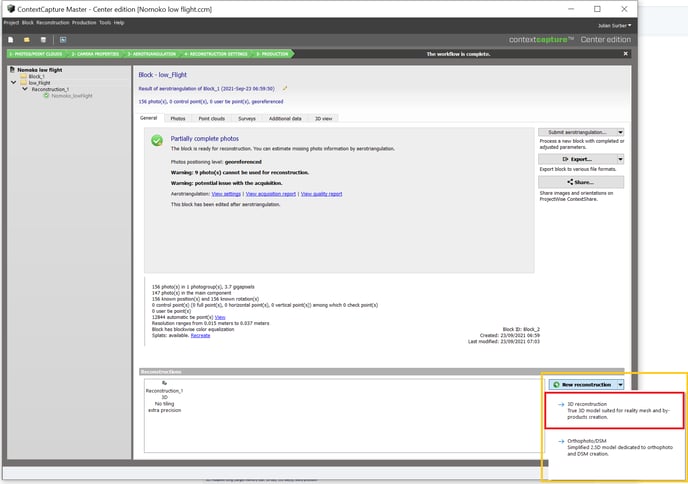
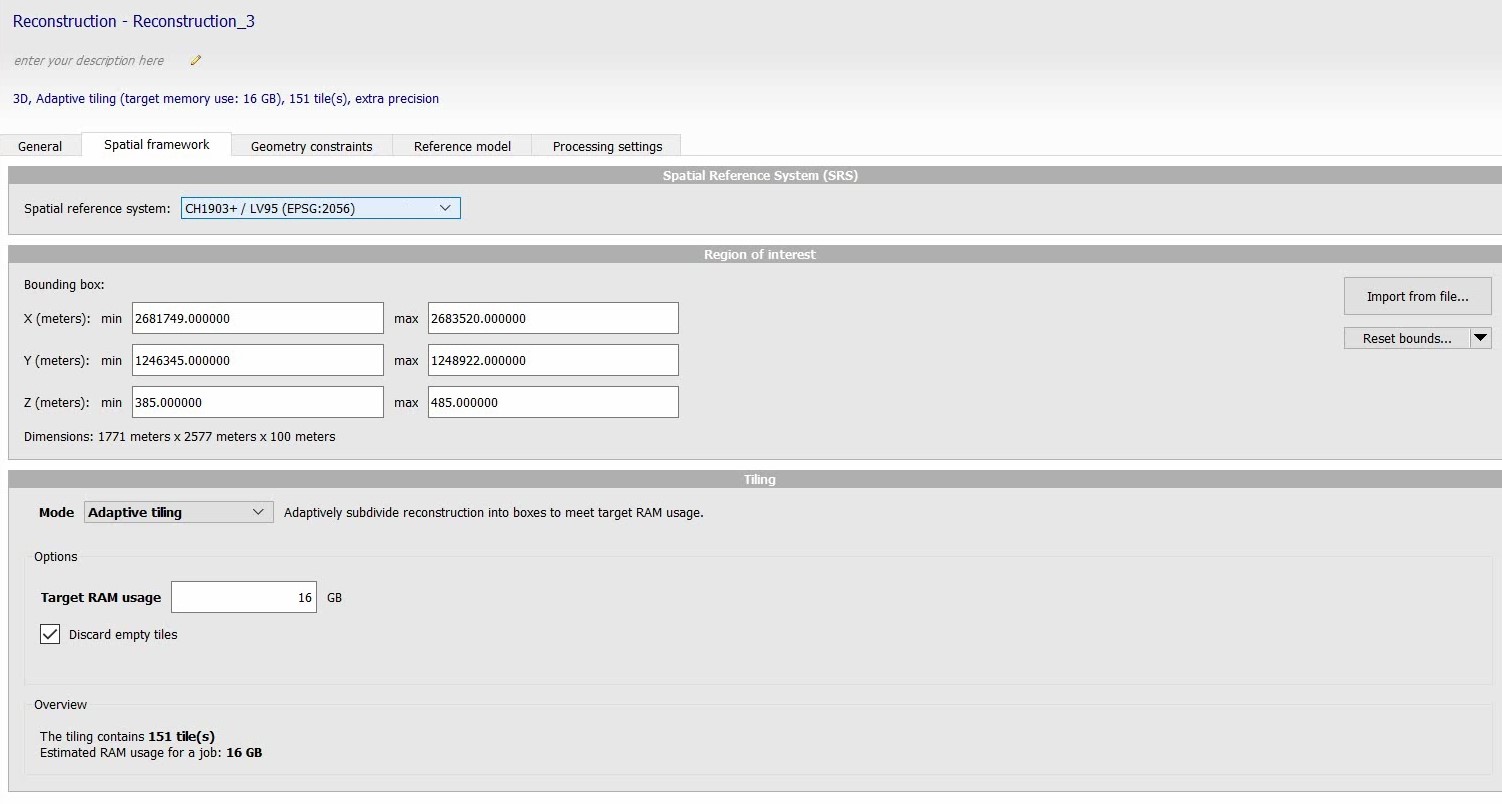
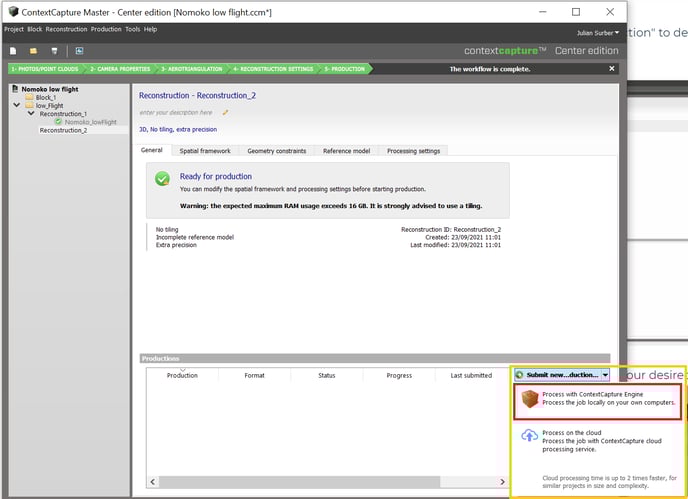
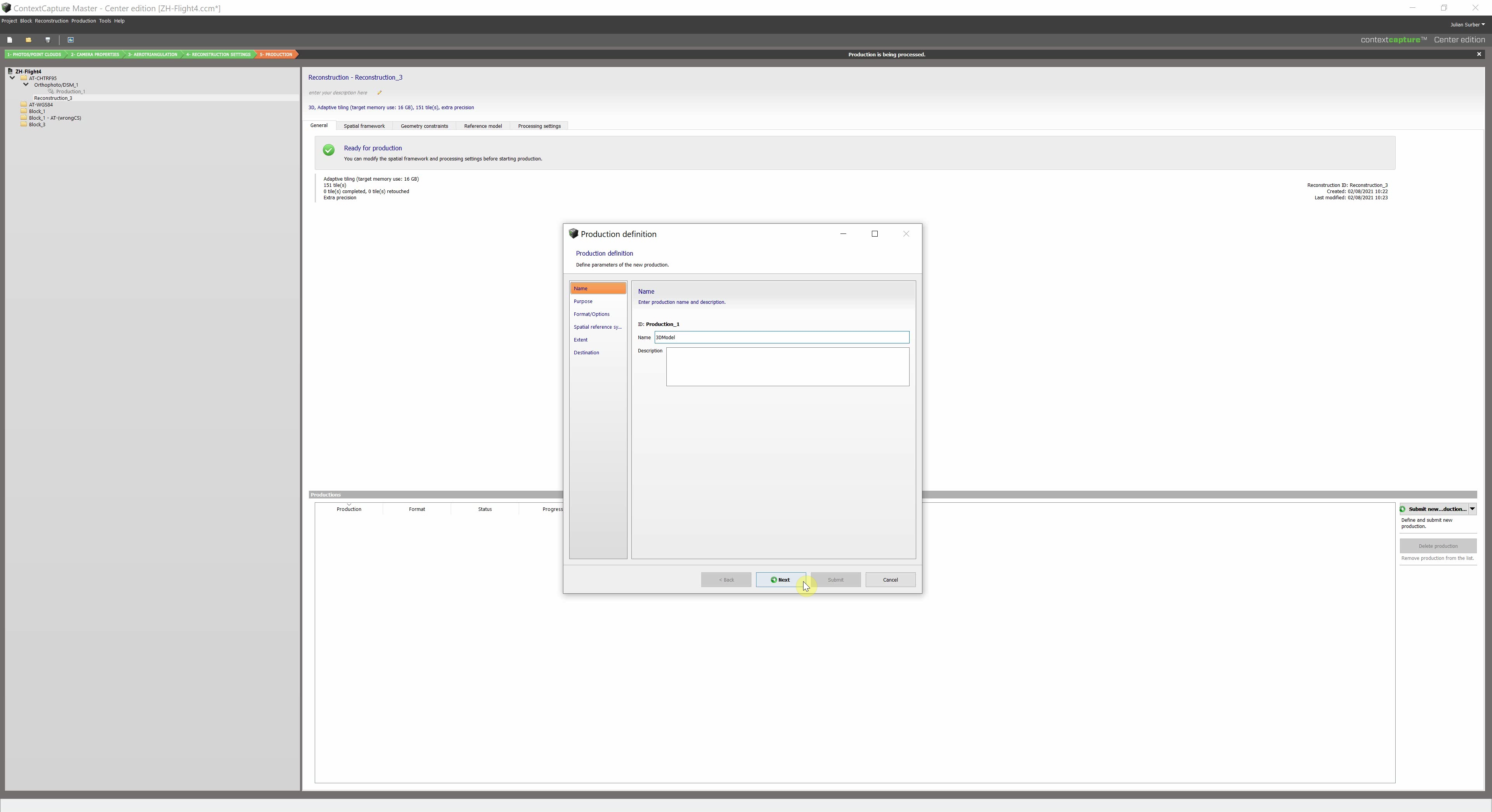
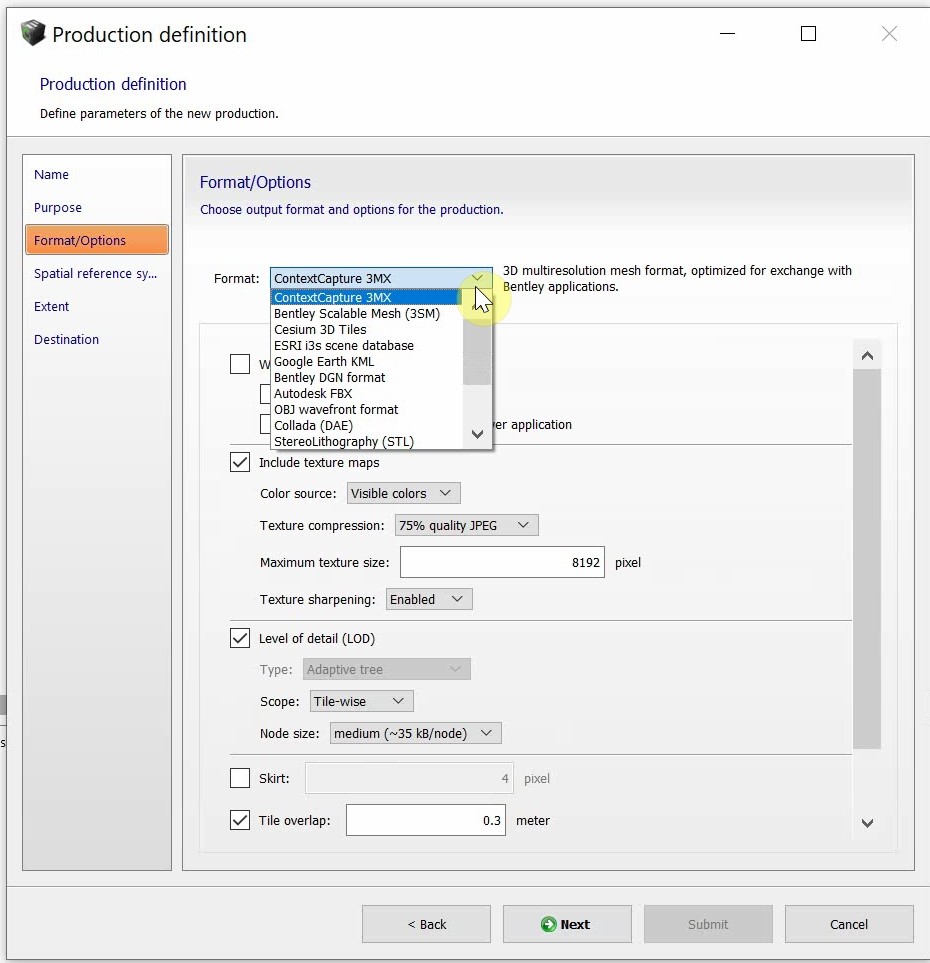
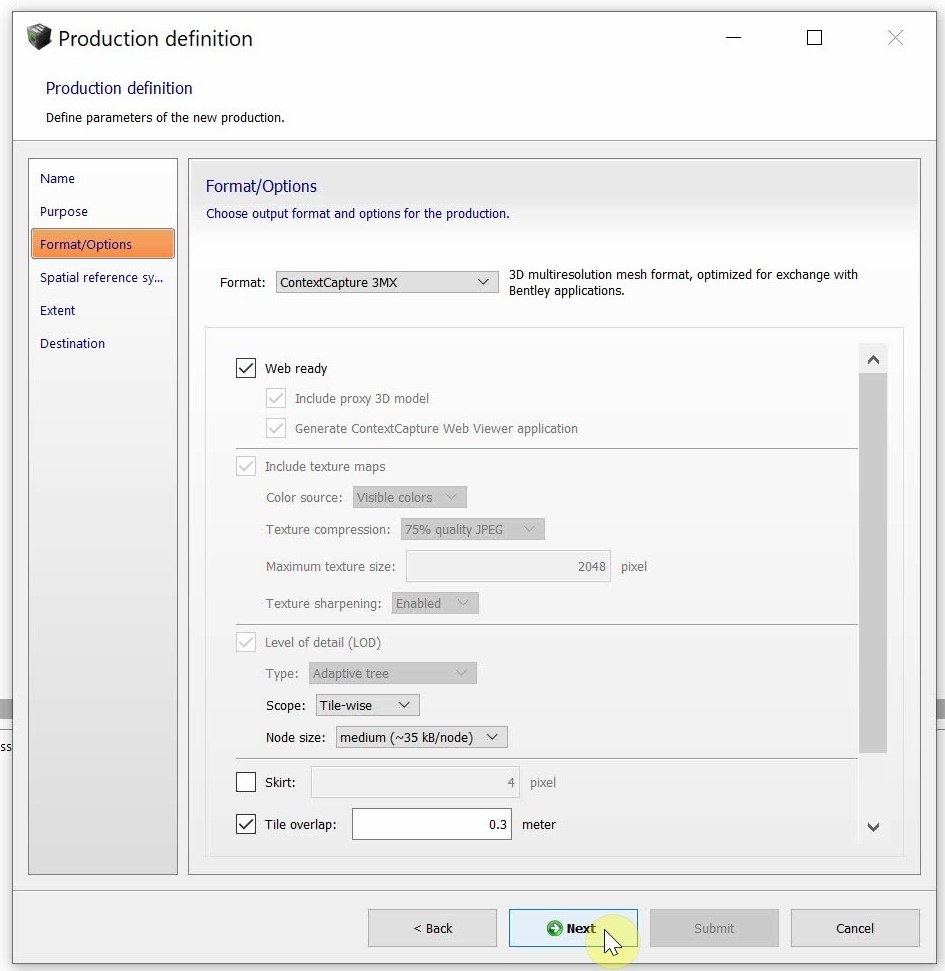
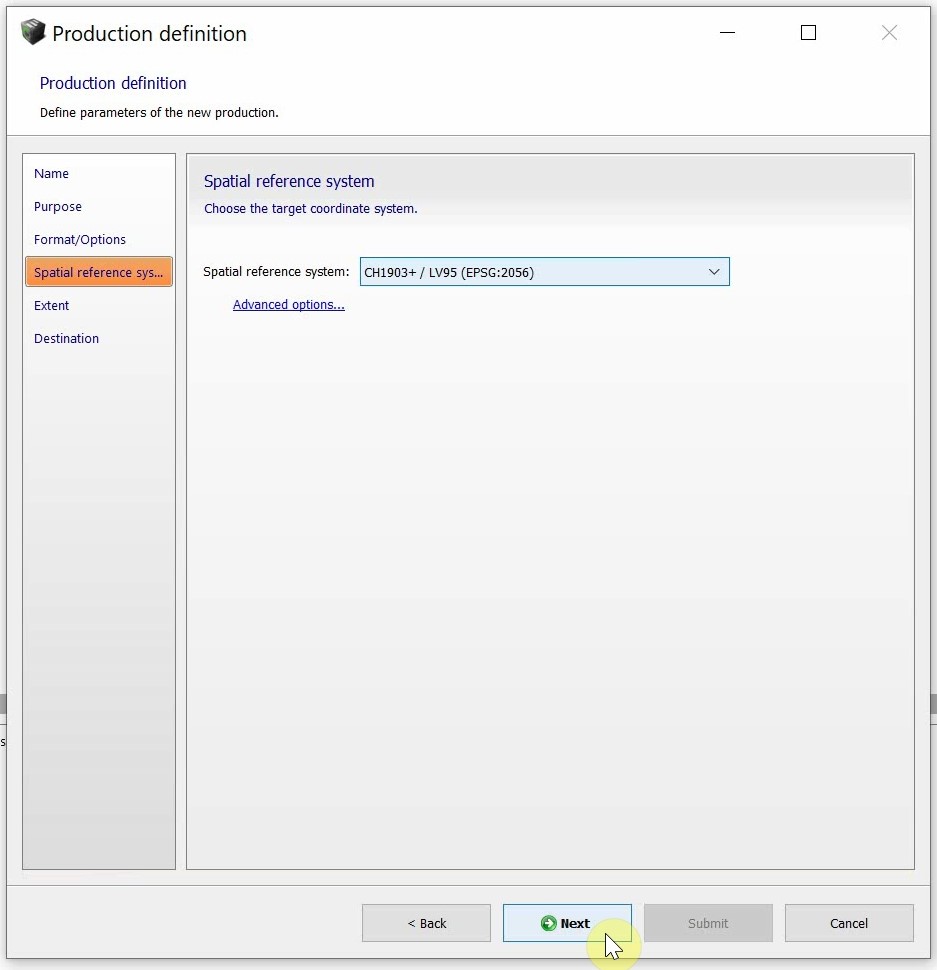
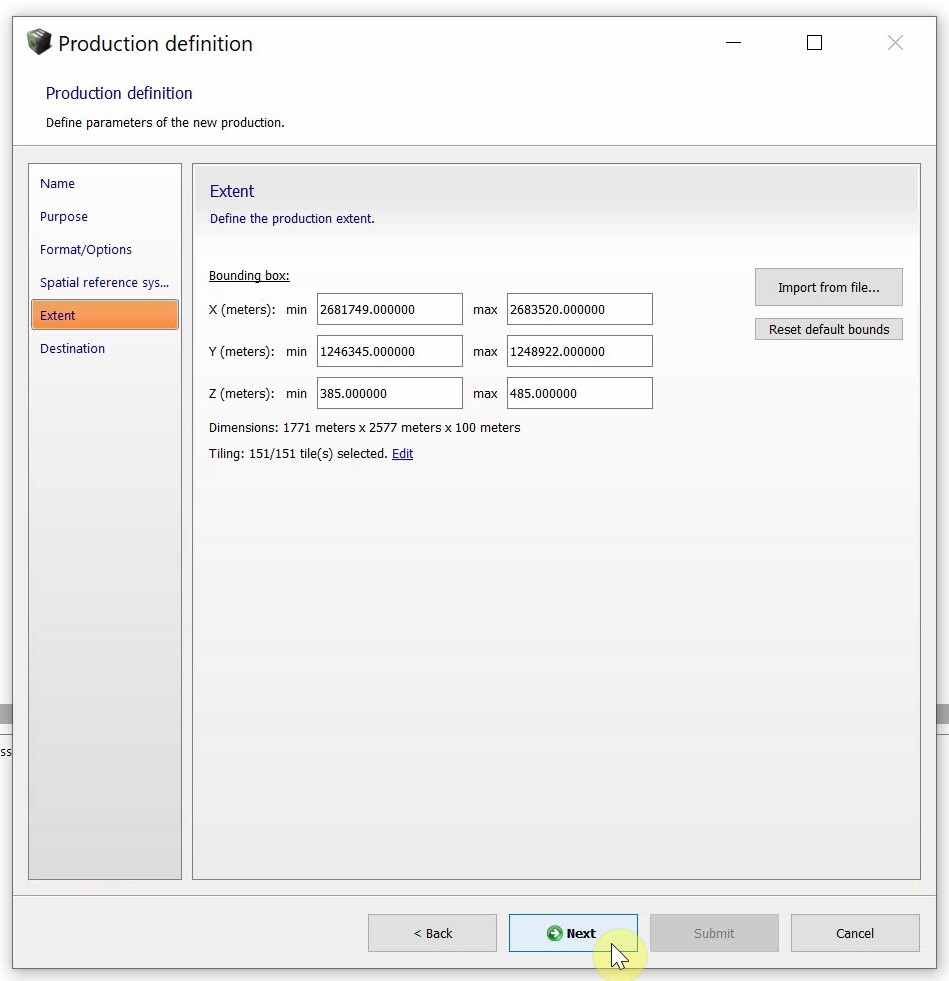
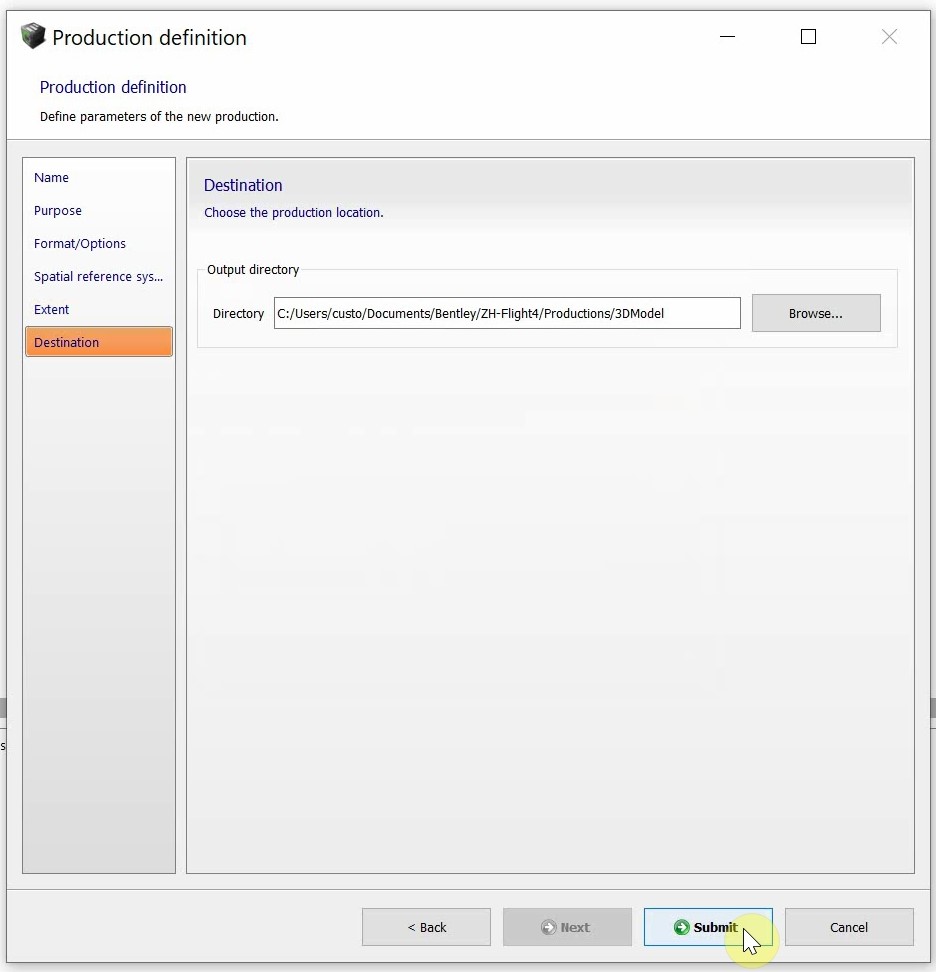
In a fully processed AT block, you can start a new reconstruction on the bottom right to generate your map or 3D model.