Are you experiencing a PPK issue? Check out the flowchart below to debug the issue yourself or to learn what data is required for Wingtra Support to resolve the issue as efficiently as possible.
How to debug by yourself
- Check hotshoe connector
- Check PPK hardware
- Recover .sbf and .json by data recovery
- Check camera settings (RX1, QX1)
- WingtraHub errors and warnings
How to contact support
Please provide a description of when the issue appeared and how often. Specify if you are performing the PPK workflow for the first time or if the same workflow has worked before. Create a ticket or send the files to support@wingtra.com.
Depending on the situation, different information is required for Wingtra Support to find a solution to your issue. After following the flowchart, match the following legend to the superscript numbers in the orange boxes:
1 Flight logs
2 Flight logs, PPK ID
3 Flight logs, PPK ID, camera mount ID
4 Flight logs, PPK ID, camera mount ID, DATA folder
5 Flight logs, PPK ID, DATA folder
6 Flight logs, PPK ID, camera mount ID, DATA folder, OUTPUT folder
7 DATA folder, OUTPUT folder,
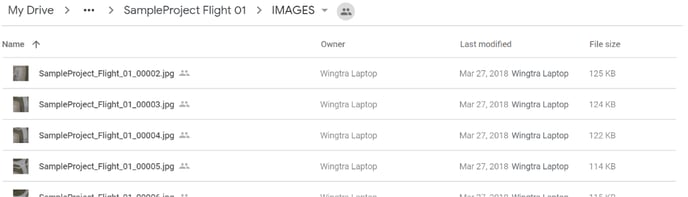
8 DATA folder, OUTPUT folder, Pix4D Quality Report, IMAGES folder
How to gather the required information
Flight logs
As soon as WingtraOne is powered, detailed information regarding communications with the PPK module is saved to the flight logs in the autopilot of the drone. Please provide us with the latest logs. Read the following article to learn how to access flight logs.
PPK ID
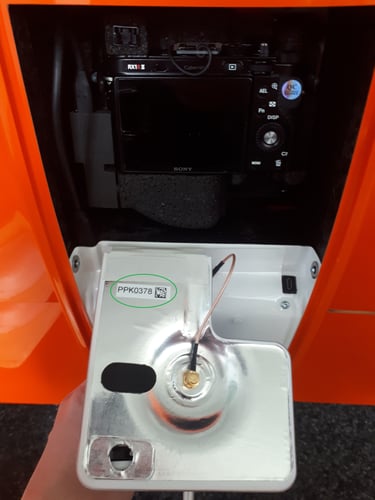
Camera mount ID

DATA folder
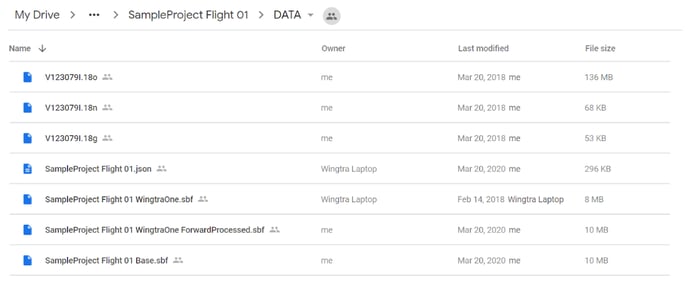
If the RINEX files (.o, .n, .g) are not copied to the DATA folder, please also send the RINEX files to support.
OUTPUT folder

IMAGES folder