This article provides guidelines how to save WingtraOne projects. The standardized structure simplifies collaboration.
Naming scheme
- YEARMONTHDAY_LOCATION_SpecialDescription
-
-
-
- Examples
- 20180410_Zürich_ETHaccuracyevaluation
- 20190112_Canada_TrainingGlobalTroxler
- 20200106_TTQ_WiH_RinexNotCompatible
- Examples
-
-
Folder Structure
- BaseStationFiles
-
-
-
- Rinex files
- Base station location (.txt)
-
-
- WingtraPilotProjects
-
-
-
- DATA
- IMAGES
- OUTPUT
-
-
- Pix4DProjects
- GCPs
-
-
-
- .csv, .txt
-
-
- FlightPlan (optional)
-
-
- Copy folder from tablet: Internal storage > WingtraPilot > Projects
-
- README
- Short description of project
- Add your name
Saving Location
- Support cases (usually linked from HS ticket)
Shared drives > Flight Imagery - Customer Support
- Projects (potential as marketing map, accuracy analysis, customer use case)
Shared drives > Flight Imagery - Projects
- Sales demos
Shared drives > Flight Imagery - Sales
Documentation
In order for us to have a nice overview of the projects that can potentially be used for marketing purposes, please use ClickUp to document those projects.
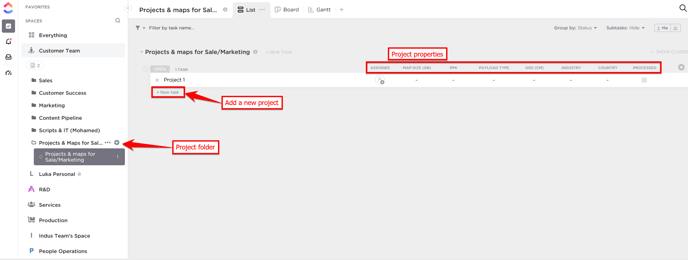
In the Customer Team space there is a folder named Customer maps & projects for Sales/Marketing which contains the list with the same name. On this list each project can be added as one task.
To add a project click on New task and give it a name with respect to aforementioned naming scheme. Once you have added a new project, please fill in empty fields so it is immediately visible to everyone what kind of project it is.
Select the task status corresponding to the publishing rights. Add a comment if you are still working on getting full publishing rights.
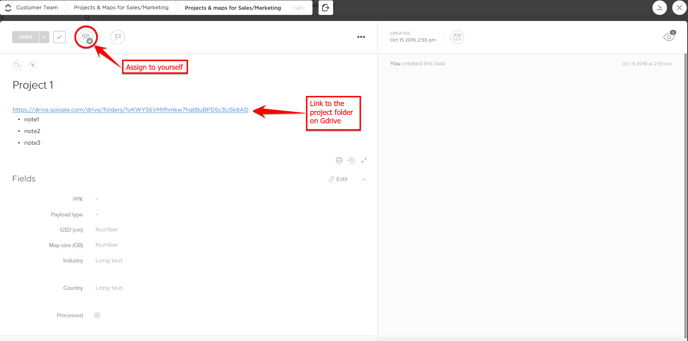
For each project please paste the link to the project folder on WingtraDrive and the Pix4D cloud project. Also, any comments and notes will help others to see if this particular project suits their requirements.
Finally, assign yourselves to the projects you have added on this list