- Help Center
- Wingtra Internal
- Customer Success
How to manually activate a PPK license?
This article contains steps on how to manually activate a PPK license.
In short, we have to populate the license properties that would be populated by the web form submission.
If the case is really urgent and you don't have all the information (email, company, first name, last name) you can use your info and later ask the customer for details and afterward update.
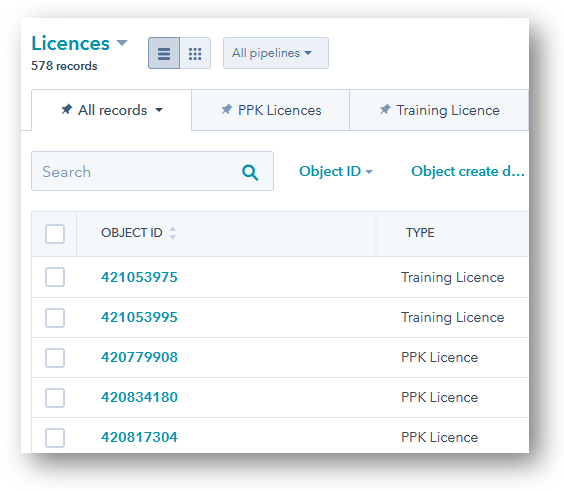
- Go to the Licenses section in HubSpot and click on your license.
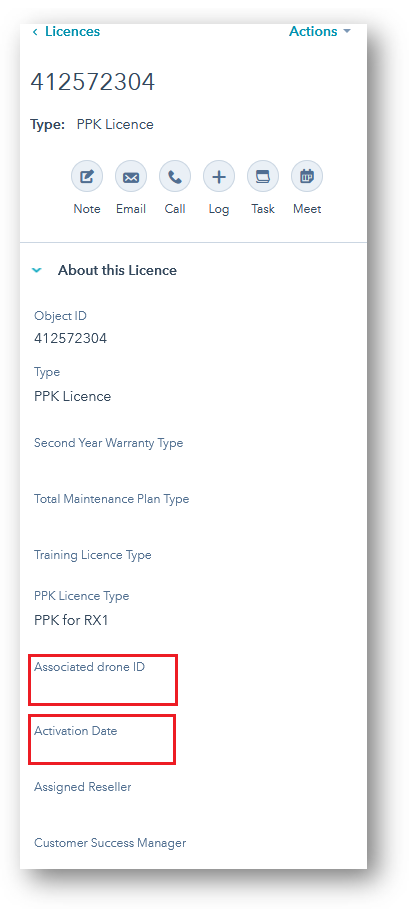
- Update two properties under the About this License section:
- Associated drone ID
- Activation Date
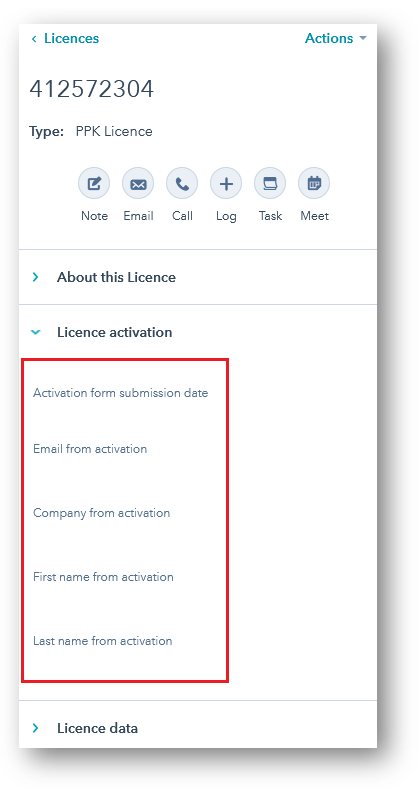
- Update five properties under the License activation section:
- Activation form submission date
- Email from activation
- Company from activation
- First name from activation
- Last name from activation
- Click on the Save button.
 A
A - Inform the customer to refresh the PPK license in the WingtraPilot.
- Make sure to have an Internet connection on your tablet.
-
- In WingtraPilot, navigate to Settings > System Overview and tap on the Refresh button.
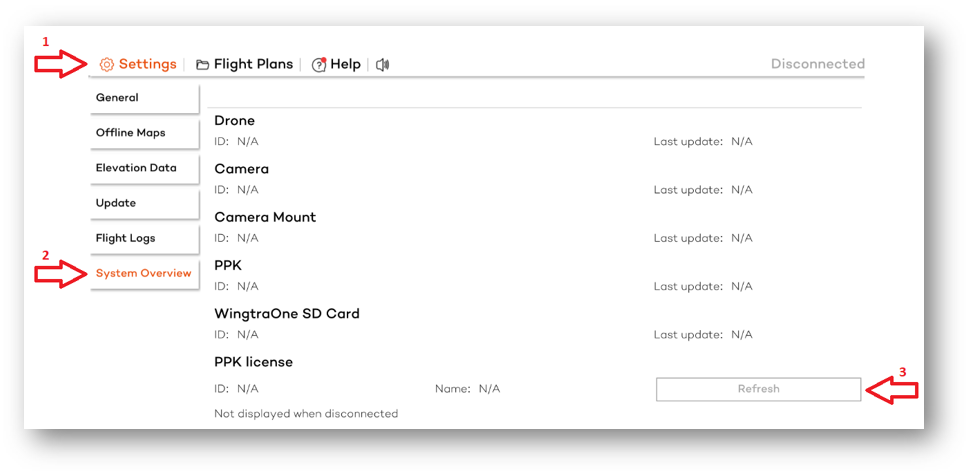
- WingtraPilot will recognize your manual activation and synchronize the PPK license with the drone.
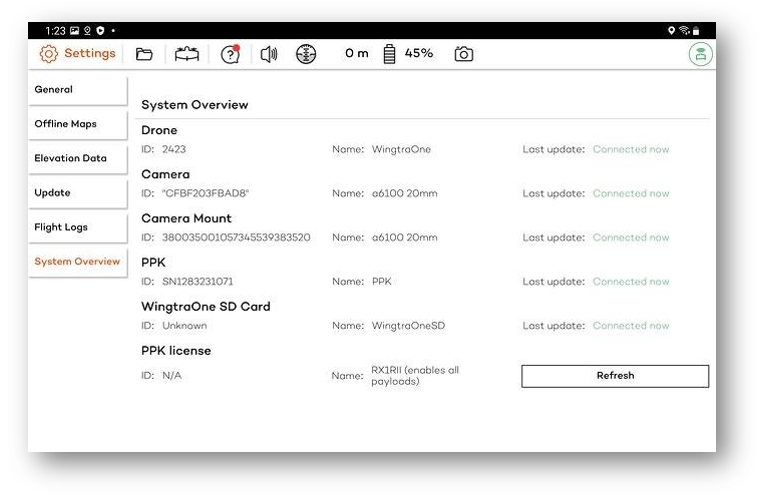
- In WingtraPilot, navigate to Settings > System Overview and tap on the Refresh button.