For trainings, support cases or sales demos it makes sense to run WingtraPilot on a computer.
The following described methods are only for demo purpose and can not be used to fly WingtraOne. For flying only the tablet can be used.
Screen-sharing app option: TeamViewer QuickSupport
Install the TeamViewer QuickSupport app on the tablet and download the desktop app on your computer. You can download the app through the play store or from the TeamViewer download page. Get the partner ID and password from the tablet and enter it on the desktop app. It can also be used to access a remote tablet or computer, e.g., remote training/demo.
See Loom Video here for a quick tutorial
Android emulator option: BlueStacks
The android emulator can be downloaded for Windows or Mac here. Open BlueStacks, choose your language and click on “let’s go.” Sign in with your google account.
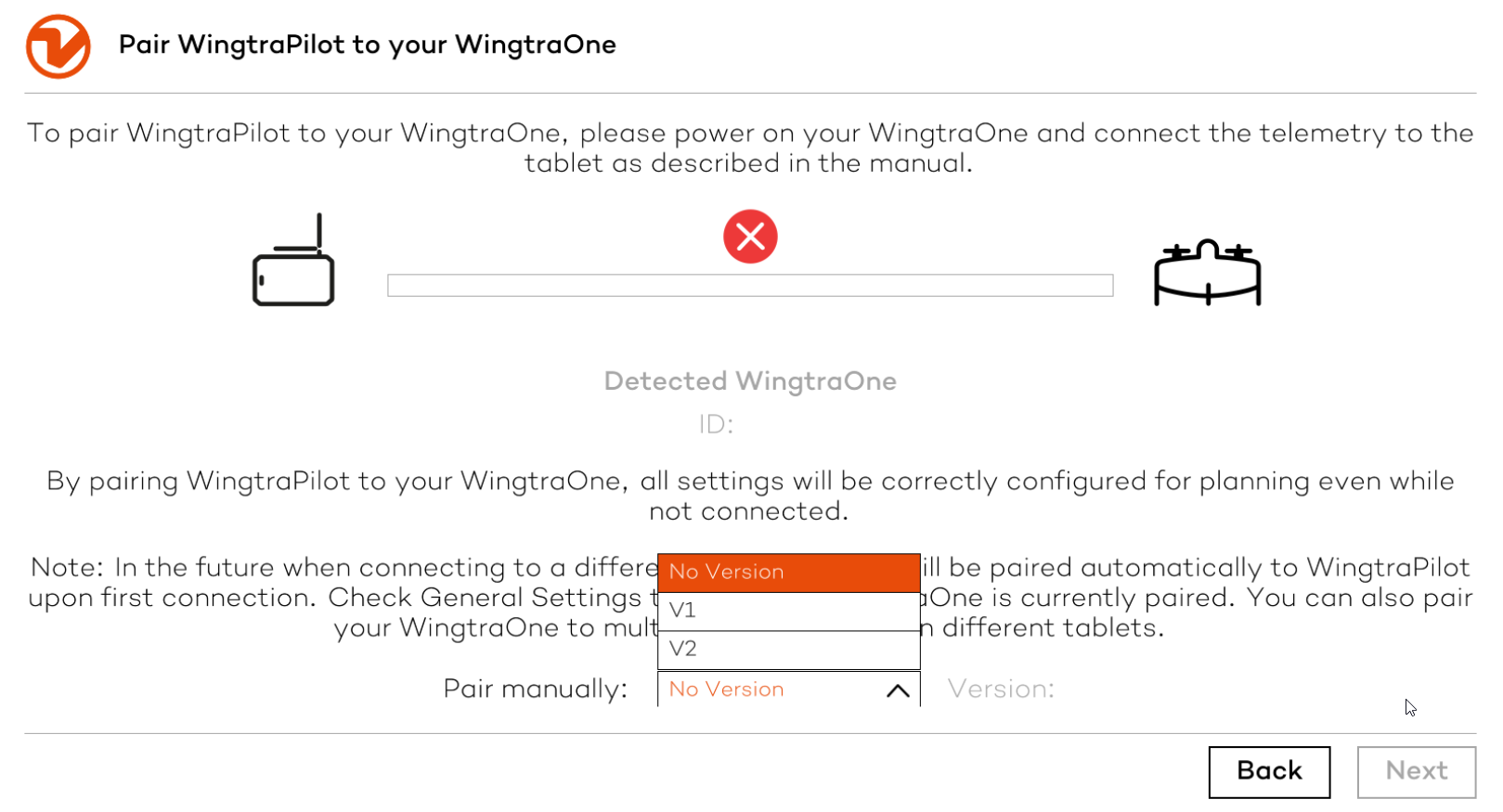
Get the most recent WingtraPilot .apk file from the update manual chapter (step 2: update WingtraPilot). Double click on the .apk file to install WingtraPilot. Once the app is installed, a shortcut will be added to the desktop. The first time you run WingtraPilot, you need to pair WingtraPilot to a drone. This can be done manually by clicking above the “Next” button five times (see cursor in image below). Select the latest version.
Displaying WingtraPilot using BlueStacks is faster and features better resolution than TeamViewer. The only functionality that does not work in this case is importing KML files and connecting to an actual drone.