This article describes the workflow of creating an ADP, TMP, SYW, Training, or PPK license in HubSpot.
Automated process:
When a customer places an order, for one or more extended services or licenses, the customer teams will go through the standard procedure of creating a deal, which includes associating the company and contact of the customer.
The customer teams will add a license as a product by their SKU and create a shipment.
Once the shipment status is set to "Cleared", the licenses will be automatically created and delivered to the customer(s) associated with the deal.
*Note that the licenses will be created and sent regardless of any additional products included in the deal.
*Due to automated workflows requiring time to sync up, the sending of a license is delayed an hour from when the shipment is set to the status "Cleared".
If you have an order with multiple licenses of the same type, be sure to add the quantity number to the line items, instead of adding each license as a separate product.
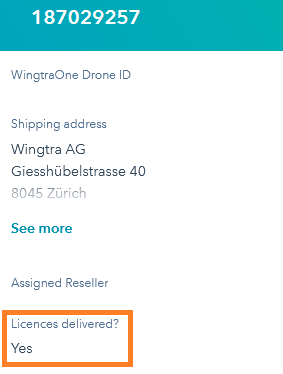
Once the licenses are delivered to the customer, the shipment property "Licences delivered?" will be changed to "Yes", signaling the fulfillment team to change the shipment status to "Shipped" during the shipment overview routines.
How to manually create a license in HubSpot?
- To create a license, navigate to the Contacts section of the HubSpot and click on the Licences:

- On the top right corner click on the button Create Licence and the form to create the license will open:
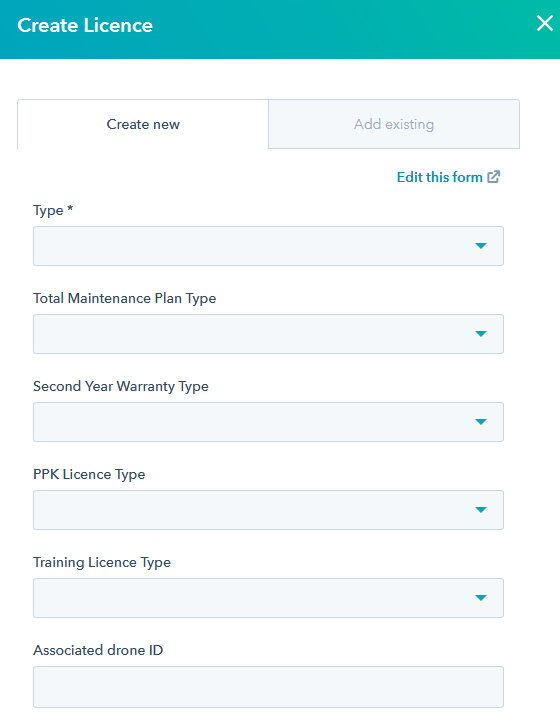
- The properties that are required to be filled in and selected:
- Type - the type of license you are creating.
-
Total Maintenance Plan
-
Accidental Drone Protection
-
Second-year Warranty
- PPK Licence
- Training Licence
-
- Total Maintenance Plan - the type of TMP license, if this is the license you are creating.
- Unlimited
- Up to 100h
- Second-year Warranty - the type of SYW license, if this is the license you are creating.
- Unlimited
- Up to 100h
- PPK Licence Type - the type of PPK license, if this is the license you are creating.
- PPK for RX1
- PPK for a6100
- PPK for a6100 Oblique
- PPK for RE-MX
- PPK for Altum
- Training Licence Type - the type of Training license, if this is the license you are creating.
- Basic Online course
- Advanced Online course
- Upgrade from Basic to the Advanced Online course
- Monthly App Consultation
- One time App Consultation
- Deal - associate the deal of the license.
- Contact - associate the contact of the license.
- Type - the type of license you are creating.
- Click on the button Create Licence. Find your license in the licenses table, the license key is visible under the property Object ID.

Note that the license activation key will automatically be sent to all the contacts that are associated with the license during creation!
How to deal with a mistake:
- Edit the license during the first hour.
- After the first hour, delete the license object and create a new one. (the new license will be created, inform the customer about the mistake)
The automated email that delivers the license key is sent with a delay of one hour to the associated contacts.
How to send a license to the customer:
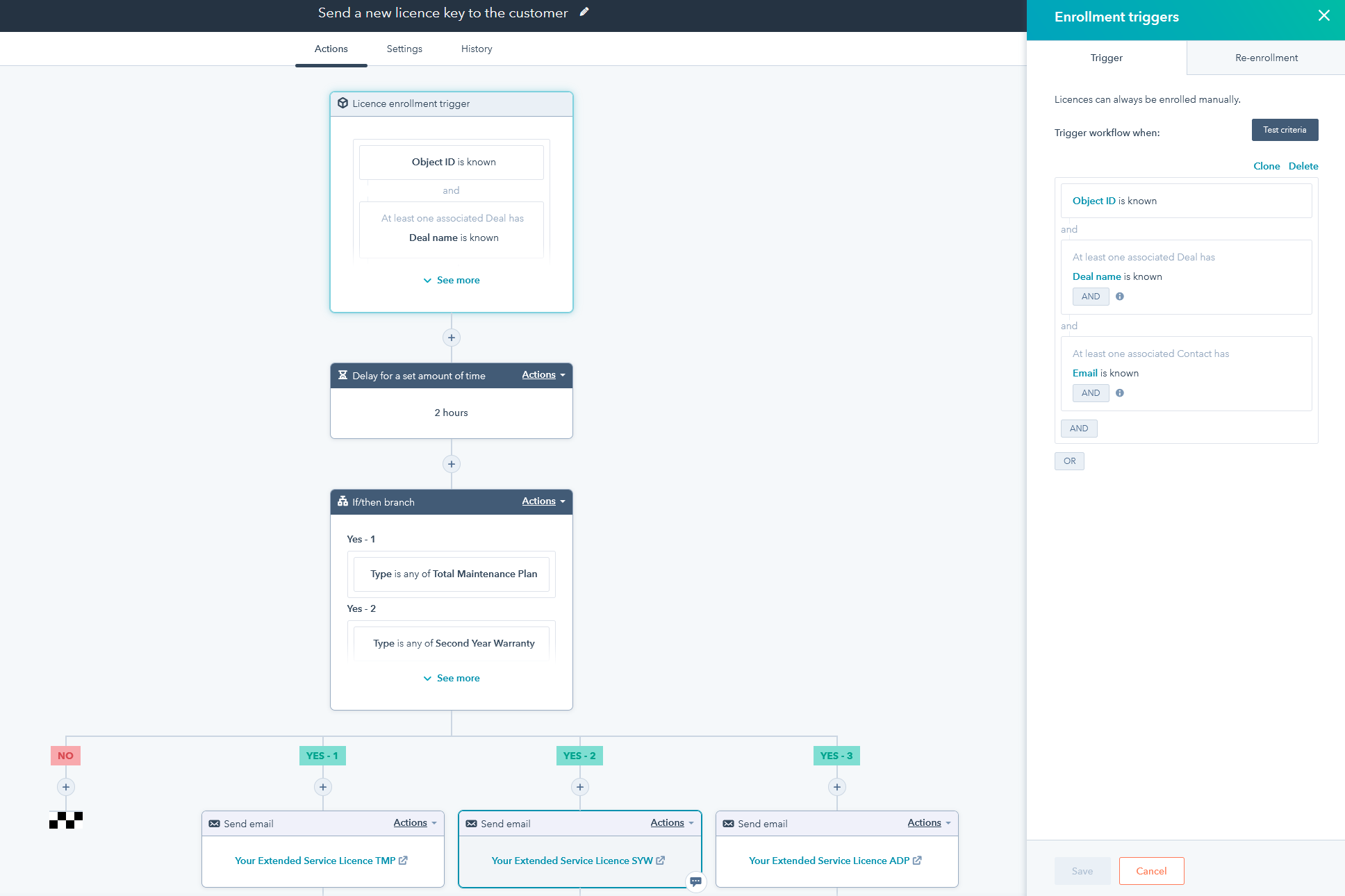
- The license is sent automatically to the customer via a workflow:
- The workflow will check if a new license is created with a known deal and contact, and sent an automated email to the associated contact(s) email, depending on the licence type.
We do not send the Extended Warranty Certificate as a separate document unless a customer asks for it. If you get a request related to such a document, please use the following template and save it to this folder.