In order to bind the ground telemetry module of a 868 or 900 MHz telemetry to a new plane, please use these instructions.
Use these instructions only if you have a 868 or 900 MHz telemetry that is NOT yet connected to your plane!
NOTE: Going through this process means that the new telemetry will be connected exclusively to the drone you set it up to. If the telemetry was previously connected to a different drone, this connection will be lost!
Required equipment
- Samsung Galaxy Tab Active 2 tablet (charged) with internet connection over WiFi
- The new ground telemetry you want to connect to the WingtraOne
including the telemetry cable - The old ground telemetry that was previously connected to the WingtraOne
- The WingtraOne you want the telemetry to connect to,
including a set of WingtraOne Batteries
Get the NETID of your WingtraOne.
- If you still have the old telemetry of the WingtraOne you want the new telemetry to bind to:
- Open the housing of the old telemetry.
- Unscrew the two antennas from the housing
- Now take a screwdriver, tweezers or similar and push in on the top of the housing (between the two antenna mounting points).
- You should now be able to open the case.
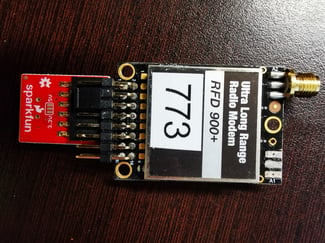
- On the telemetry you should find a sticker TXXX.
XXX is the NETID of the WingtraOne.
E.g. 773 → The NETID of this drone would be 773.
- Open the housing of the old telemetry.
- If you do not have the old telemetry of your drone:
- please contact wingtra.com/support, they will assist you getting the NETID of your drone
Change the ground telemetry
- Make sure that the tablet is powered.
- Go to the google play store and install the following app on your tablet: Serial USB Terminal. Note: You may have to create a google play store account.
- Reset device defaults on the tablet:
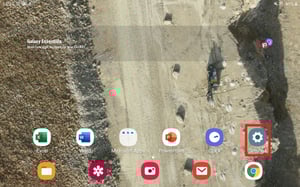
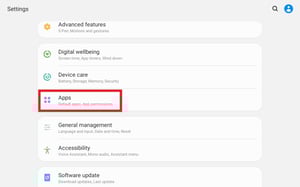
- Go to the “Settings App” of Android and select “Apps”.
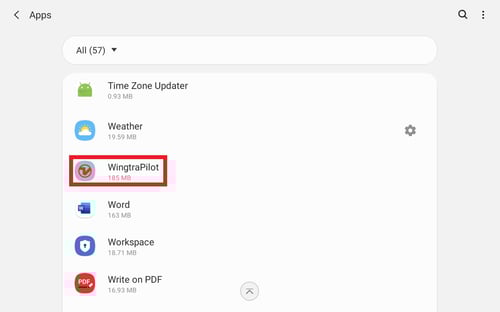
- Scroll to “WingtraPilot” and click on it.
- Scroll down and click on “Set as default”.
If this point is grayed out directly go to step 4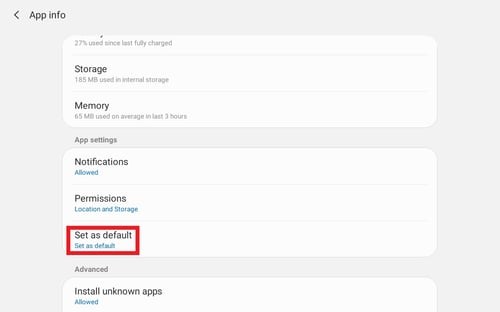
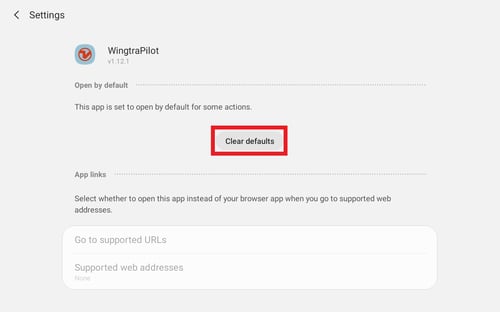
- Click on "Clear defaults"
- Go to the “Settings App” of Android and select “Apps”.
- Connect the telemetry antenna to the tablet.
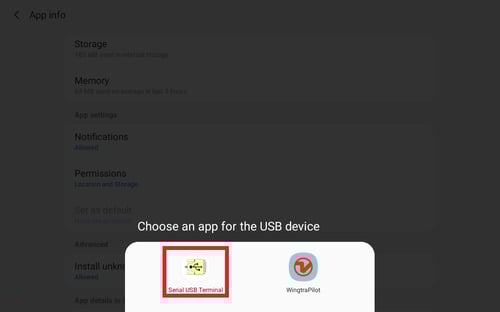
- Choose the app “Serial USB Terminal” to use the USB device (a pop-up prompt appears when connecting the telemetry).
- Set up the connection:
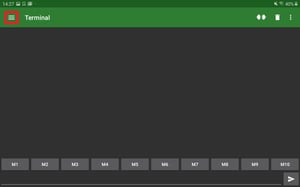
- Go to settings (tap the three lines in the top left corner) and click on "Serial menu".
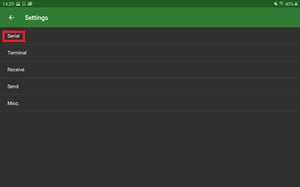
- Choose Baud rate: “57600”.
- Choose Data bits: “8”.
- Choose parity bit: “None".
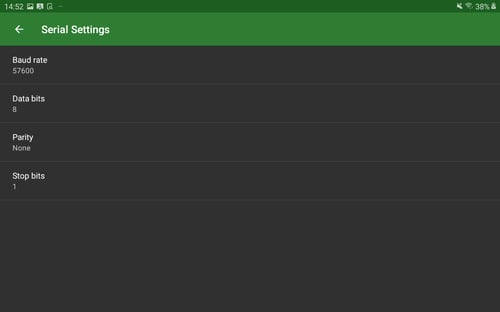
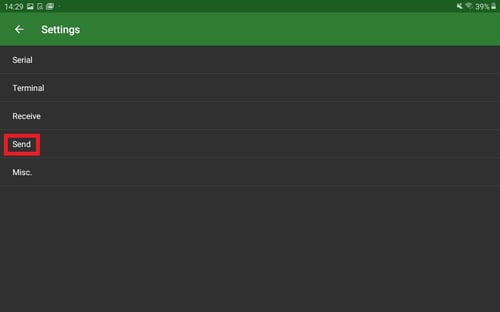
- Go back to the settings (arrow on top left) and click on “Send”.
- Chose Newline: “None”.
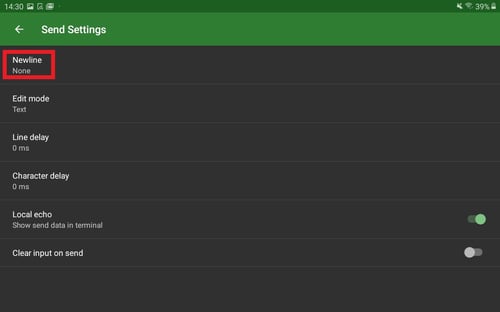
- Click on the back arrow in the top left corner, till you're back at the Terminal.
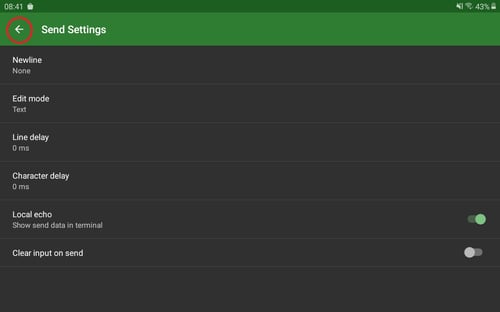
- Go to settings (tap the three lines in the top left corner) and click on "Serial menu".
- Establish a connection to the telemetry:
- Click the connect symbol (third from the right):
"connected to FTDI device" message should appear in the command line.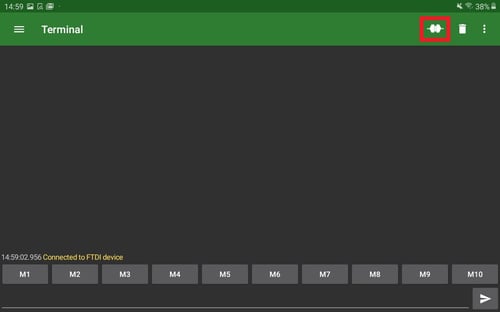
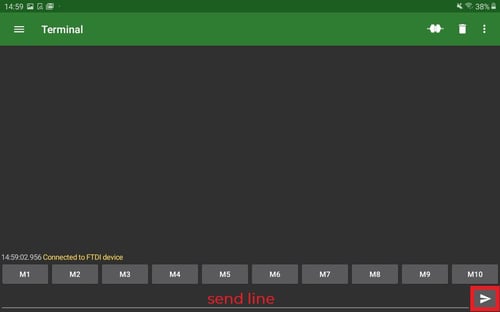
- Click in the send line (see below), and type "+++".
- Press send (icon in the red box below).
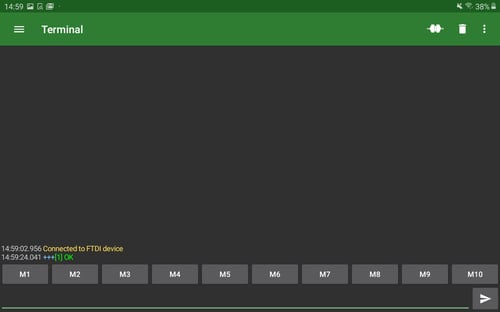
- It should receive: "[1] OK".
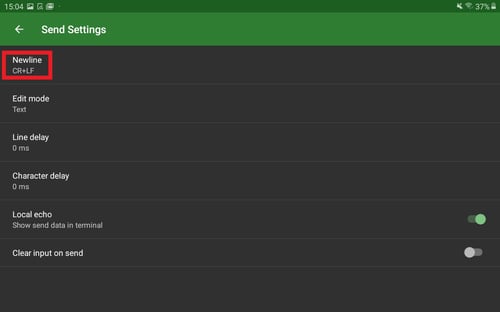
- Go to Settings (tap the three lines in the top left corner) → Send.
- Chose Newline: “CR+LF”.
- Go back to the Terminal
- Click the connect symbol (third from the right):
- Configure new settings:
- Type the command "ATI5" and press send:
- It should print out an entire list with 18 lines
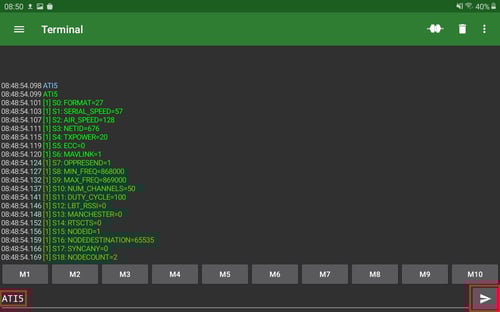
- It should print out an entire list with 18 lines
- Now change the S3: NETID of the telemetry to the one of your drone.
(See above how to get the NETID of your drone):- Type "ATS3=XXX" (while XXX is the NETID of your drone. E.g. "ATS3=999").
- Click on Send.
- You should receive: "[1] OK".
- Type again the command "ATI5" and send:
- Check that S3: NETID=??? is the NETID you have it set to
(in the example picture the desired NETID is 999).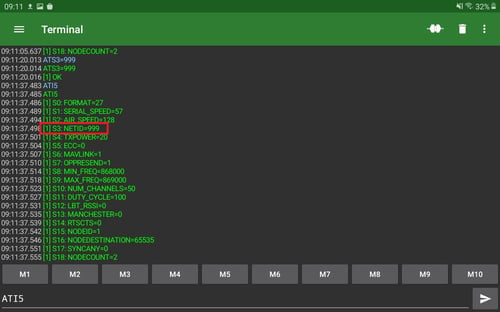
- Check that S3: NETID=??? is the NETID you have it set to
- Type the command "ATI5" and press send:
- IMPORTANT: Only continue if ALL the steps above were successful:
- If something wasn't successful:
- unplug the telemetry from the tablet.
- Replug the telemetry to the tablet.
- Restart from point 6 of this instruction.
- If all steps were successful, continue with point 10.
- If something wasn't successful:
- Store settings permanently:
- Type the command "AT&W" and press send:
- You should receive: "[1] OK".
- Type the command "AT&W" and press send:
- Exit the "Serial USB Terminal" app and unplug the telemetry from the tablet.
- You can now either:
- Uninstall the "Serial USB Terminal" app, by long pressing on the app icon and then "Uninstall".
- or if you want to keep the app:
- Go to the “Settings App” of Android and select “Apps” .
- Scroll to “Serial USB Terminal” and click on it.
- Scroll down and click on “Set as defaults”.
If this point is grayed out directly go to step 13! - Click “Clear Defaults” of the Serial USB Terminal App.
- Verify that the telemetry connection works:
- Reconnect the telemetry to the tablet.
- Select “WingtraPilot” app as the default app to work with the connected device.
- Power up your WingtraOne (drone).
- Now wait till WingtraPilot establishes a connection to the WingtraOne.
This can take up to 1 minute- After successful connection, power off the Drone and disconnect the telemetry from the tablet.
The new telemetry is now ready to be used with this drone - If you are not able to establish a connection between WingtraPilot and the drone, please contact wingtra.com/support.
- After successful connection, power off the Drone and disconnect the telemetry from the tablet.