This article describes the one-time activation procedure of the WingtraOne PPK license.
All WingtraOne GEN II drones are equipped with a PPK system that allows for accurate surveys without ground control points. Activation of this PPK system is done in software and involves:
- purchase of the PPK license - if you do not have a license yet and would like to purchase a Wingtra PPK license. Please contact the Wingtra Support team at support@wingtra.com.
- activation of the license on the Wingtra web page
- activation of the license on the drone
Requirements for the activation steps:
- PPK license provided by Wingtra
- The license is formatted as a number with 9 digits - e.g. 123456789
- The Wingtra PPK license is sent to you via email. You can search your inbox for the license by typing the email subject "Your Wingtra PPK license".
-
- Your WingtraOne and an established connection between the drone and the tablet.
- Internet connection on the tablet.
Step 1. Activate your PPK license on the Wingtra web page.
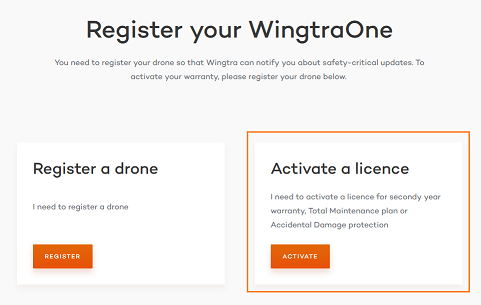
- Go to the web page Register your WingtraOne.
- In the Activate a license section, click on the button Activate.
- Fill in the form using your details and the PPK license key (8 digits) provided by Wingtra.
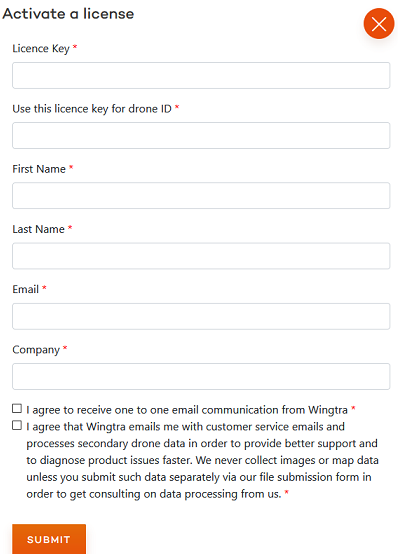
- To activate the PPK license, click on the Submit button.
- Check your email inbox for the confirmation email with the PPK license activation details.
Before proceeding to Step 2. please allow up to 15 minutes for the WingtraOne PPK license to register in our system.
Step 2. Completing the activation on the drone
- During the initial startup of WingtraPilot, you will see the following Activation Screen. If you have previously skipped it, follow the instructions at the end of the article.
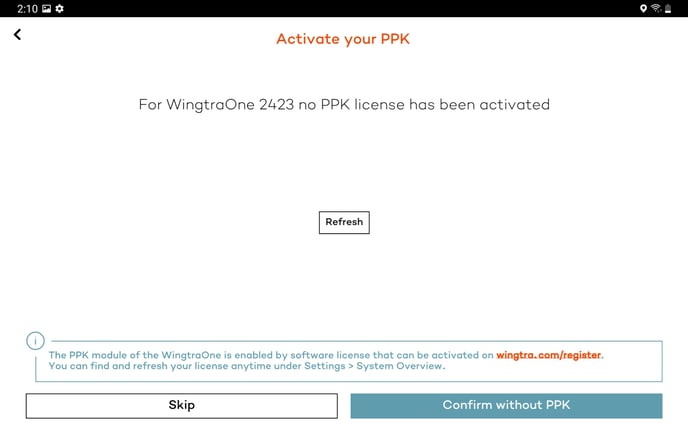
- Click on Refresh to load the previously activated license.
- After the license information is downloaded, the license type will be displayed in green.
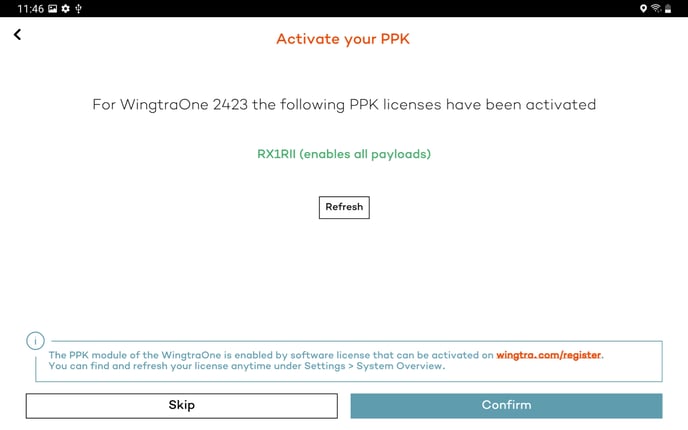
- Click on Confirm to finalize the PPK activation.
Note that the WingtraOne PPK license is now permanently stored on your WingtraOne drone and the internet connection is no longer required.
If you skipped the initial PPK activation in WingtraPilot, please follow these instructions:
- Access WingtraPilot on your tablet and connect to your WingtraOne.
- Make sure to have an Internet connection on your tablet.
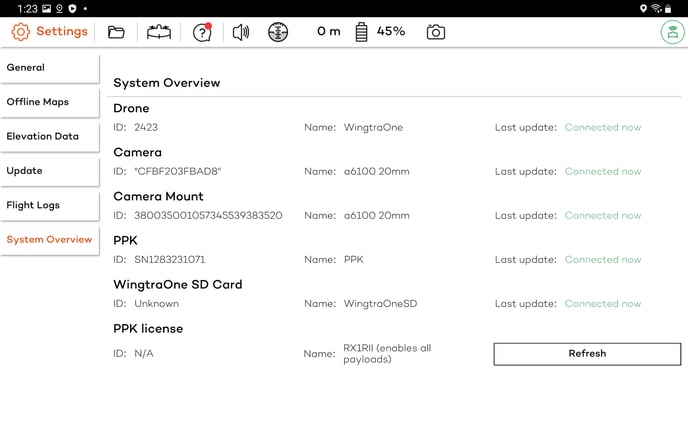
- In WingtraPilot, navigate to Settings > System Overview and tap on the Refresh button.
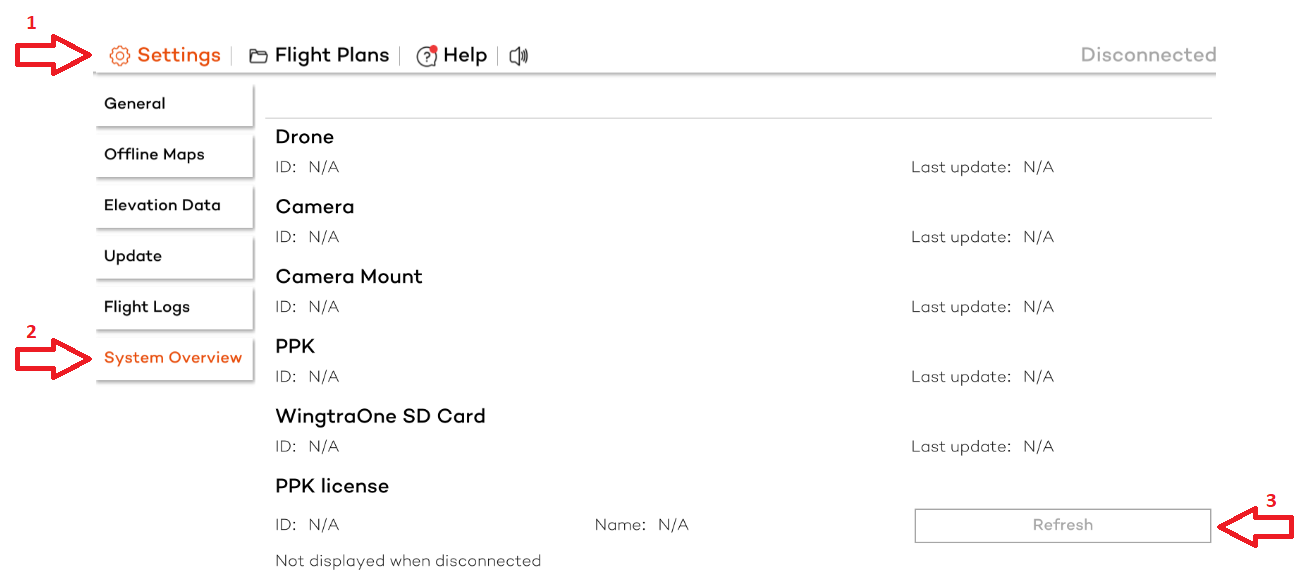
- WingtraPilot will recognize your previous activation on the web page and synchronize the PPK license with your drone.
If you are having difficulties with the activation of your license, please contact the Wingtra Support team at support@wingtra.com. Please provide the license key and a screenshot of the issue.