The article explains the main points that an operator should be aware of in order to operate the GEN II drone.
WingtraOne GEN II is the next generation WingtraOne with completely redesigned electronics. The flight planning and flying process are not significantly different, and the operator responsibilities remain the same.
The following workflows are new or different compared to the earlier WingtraOne drones:
- PPK activation
- Oblique flight planning
- Multispectral cameras workflow
- Sony RX1 RII mount
Flying GEN II requires WingtraOne and WingtraPilot version 2.1 and geotagging the images requires WingtraHub 2.1 version. All the GEN II drones will be shipped with WingtraOne and WingtraPilot 2.1, which is exclusively available to distributors till the official release.
WingtraHub 2.1 can be downloaded here.
PPK licensing
The PPK module is not a separate hardware piece in GEN II drones. As it is compatible with all the cameras, there is no need to remove and install it every time you change the camera.
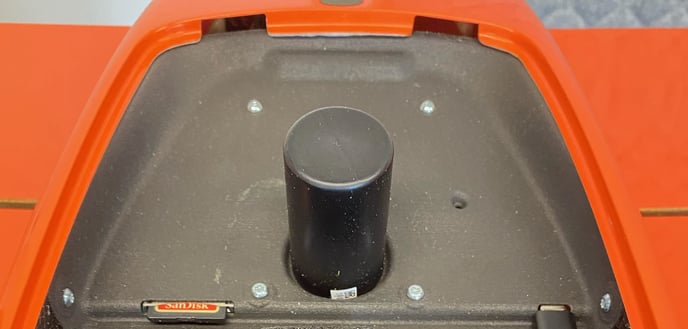
The color and appearance of the PPK antenna and electronics cover changes between the first and second batch of GEN II drones. Both are of equal quality.
The PPK should be activated through the license server, as you can see in the article How to activate the PPK license. Note that the RX1 camera activation license enables the PPK functionality for all the other cameras. However, there are individual PPK licenses per camera, in case you do not own an RX1 camera.
Oblique Sony flight planning
The Oblique Sony a6100 12 mm camera is our new solution for 3D reconstruction of buildings and objects. It is recommended that you fly with at least 85% frontal and 80% side overlap for an optimal reconstruction. Additionally, it is crucial to check the height of the buildings and objects in the area and fly at least 40 m above the highest one. Note that buildings and objects are not taken into account for terrain following.
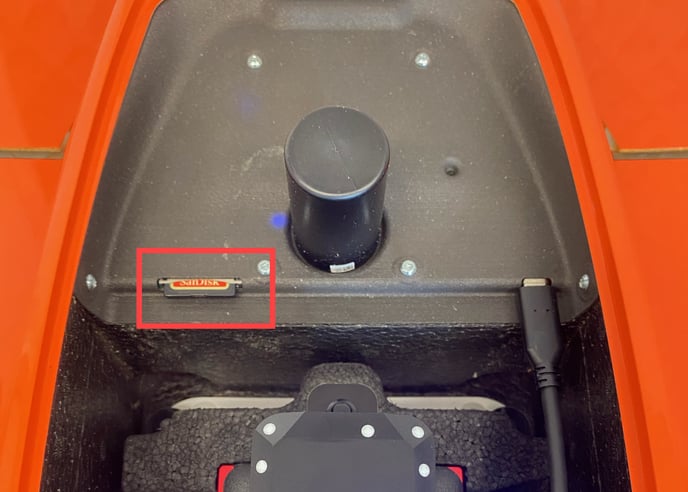
The oblique camera is mounted up side down in order to provide easy access to the camera SD card.
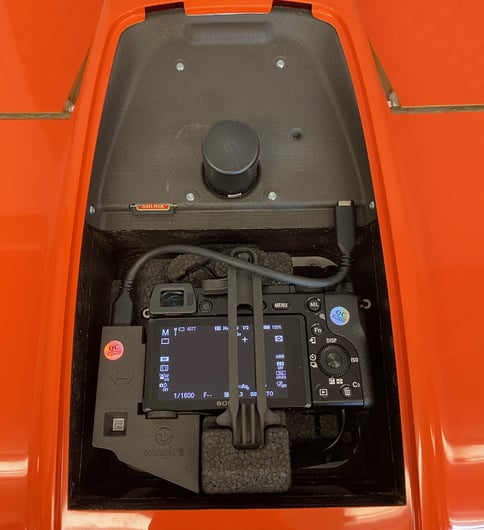
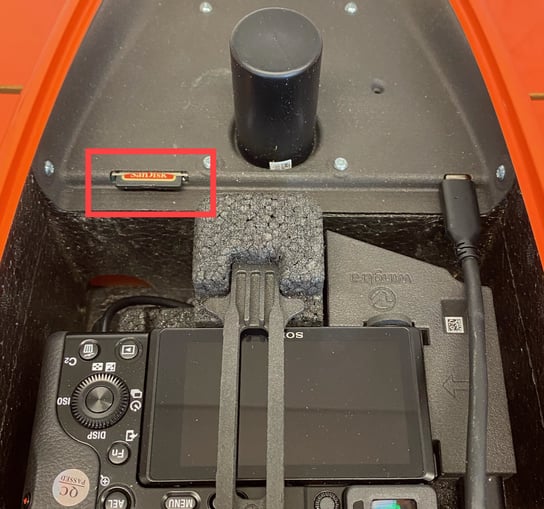
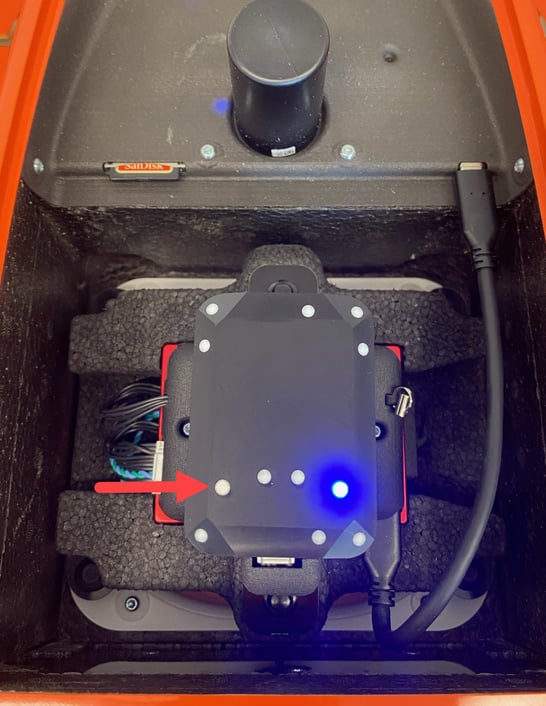
GEN II drones are equipped with 2 SD cards. For the RGB cameras (RX1, a6100, oblique), the collected images and GNSS data are stored in WingtraPilotProjects folder in the camera SD card.

The WingtraOne SD card should also be always connected for flying and it is used for the software/firmware updates and for downloading the flight logs.
Oblique imagery can be processed in any photogrammetric software. However, we recommend using Bentley ContextCapture for processing the images acquired by the Sony A6100 12 mm camera as we have tested it and the reconstructed model is of high quality.
You will be able to sell Bentley licenses similar to Pix4D licenses through Wingtra. Reach out to your Sales Manager to learn more or get a trial license.
Multispectral cameras workflow
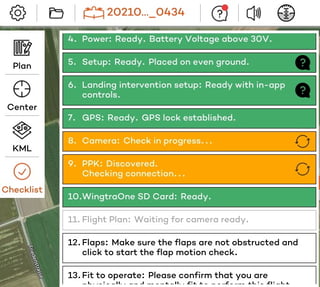
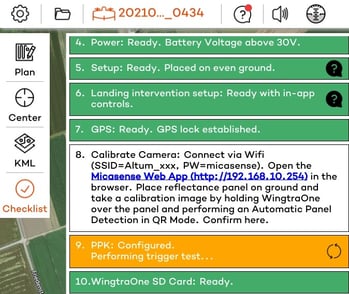
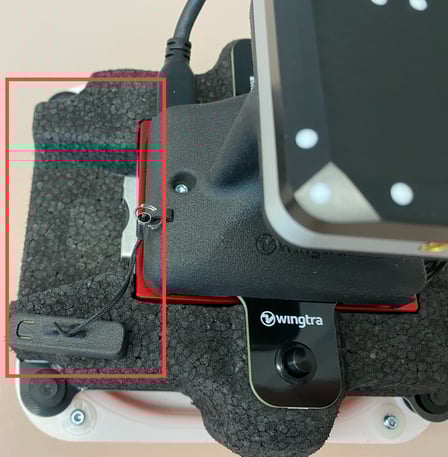
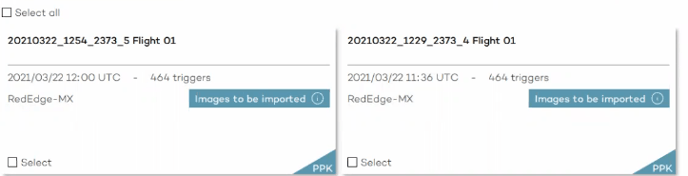
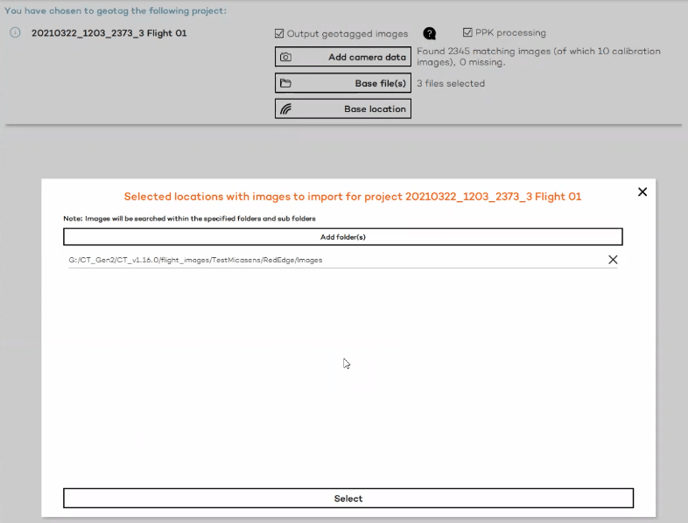
MicaSense RedEdge-MX and Altum cameras are now compatible with PPK for higher accuracy multispectral data. Both cameras come also with new camera mounts and a better software integration, which means that images are now triggered by the drone, preventing the capture of unnecessary images in turns.
Preflight checklist
Data storage
PPK geotagging
Sony RX1RII camera
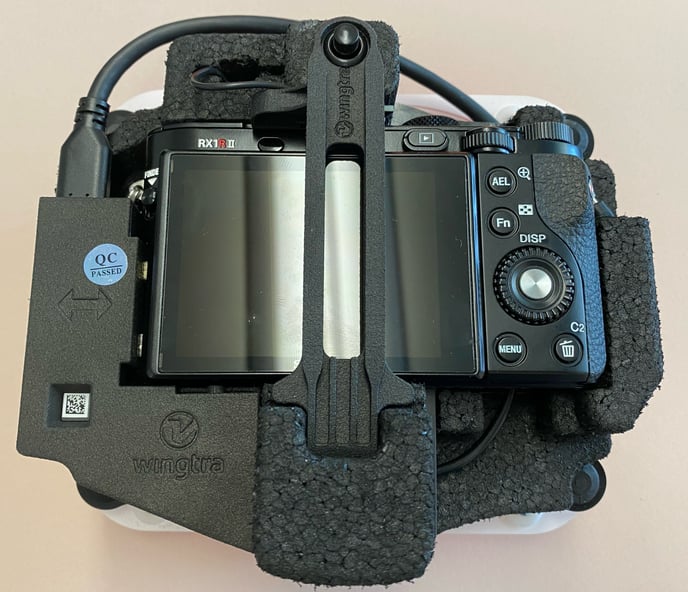
The process for flying with the RX1 camera and processing the RX1 images is not changed but the payload is coming with a new, more reliable mount.
Although we strongly recommend purchasing full new GEN II payload add-ons, there is an option to reuse an RX1 camera from a first-generation WingtraOne on a GEN II. For this, you need to order an empty GEN II mount. Step-by-step instructions of the process will be added to the Customer Portal. In the meantime, if this is needed, contact Wingtra Support.