This article explains how to import WingtraOne flight records and get select information overviews and reports from fleet management platforms, such as AirData and Dronelogbook.
WingtraOne operations can be tracked using the flight records that are stored in the SD card together with the images and GNSS data. AirData and Dronelogbook support these flight records.
The flight records are stored in the WingtraPilotProjects folder, under the individual project folder. The project folder contains 3 folders: DATA, FLIGHT RECORD, and IMAGES.
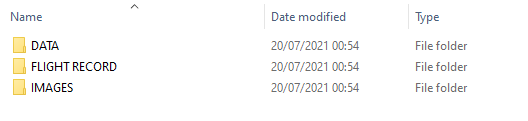
The flight records are also downloaded together with the WingtraOne flight logs, as it is described in the article Access flight logs.
1. Import flight records into AirData
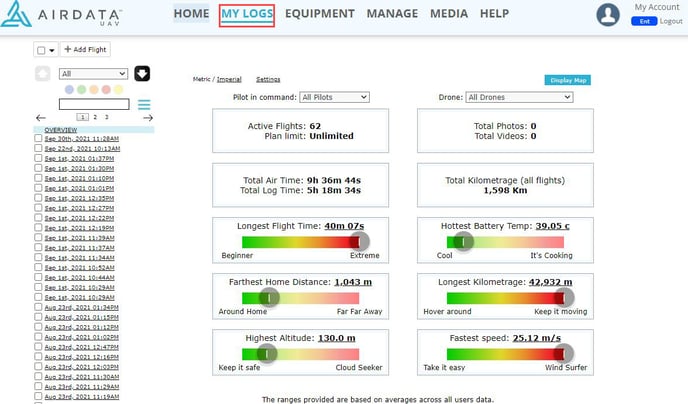
1. Log in to the AirData and navigate to the My Logs tab.
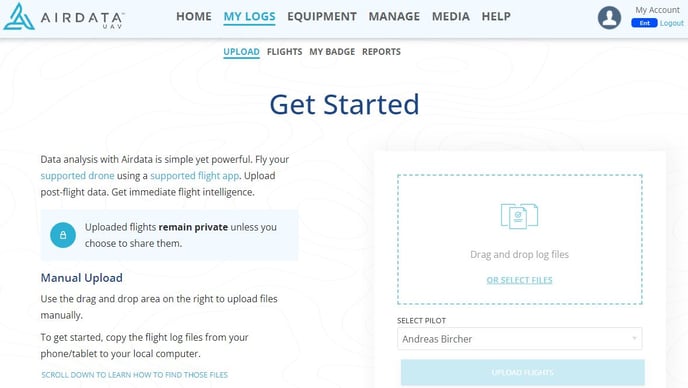
2. Click on UPLOAD and select the .ulg file in the FLIGHT RECORD folder or drag and drop the file in the right side box.
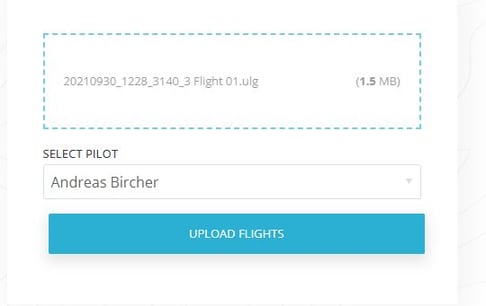
3. Click on UPLOAD FLIGHTS.
4. In the GENERAL menu (left) and Overview tab (top) you can see details about the flight, such as the date and time, the WingtraOne ID, the duration, and the battery percentage at take-off and landing.
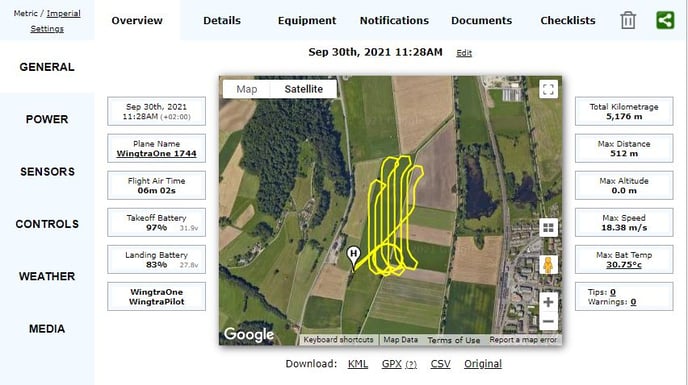
5. In the GENERAL menu on the left-hand side of the screen, you can additionally find the following tabs:
- Details: information about the pilot, the flown location, and the flight duration
- Equipment: associated drone, batteries, and camera serial number
- Notifications: highlights from the flight
- Documents: documentation associated with the flight, e.g., pilot certificate or insurance certificate
Find more information about how to better use the AirData platform on their help page.
2. Import flight records into Dronelogbook
1. Log in to the Dronelogbook and navigate to the Flights tab.
2. Click on Add Flight.
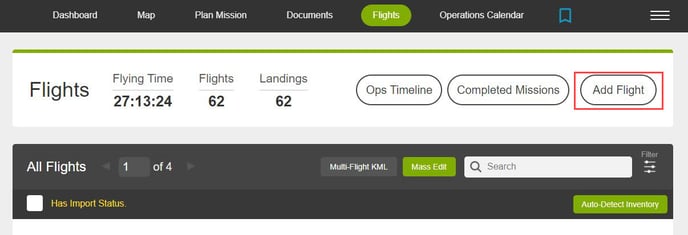
Under the Flights tab, you can view all imported flights, the drone, and the location. Additionally, you can view more details, edit or delete them.
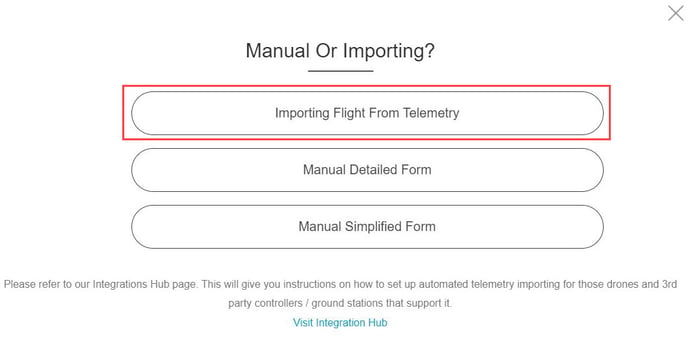
3. Select Importing Flight From Telemetry
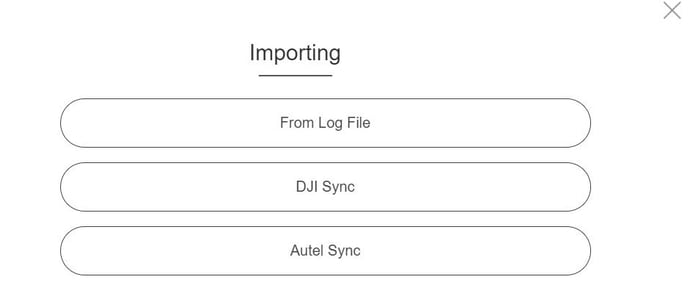
4. Select Importing From Log File
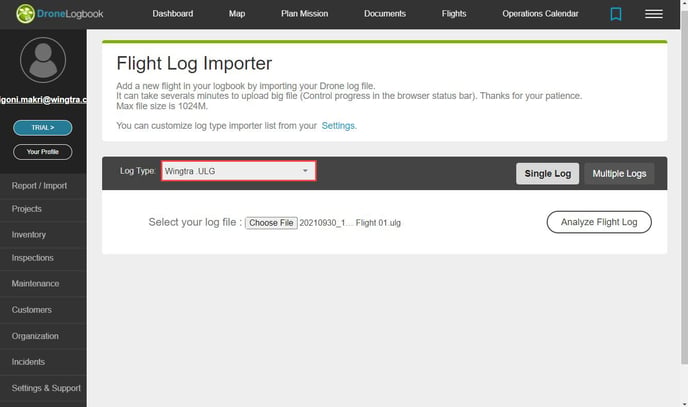
5. In the options field next to Log Type, scroll down until you find Wingtra ULG. Locate the path of the file after selecting Choose File, and then click Analyze Flight Log.
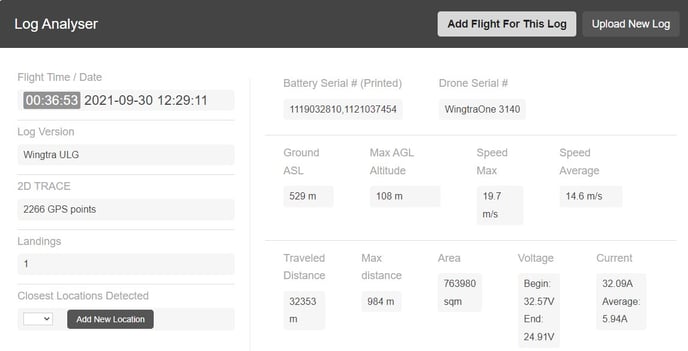
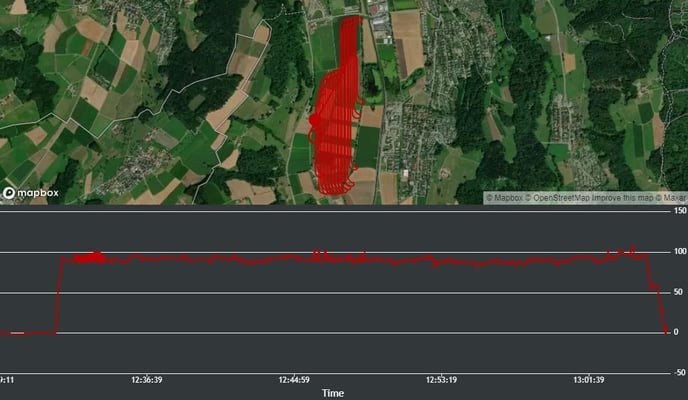
6. In the log analyzer you can view basic information from the flight, such as date and time, distance, area, height, battery voltage. You can also view the map with the drone trajectory and the altitude.
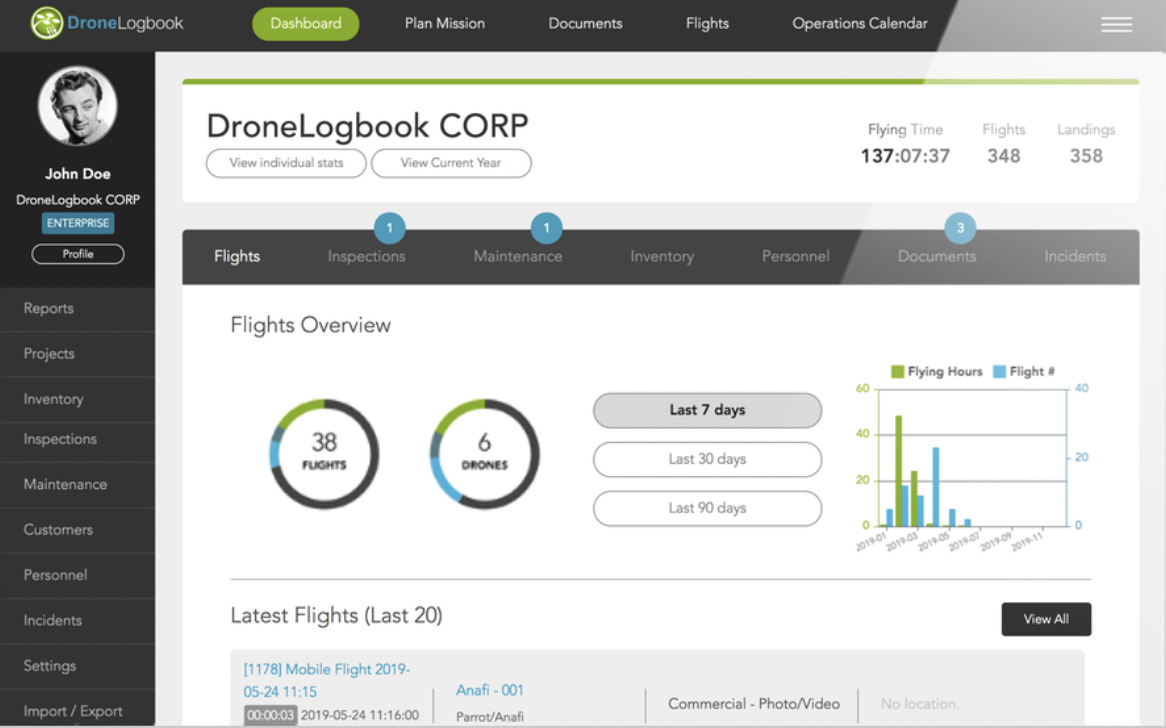
Under the Dashboard tab, you can find an overview of your operations and view all scheduled inspections and maintenance tasks.
3. Current limitations
- Currently, in cases where no images were taken during the flight, there is no project folder and consequently, no flight record kept on the SD card
- Flight records for GEN I MicaSense cameras are currently not stored on the camera SD card
- In both of the above cases, the flight records can be downloaded together with flight logs by initiating the log transfer through WingtraPilot (flight logs page)