If you are having reliability problems with the camera, please follow the RX1 debugging process.
Recommended setup
We recommend setting up the drone in the following way to enable easy access to all parts.
- Drone standing on a desk with middle-stand mounted
- PPK lid lowered for camera screen access
Check that everything is connected well
- Dummy battery and SD card inserted
- Hotshoe connector connected
- PPK locking connector not broken
- RX1 fixed by the 2 rubber straps
- RX1 mount connector (micro USB) connected to the camera
- Wingtra Universal payload connector (USB-C) connected to the drone
- Camera mount fixed inside the drone using the 4 torx screws
RX1 switch position
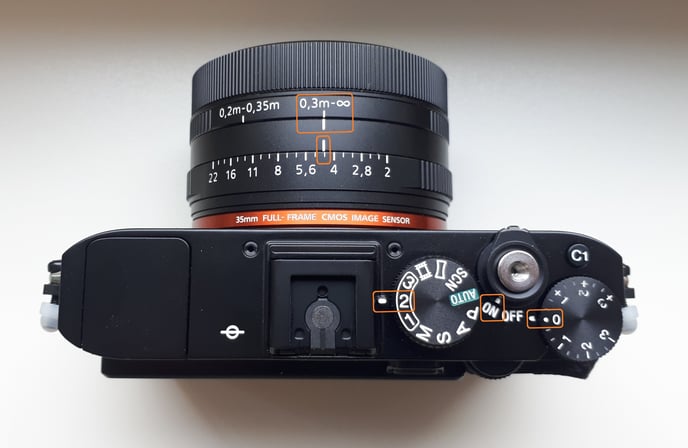
Check that the On/Off switch is set to On when the camera is inside the mount. Also, check that the mode is on the correct dial. The default is mode 2.
Tablet Icon
Please check the camera icon in the top right corner of the tablet screen. Wait for few minutes until the green loading bar reaches the right side of the screen.
- Black
- Camera is connected
- Grey
- Camera not detected
- Take the RX1 out of the mount and use the external camera battery to take a manual test picture.
- Insert the camera back into the mount and ensure all cables are correctly plugged in
- Follow the steps described below.
- Grey with X
- Contact Wingtra Support for further instructions if "X" stays
- Red
- Wrong camera type selected
- Create a new Flight Plan and make sure to select the correct camera type
SD card sanity
Make sure that you are using the standard SD card provided by Wingtra or an SD card with the required specifications. Different SD cards may lead to problems with camera access and writing speed, resulting in missing data. Sometimes if the file organization of the SD card becomes out of order the camera will not behave correctly. Do not use Wingtra SD cards for alternative uses.

Format the SD card
Learn how to format the WingtraOne SD cards. The SD card needs to be formatted with EX-FAT file system. For the RX1, we recommend to use the camera to format the SD card.
Camera screen
Repower WingtraOne and check the camera screen. First the camera goes into mass storage mode. If there is a message, press OK to confirm. In case you missed the message, WingtraOne needs to be repowered to establish the camera connection. If the message continues to pop up, upon repowering WingtraOne, follow the steps described below.
Adjusting functional camera settings
In order to save camera settings.
- Change the setting inside the menu
- Power the camera off using the camera On-Off switch
- Wait 2 minutes
- Power the camera on using the camera On-Off switch
- Check that the setting has been saved correctly
Please check the following camera settings to ensure the camera is set up correctly.
- Pwr Save Start Time = 30 Min (Suitcase symbol - Page 2)
- USB Connection = Mass Storage (Suitcase symbol - Page 3)
- USB LUN Setting = Multi (Suitcase symbol - Page 3)
- USB Power Supply = Off (Suitcase symbol - Page 3)
- File Number = Reset (Suitcase symbol - Page 5)
If there is a question about settings please provide an image that was captured with the RX1 camera to Wingtra support to analyze the EXIF data.
If your problem still persists
After performing the above stated debugging steps, please perform an other test flight. In case the issue persists, please gather the data needed to fix your problem noted in the RX1 data gathering process and submit a ticket, so that we can solve your problem as quickly as possible.