The following article provides an overview of the most common PPK issues and how they can be handled.
How to fix geotagging issues
WingtraHub is based on Septentrios PPSDK (WiH v1.0 - PPSDK v4.6.2 | WiH v0.6.1 -> PPSDK v4.6.1). In case geotagging fails, it is worth testing the project with the latest PPSDK which is available through their gui GeotagZ. The software is installed on the Pix4D beast in Zurich. To successfully run it, the correct dongles need to be inserted.
How to analyze sbf files
- Get the DATA folder from the customer and put it onto a computer with the SBF Analyzer tool installed.
- Check if all three files are available:
- WingtraOne.sbf
- WingtraOne ForwardProcessed.sbf
- Base.sbf
- Right click on the SBF file and select "Analyze SBF file."
- A new SBF Analyzer window will pop up. Select only the following plots to be shown: carrier to noise, number of satellites, planimetric plot and general information. Click onto carrier to noise, then plot options and select L1 or L2 for GPS and GLONASS.
- Click "Analyze" to start the analysis.
General parameters to check
- In the number of satellites window, check if the average number of satellites is sufficient. In normal cases, there should be at least 20 satellites in total.
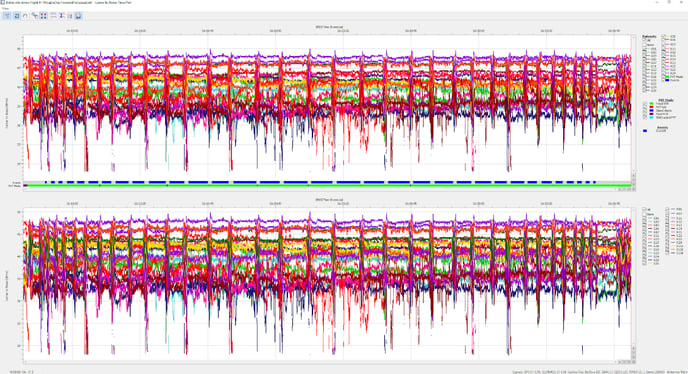
- In the carrier to noise window, check if the carrier to noise fulfills our requirements:
- L1-C/A, L1-C/A: best satellite over 45 dB, 7 satellites over 40 dB
- L2C, L2-C/A: best Satellite over 36 dB, 7 Satellites over 30 dB
- Dilution of Precision < 5: good satellite geometry
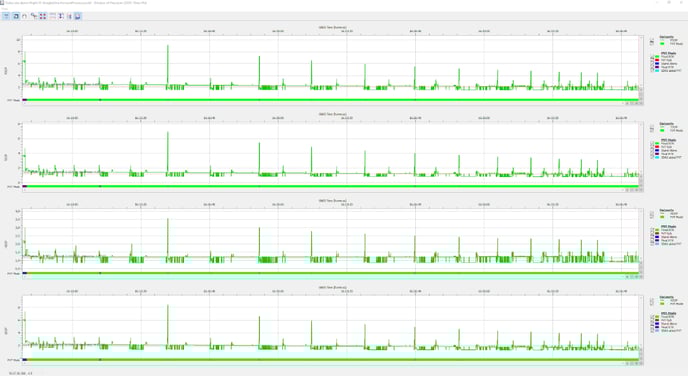
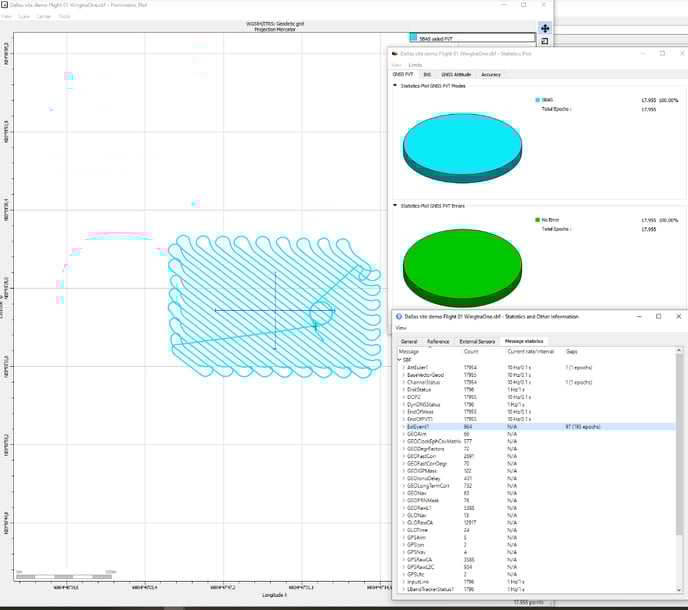
WingtraOne.sbf
- SBAS aided PVT
- General information -> Message Statistics -> ExtEvent1 = # Images
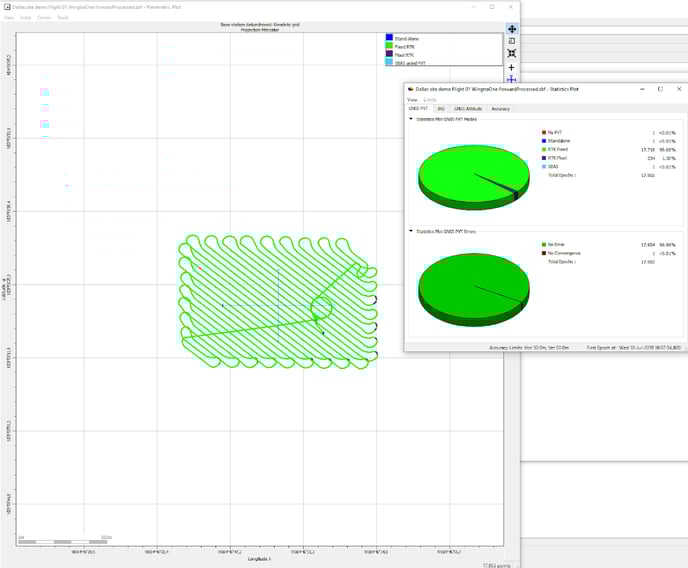
WingtraOne ForwardProcessed.sbf
- Fixed RTK
- Blue vertical lines below graph indicate triggers: Check regular spacing