Learn how to change between RGB and multispectral cameras on your WingtraOne
Required Equipment
- WingtraOne
- Torx screwdriver
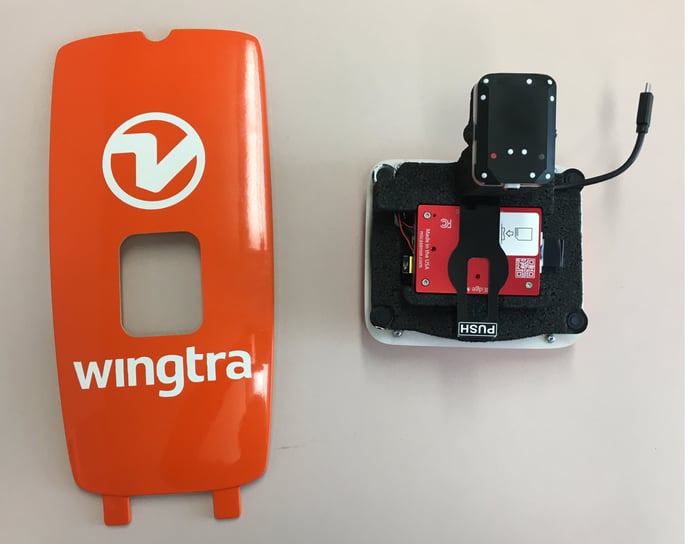
- RedEdge camera and mount
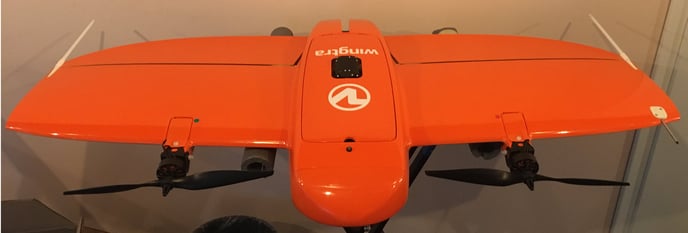
- Top cover with an opening for the DLS sensor
Step by step instructions
The instructions should be followed carefully. Deviating from the described procedure can lead to damage on the sensor and hence faulty images. Loose payloads or shifted CG can make WingtraOne crash.
1. Make sure the WingtraOne is not powered
2. Lay down the WingtraOne on a flat surface
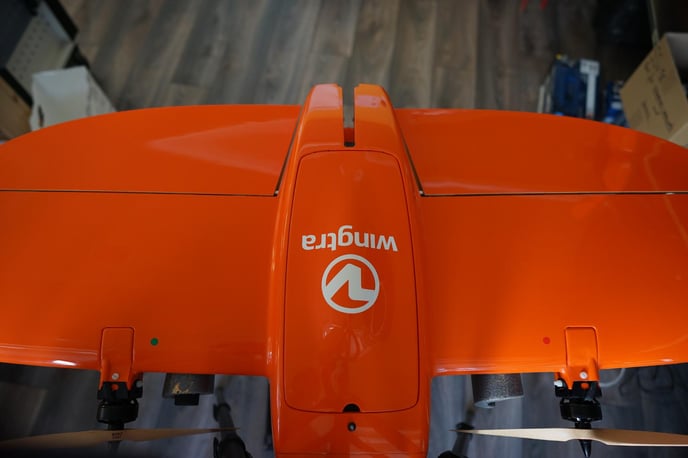
3. Open the top cover
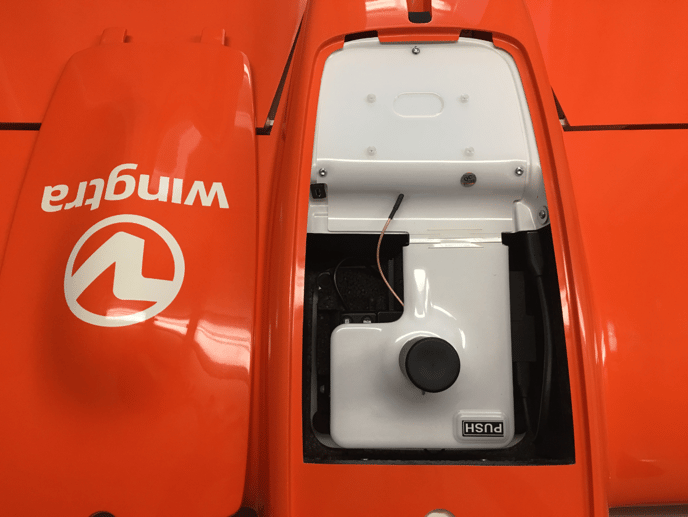
4. If changing from QX1 camera remove the micro USB SD card adapter from the micro USB port of WingtraOne
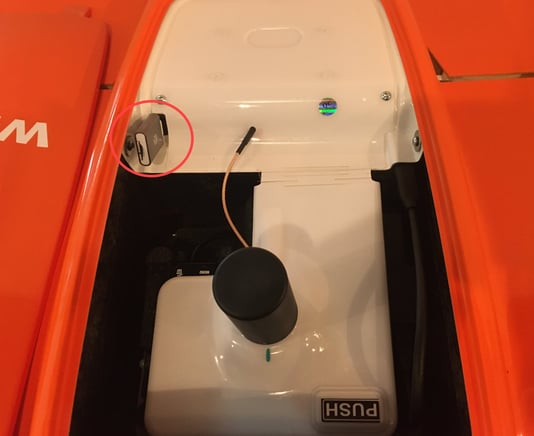
5. Remove the PPK module (if applicable). You can find step by step instructions on how to remove the PPK module in the article: Remove the PPK module
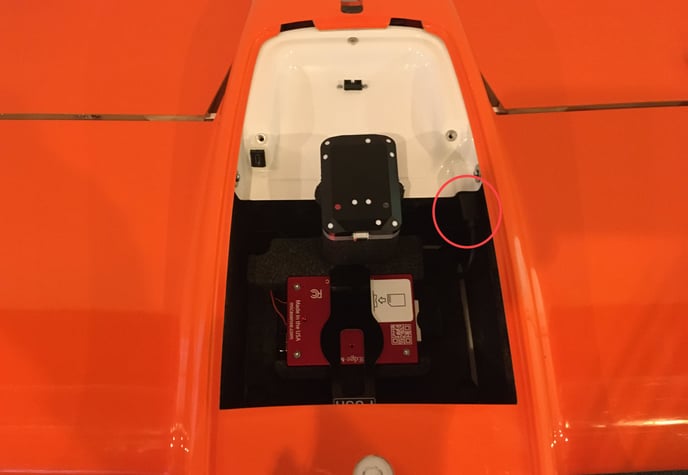
6. Unplug the USB-C universal payload adapter
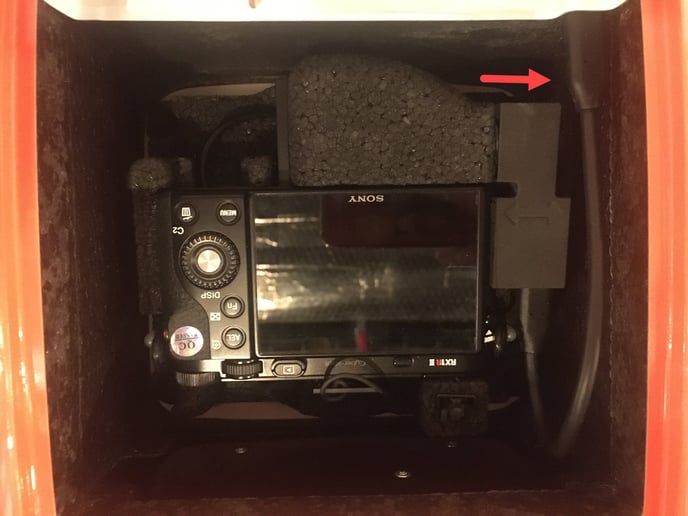
7. Use the torx screwdriver to open the four screws in each corner of the payload area. Note that the screws are attached to the camera mount. You do not need to worry about losing them inside
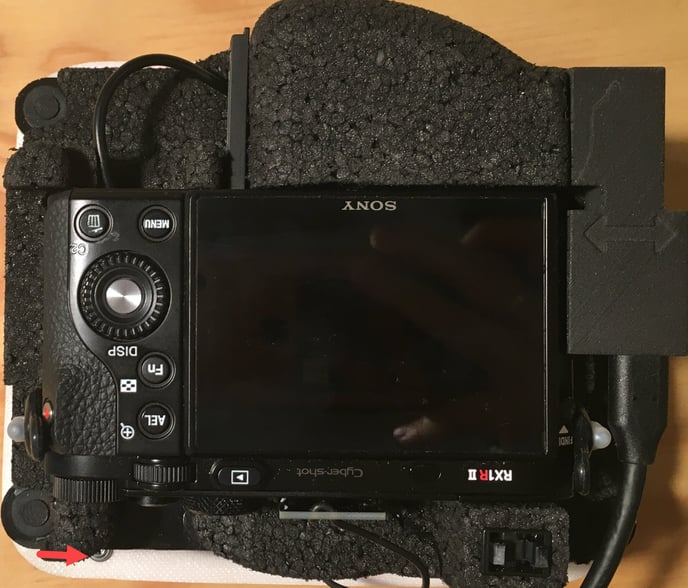
8. Lift out the camera mount assembly. You may push from the bottom to take it out
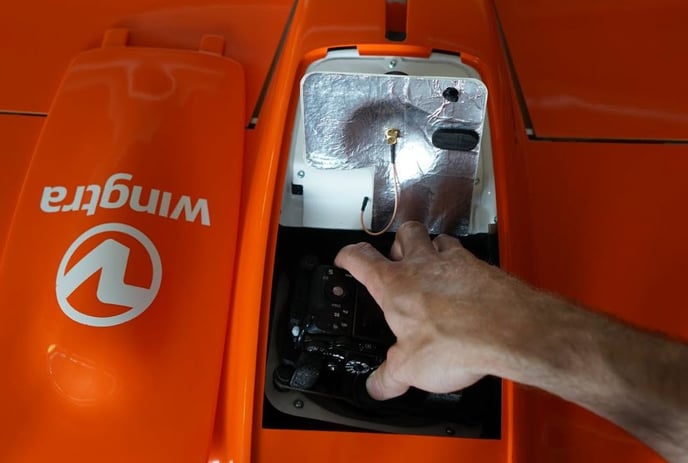
9. Insert the Rededge camera with the mount
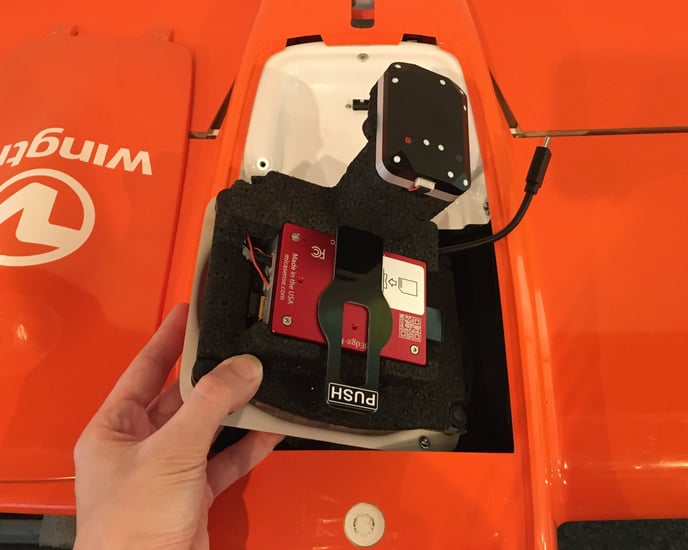
10. Tighten the screws in all four corners using the torx screwdriver
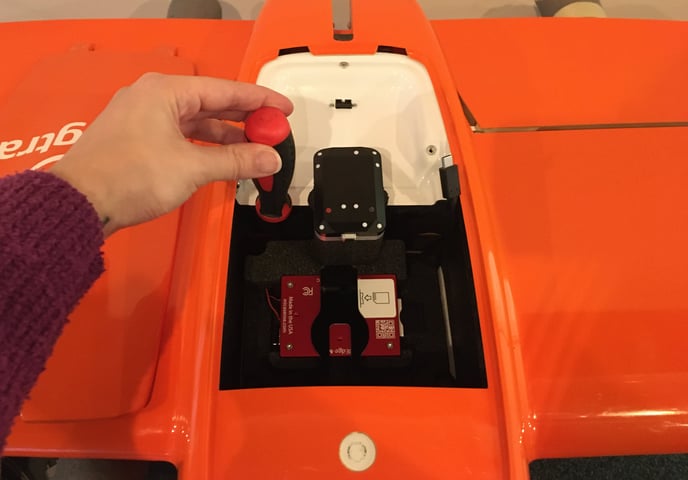
11. Plug in the USB-C universal payload adapter
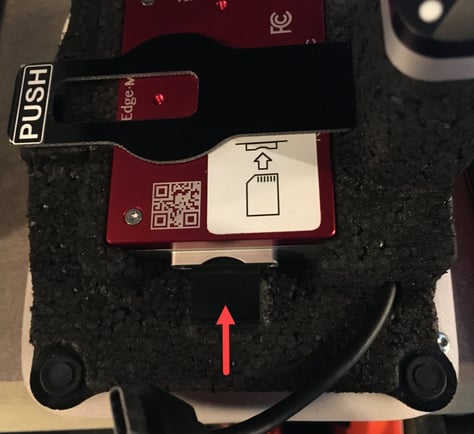
12. Make sure that the SD card is inserted inside the camera
13. Take the new top cover with the cutout and close the WingtraOne payload area
14. Finalize the WingtraOne with RedEdge camera setup. To do so:
a. Power on WingtraOne
b. Open the WingtraPilot app and connect the telemetry antenna to connect to WingtraOne
c. Create a new flight plan and make sure to select the right camera when going
through the wizard
d. The RedEdge camera will be detected and WingtraPilot will prompt you to repower WingtraOne to initialize it correctly
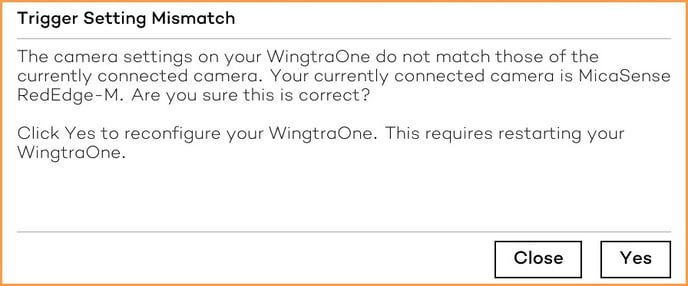
e. Confirm by clicking "Yes"
f. Repower the WingtraOne to save the new camera configuration.