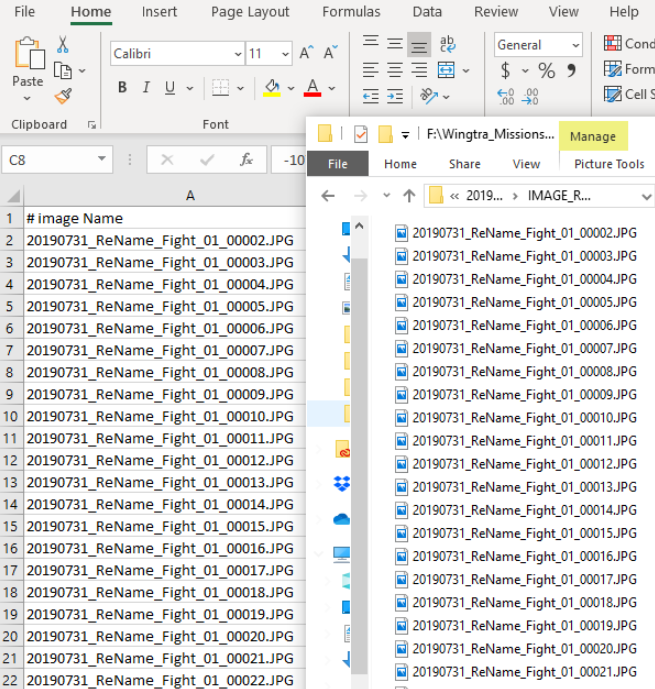
Special characters in an image name, such as á, é, í, ó, ú, ü, ñ, ?, (, ) are not recognized b Pix4Dmapper. Importing any .csv file named with these characters into this software results in an error message, so here's how to change them all at once.
WingtraPilot accepts special characters in the name of the projects, and WingtraHub can process these names. However, Pix4Dmapper does not support special characters. To successfully process images captured by WingtraOne with Pix4Dmapper you need to either avoid using special characters in the project name, or rename all the images and the .csv file with the geotags based on permitted characters before importing them in Pix4Dmapper.
Image rename
To rename all the images you need to use a batch image converter such as IrfanView, following the steps below:
1. Open IrfanView
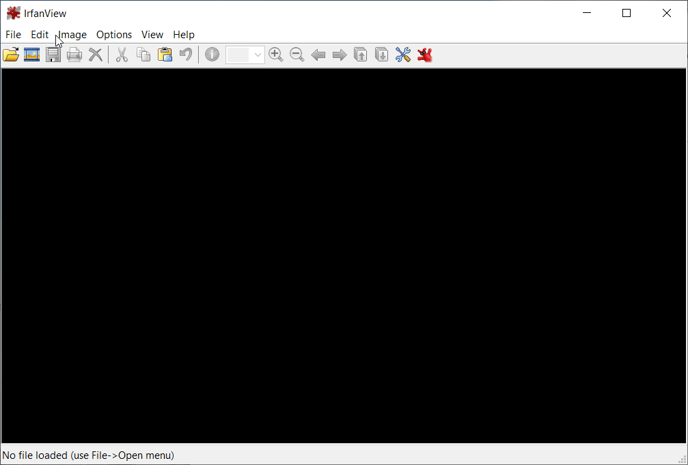
2. Select File --> Batch Conversion/Rename
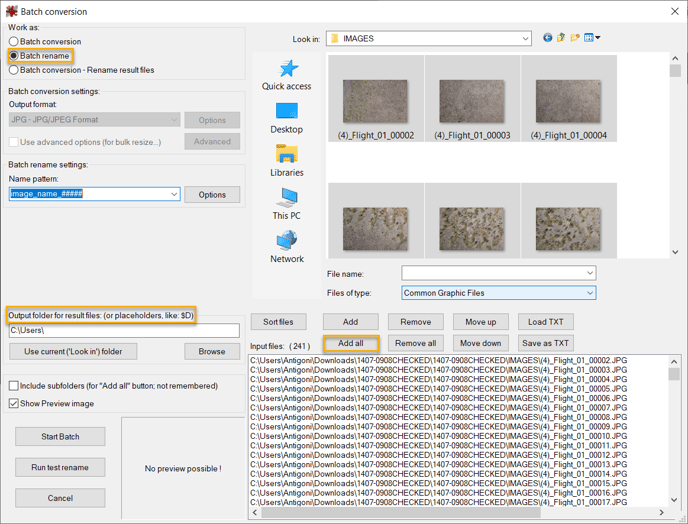
3. In the Batch Conversion window select:
- The option Batch Rename
- The output folder location (we recommend creating a separate folder in order to keep the original folder intact)
- Select the folder with the images and Add all of them that need to be renamed
4. Find the IMAGE folder location and copy the first name of the image
5. In the Batch rename settings section, under Name pattern, paste the first image name, replace the numbers with #’s and select Options
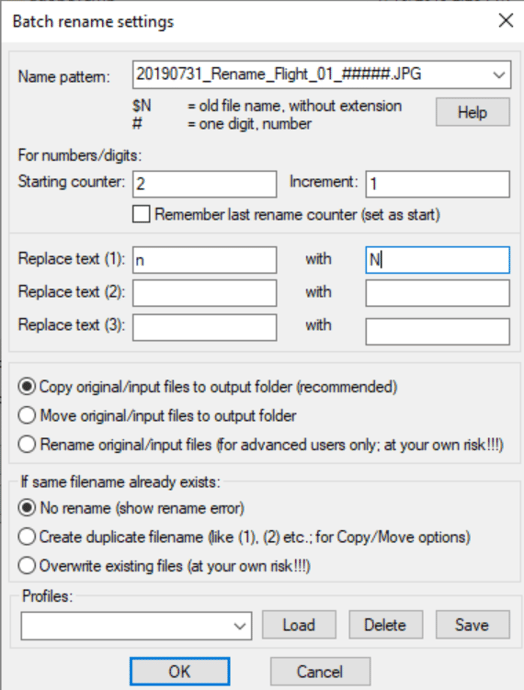
- Start the counter at 2 then set the increment to 1
- To replace the special character enter it into Replace text (1) and specify the normal character after with
6. Click Start Batch to begin renaming images to the output folder. Once it is completed open up the original image folder and the new renamed folder so you can make sure that the numbers match and everything is in order.
Rename .csv file
The image names that will be used for the Pix4Dmapper project should be the same as the image names in the .csv file with the geotags to match images and geolocation. Therefore, if the images are renamed after the geotagging, the .csv file should also be edited.
In the OUTPUT folder of the project, create a copy of the .csv to change the names in the geotags file to match the newly named images. To do so:
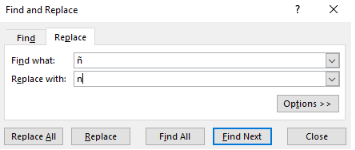
1. Open up the Copy.csv in Excel or a text editor, such as Sublime or Notepad++, to run a find and replace (Ctrl + F)
For Excel: navigate to the Home tab on the far right and select replace under the find and select tab.
2. Specify the special character and replace it with a compatible character which is the same used in the image batch rename
After renaming both the images and the .csv file, verify that the geotag names match the image names. Now you are ready to import everything in Pix4D.