Here you will find all the information you need to organize a return shipment.
1. Decide if a return shipment is needed
For support cases involving a damaged or malfunctioning WingtraOne, we may need an item to be shipped back to Zurich.
Returns of malfunctioning wings or components are organized in the following cases:
- The wing is requested back by the engineering owner (with confirmation from Youssef/Jonas/Constantin/Michael Weber) for further investigation
- Parts of the wing can be reused by Production --> need to check with Michael Weber case by case
- Cameras and PPK modules should always be shipped back
- If you are upgrading a customer to GEN II, make sure you have shipped them the carton box which could be used for the PPK return, as described in the article
The ticket owner is responsible to fill out the HS property HW investigation according to the following rules:
- “Back-shipment needed to be reused by production”
- PPK and Cameras
- v3 functional wing with approval from Michi (v2 wings are no more needed in production)
- “No back-shipment needed”
- Default option if none of the above mentioned parts is involved
- “Back-shipment needed for investigation”
- Pre-discussed “hot” topic items
- Upon request by ticket owner engineering with approval from team lead in early ticket stage
We do not organize returns for repairs. In case a customer asks for a repair, explain them our approach to maintenance and that in almost all cases, a replacement of a malfunctioning part is more cost efficient and more sustainable than a repair job.
The only case that we accept performing replacements in Zurich is for direct customers that do not feel comfortable performing the replacement of parts, such as drivetrains.
We try to prevent return shipments of flight batteries.
If a WingtraOne or a pilot box is shipped back, make sure to instruct the user to remove the flight batteries from the pilot box.
If batteries are requested for investigation and after the approval of Jonas or Michi, the special packaging material is needed so please make sure you have selected SKU BATBOX (when organising the shipment of the special packaging material). Check out the support article Ship back flight batteries for more information.
2. Who is setting up the shipment
Returns of wings are by default organized by Wingtra and we provide a shipping label to the customer.
To speed up the return of items and to minimize costs for the distributors, we organize the return shipment directly from the end customer, even in the case there is a distributor.
Only when a temporary export is needed, we should organize the return from the distributor. Always check with the distributor before setting up the documents.
Request the customer to pack the item and provide the size and weight of the package since this information is needed to setup the shipment documentation.
For return shipments of smaller items (e.g. PPK module or camera), you may deviate from the above rule and let the customer ship the item to Wingtra. In such cases, we typically let the customer send these items with any trackable shipping provider (FedEx, UPS, etc) to the following address:
Wingtra AG
Contact: Andrea Nater
Giesshübelstrasse 45
8045 Zurich, Switzerland
In all cases that the customer organizes the return shipment, it is important for internal tracking purposes that we still create the return shipment deal in Hubspot and give the customer the Deal ID.
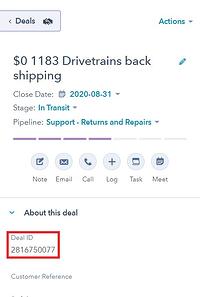
They should use this ID in the documents that they generate - add it to the proforma invoice and air waybill (PO: Deal ID#).
The Wingtra Export team (Larissa and Peggy) would be able to pair the items with the deal and change the status once the items arrive in Zurich.
3. How to organize a return shipment
The organization of a return shipment is guided by a Hubspot deal that is associated with the corresponding ticket(s). The following instructions explain the entire process structured by deal stages. The process should follow the deal stages subsequently. In each stage, the below-described tasks are conducted. In case a certain stage (e.g. setting up waybill) is not required, skip it. If you have further questions about the process, talk to Andrea/Antigoni.
Make sure to create a deal for every return (even when the shipment setup is done by the customer). For all replacements or shipments of new items, an additional deal needs to be created in the "support—direct" or "support—reseller" pipeline.
Create a deal in Hubspot
- Make sure that the plane ID and company name is part of the deal name (e.g. 1176 TTQ mag investigation)
- Select the deal pipeline: Support - Returns and Repairs
- Set the deal stage according to the stage of the return shipment
- Go through the different deal stages to execute and keep an overview of the process.

- The deal properties can be filled out, once changing the stage or at any time in the property list on the bottom left side.
- When changing to the next deal stage, the required properties are displayed. Make sure to also check the previously completed properties.

Prepare return
When creating a new deal, start from this stage. To move to the next stage, you need to specify the pick-up address, the contact details, and what needs to be shipped back (products, packaging). As the return shipment is happening from the customer's location, the customer should be added in the communication when the reseller is the one who opened the ticket. Add in cc the customer and ask for the above information.
Provide also to the customer the packaging instructions that are located in the Knowledge Base section: Return Shipments. You can use the following snippet: #return shipment packaging
Select the package type and specify the dimension and weight of the box. Make sure to be specific—this information will be used to create the shipment papers and also to check if everything arrived. If the original cardboard boxes are used and it contains exactly the same as the standard product you can insert: "same as standard product".
Something else to be clarified at this stage is if this return will be a temporary export or if there are any special requirements. For a temporary export, the return shipment should happen from the same location that the replacement shipment will go. Since all outgoing shipments are going through the distributor, the return shipment should also be organized from the distributor.
Once everything is clarified, the customer has packed the items and the parcel is ready for pick-up, change the stage to “setup waybill.”
Setup waybill
The Export team creates the shipment documents and links them in the deal. Larissa tries to directly schedule the pickup with FedEx. If you do not want her to schedule the pick up, inform her in a deal note.
Customer should inform if they need to see the shipping documents beforehand, in which case a non-commercial invoice will be created
For some countries or for freight shipments (e.g. palettes) the pick up can not be booked. In this case, the customer will need to call the local FedEx to schedule a pickup. Larissa will mention in a deal note if the pickup has been scheduled already or not.
Pick-up
Shipment documents
The provided invoice and the waybill are sent to the customer. By default, we send the pro forma invoice that is automatically generated by FedEx when setting up the shipment. If the customer wants to see the documents before the shipment papers are created, Larissa creates a non-commercial invoice.
Example:

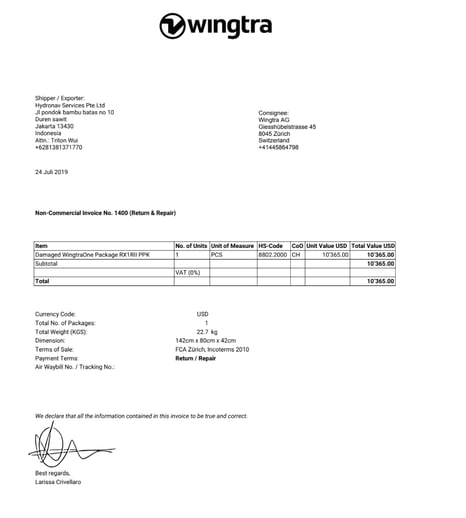
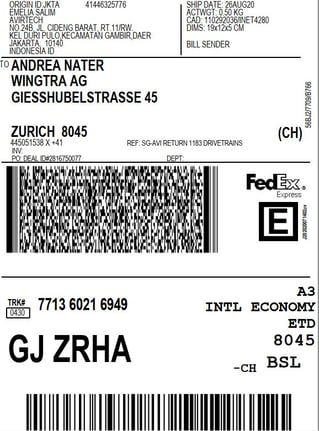
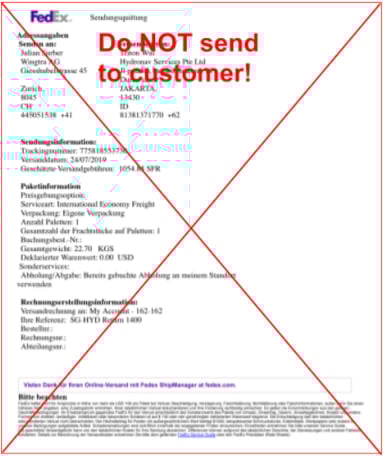
Most of the time there is also a shipment invoice (Sendungsquittung) in this folder. Make sure not to send it to the customer!
Do not send:
- 2018_96_SG-HYD FedEx 772576972798 Sendungsquittung.pdf
Use the following snippets depending on if the pick-up has already been scheduled or not :
#send waybill (freight) - schedule pickup
#send waybill (non-freight) - ready for pickup
#send waybill (non-freight) - schedule pickup
In Transit
After five days without deal changes, a task is created to remind the deal owner to follow up with the customer. Check the FedEx tracking number from the shipment documents to see if the pick-up has been set up. If not, remind the customer to get in touch with FedEx. If the customer is not able to set up the shipment within the first week of waybill creation, inform Larissa that it will take longer.
Arrived
Once the parcel arrives in Zurich, a person from the fulfillment team unpacks it. The person documents all shipping damages in a deal note and compares the package content to the added products of the deal. If something is missing or too much was sent back, the person from the fulfillment team documents it in a deal note. After unpacking and documentation, the deal stage is changed to "Arrived" and the item is moved to the appropriate location depending on the property "Reason for return". Items that require Dev investigation, are placed on the investigation shelf at Bubenbergstrasse 2 and items that go directly to production are placed on the production shelf on the 2nd floor at Giesshübelstrasse 45.

If the returned item was sent back for Investigation or for Production, the deal will automatically be closed after 1 day (-> Closed done). The further steps will be documented in the corresponding ticket.
A deal is in Close lost (cancelled) when the return did not take place.
DEV investigation
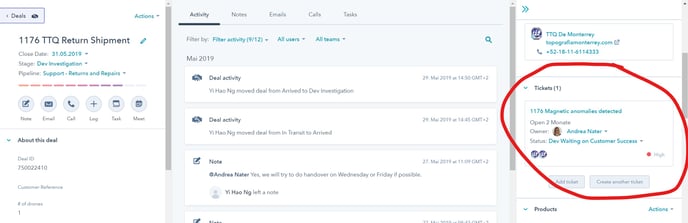
If the reason is "Investigation", the item will be placed on the DEV shelf, the ticket property "HW Investigation" is automatically changed to "Material arrived - ready for investigation" and the ticket owner engineering receives an email. The next HW investigation stages (Components archived, Dev investigation ongoing) are updated by the dev that is responsible for the investigation. The devs document the findings that are relevant for the customer in a ticket note and tag the ticket owner. Once the investigation is done, the ticket owner engineering hands the items back to production and sets the "HW investigation" property to "Material back at production".
Back to production
If the item was sent back with the reason "Back to production", the item is placed on the PRODUCTION shelf and Stephan Houssart is informed via email. The ticket property "HW investigation" is automatically changed to "Material back at production".
Overview of open return deals
The following video shows how you can filter your open return deals: