In some cases you will need to provide the Wingtra customer success team with log files in order to troubleshoot your WingtraOne. Here, you will learn how to retrieve them.
Prepare WingtraOne for the log transfer - WingtraOne GEN I
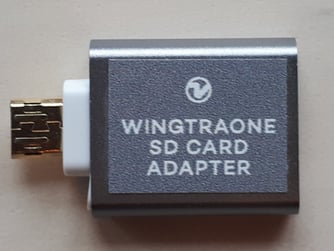
To prepare your WingtraOne for accessing flight logs, insert the WingtraOne SD card into the "WingtraOne SD card adapter" and the adapter into the drone. Power on the drone and the tablet, connect the telemetry to the tablet and wait until the telemetry connection is established.

If you have an RX1 camera, you can alternatively insert the SD card into the camera and transfer the logs through the camera. In this case, make sure that the camera connection is established before you start downloading the logs.
Prepare WingtraOne for the log transfer - WingtraOne GEN II
In case you have WingtraOne GEN II, make sure the WingtraOne SD card is firmly inserted into the drone. Power on the drone and the tablet, connect the telemetry to the tablet, start WingtraPilot and wait until the telemetry connection is established.
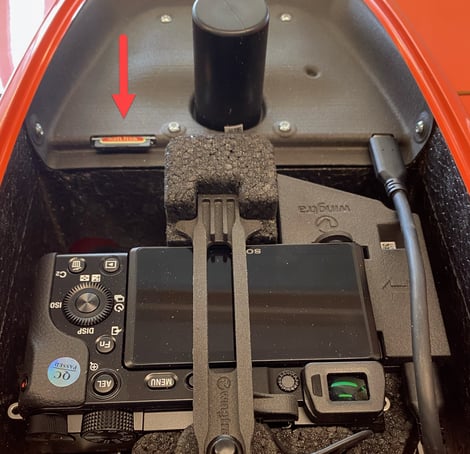
The WingtraOne SD card should be inserted in the drone when flying.
Transfer the logs
Once the telemetry is there, click on Settings, and then select the tab Flight Logs. In case you transfer the logs to the RX1 SD card wait until the automated camera preflight check is green.
Select whether you want to download the last three flights or the last 20 flights, depending on when you encountered the issue.
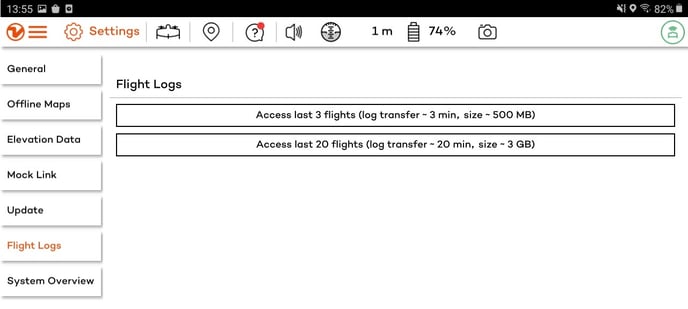
Wait while the logs are downloaded to the SD card. Note that this process will take several minutes to complete. If you are retrieving logs for the last 20 flights, the process might take up to 30 minutes.
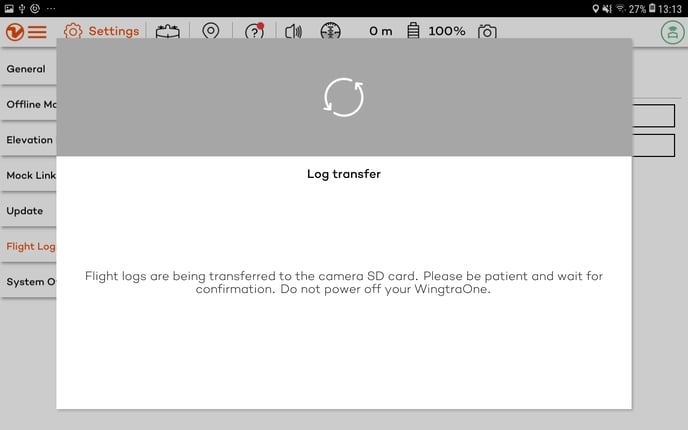
A success message indicates that the process is complete and the logs are saved to the SD card. Power off WingtraOne and get the SD card out of the adapter.
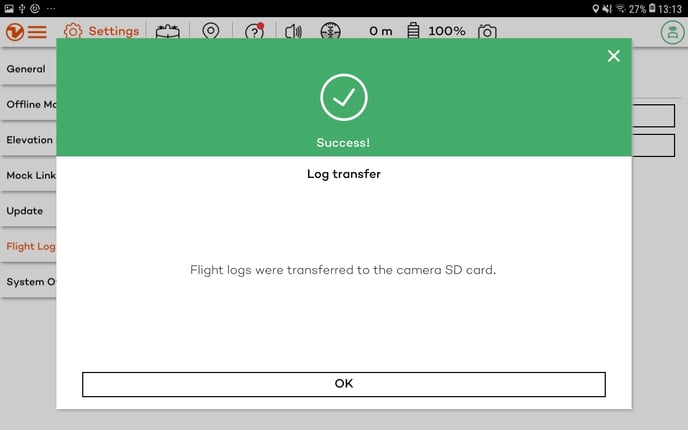
The transferred flight logs are stored on the SD card in the folder WingtraFlightLogs. The log file is named after DATETIME-FIRSTFLIGHT__DATETIME-LASTFLIGHT__Xflights.tar, where X is either 3 or 20 depending on the batch size that you chose.
Send flight logs to Wingtra support
On the tablet or computer submit a support request. Describe your issue in as much detail as possible. Upload the logs located under /WingtraFlightLogs on the SD card using the flight logs uploader, and submit the request.
The flight log uploader is powered by Google. If Google services are unavailable for you, or you do not have a Google account, you can send us the log files through your preferred service. Make sure to address support@wingtra.com when sending us logs through other channels than the official log file uploader. Common alternatives that work well are WeTransfer and Dropbox.
I do not have a WingtraOne SD card adapter. What can I do?
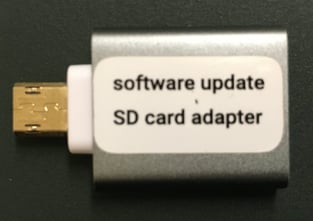
It is possible that you got an adapter with a different label. The following adapter for example is identical and can be used interchangeably:
If you have an RX1 camera, you can transfer the log file to the camera SD card instead. Insert the camera SD card into the RX1 camera, make sure that the camera is connected to the drone over the USB-C connector and follow the steps above.
WingtraPilot fails to transfer the flight logs. What can I do?
In case the flight logs failed to transfer, ensure that the SD card is inserted into the adapter and try again.
In case you still face issues, check the SD card—particularly check that it is not write-protected. If you keep facing difficulties, reformat the SD card. Follow the WingtraOne support guidance for reformatting your SD card, which can be found in the WingtraOne maintenance article.
In case you still face issues, and you own an RX1 camera, you can transfer the log file to the camera SD card instead. Insert the camera SD card into the RX1 camera, make sure that the camera is connected to the drone over the USB-C connector and follow the steps above. The camera is connected when the camera icon on the top right in WingtraPilot turns black.
I get a success message but do not have the data on my SD card. What can I do?
If you have inserted the RX1 camera with a camera SD card and the WingtraOne SD card adapter into the drone, the logs will be transferred to the camera SD card. Look on that SD card.
If you still do not find it, unplug the camera (USB-C connector), insert the WingtraOne SD card adapter with SD card and try again.
I can not power my drone anymore, how can I access the flight logs?
In case WingtraOne is damaged and there is a need for an investigation, you might be asked to access the electronics directly to retrieve logs. You can find step-by-step instructions on how to access the autopilot and on-board computer and retrieve the log files directly from their SD cards in the following articles: Access the flight logs from the Autopilot SD card and Access the flight logs from the OBC SD card.
Do not follow the above processes if you are not instructed by Wingtra Support to do so.
Next to the log file, I got a file called "recovered_data.tar". What is it?
The recovered_data zipped folder contains files that failed to get transferred to the camera SD card after the end of a flight. Usually, this is GNSS data, such as .sbf or .json files. In case you had any flights prompting an error message at the end, and you are missing data, see the instructions on how to reconstruct the project outputs folder structure.
Next to the log file, I got a file called "focus_cal.tar". What it is?
The focuscal.tar file is created in case a camera calibration routine of the QX1 camera has been performed actively by the user.